Plan & Deploy
The Plan & Deploy flow in the StackGen web app (StackGen Cloud) lets you configure project deployment settings, preview changes before they are applied, and review run output from the UI. This guide covers required project configuration, environment variables, secrets, runner configuration, Azure service principal support, repeated Plan runs, Deploy flow, and how to read CLI Runs and logs in a project.
What you will learn:
- What project configuration is required before Plan or Deploy
- How to create or reuse deployment secrets
- How to attach secrets in Runner Configuration
- How the Plan and Deploy right-side panel works (environment status, sync, logs, policy scan)
- How to run the StackGen Plan and Deploy flow from the UI
- How policy scan after plan works for governance resource-level policies
- Where to review the underlying OpenTofu or Terraform output in CLI Runs and logs
Requirements
- You must work inside a project. Plan & Deploy is not available in Personal Workspace. For the Actions menu on the canvas, see Topology canvas, section Actions.
- Set up Environment configuration for the project before you rely on Plan or Deploy.
- Make sure the required provider credentials are attached in Runner Configuration for the environment you want to use.
- Add any required environment variables before you run Plan or Deploy.
For project-level templates (blueprints for new appStacks), see Environment configurations.
For UI steps (Deploy > Plan > environment > run), see Plan, Deploy, and Destroy. That UI flow covers AWS, Azure, and GCP (and other clouds where UI Plan and Deploy are enabled). For OCI, use the CLI for plan and apply. See Cloud provider limitations.
You can start Plan from the appStack Deploy area, or from the topology Actions menu with Plan & Deploy, when you are in a project and the appStack is ready to plan.
Deployment Flow in a Project
Use this sequence when you want to prepare a project for deployment and run infrastructure actions from the StackGen UI:
- Configure Environment configuration for the project.
- Create or confirm the required secrets in Settings > Secret Store.
- Attach those secrets in Project Settings > Environment configuration > Runner Configuration > Provider Credentials.
- Add any required environment variables, including
TF_VAR_values if your stack needs them. - Open the appStack and run Plan for the target environment.
- Review the result in the appStack view, CLI Runs, and logs.
- Run Deploy for the same environment after the plan is approved and the topology has not changed.
Required Project Settings for Deployment
Before you run Plan or Deploy, review the project settings that control the deployment context:
| Setting area | Why it matters |
|---|---|
| Environment configuration | Defines the environments available to the project and the values StackGen uses during the run. |
| Env Variables | Supplies required input values, including TF_VAR_ values used by Terraform or OpenTofu variables. |
| Runner Configuration | Connects the project runner to the provider credentials needed to reach your cloud or related services. |
The environment you select in the Plan or Deploy flow should already have the required credentials and values attached.
Create Deployment Secrets
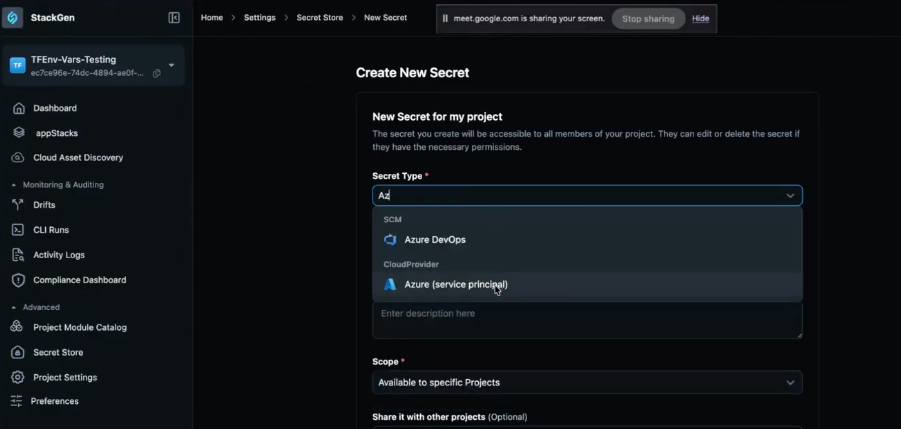
Secrets used for deployment are created in Settings > Secret Store. If the required secret already exists in the store and is shared with the project, you can reuse it instead of creating a new one.
Examples include provider credentials such as AWS Cloud Provider, GitHub, or CloudProvider: Azure (service principal). After the secret exists, attach it in Runner Configuration as described in the next section.
Provider credentials (Environment configuration)
You use Project Settings > Environment configuration > Runner Configuration > Provider Credentials to attach provider credentials to the runner so Plan can reach your cloud.
Examples include AWS, Azure, Git, or other types your org enables. Credential definitions are created in the org Secret Store; in this screen you attach them to the project and, when the table shows it, to each environment (for example dev and qa).
This table shows what project roles can add or remove provider credentials.
| Project role | Add or remove provider credentials |
|---|---|
| Admin | Yes |
| DevOps | Yes |
| Developer | Yes |
Your tenant-level role does not block these project actions.
Add Provider Credentials
To run Plan or Deploy, you must add provider credentials to the project. This section shows how to add them.
Click to view
- Open Project Settings in the left sidebar.
- Open the Environment configuration tab.
- Under Runner Configuration, open Provider Credentials (not Env Variables).
- Click + Attach Credentials. The Attach Credentials side panel opens. The text at the top explains that you select a secret from the store to attach to your environments.
- In Credential type, choose the provider (for example AWS Cloud Provider or GitHub). If the credential is not in the org store yet, use Add New Secret (next to the type) and create it, then return to this panel. Definitions live in the Secret Store.
- Optional: turn on Use same credentials for all existing environments if you want one pick to apply to every environment row.
- For each environment, use the Select secret for dropdown for that environment and choose a secret from the list. You must set at least one. If nothing is selected, the panel may show At least one environment secret is required.
- Click Attach Credentials in the panel footer. Use Cancel to close without saving. After a successful attach, the Provider credentials view shows your environments and the attached store entries.
Azure Service Principal Credentials
If you run Plan or Deploy for Azure from the UI, create an internal secret of type CloudProvider: Azure (service principal) in Settings > Secret Store, then attach that credential in Project Settings > Environment configuration.
The side panel in StackGen lists the Azure values you need to collect, such as Client ID and Tenant ID, while you configure the secret.
Plan and Deploy panel
The core Plan and Deploy actions are the same as before. The layout and interaction flow are redesigned so provisioning is clearer.
Previously, Plan and Deploy ran from a large, centered pop-up. Now, those actions open in an integrated, slide-out right-side panel that keeps you closer to the appStack while you provision.
Key Features
- Environment Status Indicators - A status label appears next to each environment in the drop-down. Incomplete credentials or remote state show missing action required. Fully configured environments show ready.
- Environment Sync - Use the refresh / sync button next to the environment section to pull newly created environments from project settings into the current appStack.
- Runtime Log Streaming - The execution view streams standard runtime logs alongside detailed Tofu logs as the run executes.
- Policy Scan Toggle - Run an automated policy scan against the plan. If a scan fails, the panel lists which policies passed or failed, with actions to rerun the scan or open the compliance dashboard. See Policy scan after Plan.
- CLI Run Navigation - A runtime history action opens the appStack CLI tab filtered to that run's execution ID.
- Destroy Workflow - Return to the plan phase, turn on the destroy toggle, run a plan for the destruction parameters, then confirm deployment. See Confirm apply or destroy.
See v2026.6.12.
Run Plan
Plan is a read-only preview. It does not apply changes. If a role is limited on Apply (deploy), Plan can still run.
Who can do what
| Project role | Tenant role | Outcome |
|---|---|---|
| Admin | Admin | Trigger Plan, open CLI Runs, see status (for example completed), and open Logs (init, plan, plan_stdout). |
| DevOps | Developer | Trigger Plan and see status and results in line with the Admin case for that project. |
| Developer | Developer | Run Plan to validate the topology, including work with locals, variables, and providers. |
Follow the same flow as Plan, Deploy, and Destroy: open the appStack, choose Deploy, then Plan, select an environment, and run. On success, open the plan result and the init / plan logs. You can also open the run from CLI Runs.
How StackGen runs OpenTofu in the UI
The StackGen UI does not expose a generic shell for entering raw tofu commands. Instead, the UI triggers the underlying Terraform or OpenTofu workflow for the selected environment through the product's Plan and Deploy actions.
When you review plan_stdout and related log output, you are reading the same kind of execution output you would expect from a local terraform plan or tofu plan workflow. For Deploy runs, use the run logs in CLI Runs to inspect the execution output that StackGen captured for the apply step.
Plan Behavior
Click to view
Refresh while a Plan is running
If you refresh the browser, StackGen keeps the Plan you already started. Status (for example Running or Deploying) can stay visible, including in the top right, so you do not lose the flow.
Same appStack, or more than one environment
You can run Plan again on the same appStack, for example after you change the topology (sometimes described as a redeploy of the plan step). You can also run Plan for different environments in the same appStack (for example dev and qa), using the environment option in the Plan flow.
The product may streamline repeated runs and multi-environment plans in a future update.
Policy scan after Plan
After a successful Plan, you can run a policy scan against the plan output. This is how resource-level Security Policies enforced through Governance Configurations show pass or failure warnings.
- Turn on Run policy scan after plan before you run Plan, so the scan starts when the plan finishes.
- Or open the Policy Scan tab after plan and use Re-run scan.
Resource-level policies do not warn on the Topology canvas when you edit and save a module. Module-level policies can still warn on save. For timing, examples, and how this differs from module-level policies, see When resource-level policies run.
Topology changes reset previous plan state
If you change the topology after a successful Plan, StackGen clears that stale success state and requires a new Plan before Deploy is allowed again. This prevents you from deploying against a canvas that no longer matches the plan result.
Plan button without a runner
The Plan button stays disabled when no runner is configured for the appStack. Attach provider credentials in Runner Configuration before you start Plan.
Actionable runner and secret errors
When Plan, Deploy, or reading environment Terraform outputs fails because of runner configuration or runner secrets, StackGen returns a structured error to the client instead of failing silently with a generic 500.
Click to view
Use the message and error code in the UI (or API response) to fix the setup. Common cases include:
| Situation | What you should check |
|---|---|
| Runner configuration not found for the environment | Confirm the environment name and that Runner Configuration exists for that environment in Project Settings. |
| Authentication or permission errors resolving runner secrets | Confirm you are signed in and allowed to read the secret, and that the secret exists in Secret Store. |
| Invalid runner secret format | Confirm the secret payload matches the provider (for example AWS or Azure credentials JSON). |
| Unsupported secret provider | Use a supported provider for runner secrets. |
| Secret or configuration service unavailable or timed out | Retry later, or check with your admin if the issue persists. |
If the UI shows a request ID (or trace ID) with the error, copy it when you contact support@stackgen.com. See also the request ID note on the Topology canvas.
Modified vs replaced resources
During plan and deploy, the UI and CLI Runs views distinguish resources that are modified from those to be replaced. A dedicated to be replaced column clarifies when StackGen will recreate a resource instead of updating it in place.
Plan Inputs
Click to view
Expressions in the canvas
When the stack uses locals, variables, and providers, you can enter Terraform and OpenTofu expression syntax in the resource configuration fields, for example ${var.application_name}. Use the IaC tab to see provider.tf and variables.tf and to confirm names.
Inbuilt StackGen modules
Inbuilt resources often need values such as region. If the log shows Enter a value for something like var.region, or init / plan fails on the provider, add the value as a project environment variable using the TF_VAR_ pattern from the OpenTofu docs (Terraform uses the same idea).
Workflow for TF_VAR_
- In the appStack, open the IaC tab. Read provider.tf and variables.tf and note required names (for example
region). - Go to Project Settings > Environment Configuration > Env Variables.
- Click + Add New Variable.
- Name:
TF_VAR_plus the HCL name with matching spelling and case (for exampleTF_VAR_regionfor a variableregionin HCL). Value: for exampleap-south-1or the region you use. - Go back to the appStack and run Plan again.
Custom modules
If you use a custom module, you must have a provider (and often provider.tf) in the appStack Terraform blocks. That is not added by default; without it, deploy and related flows can fail. See your module and IaC in StackGen as needed.
Limitation: private Git modules
You cannot complete Plan for a module that is only available from a private repository that the runner cannot reach. The limitation is known and is on the roadmap.
Run Deploy
After a successful Plan, use the same appStack Deploy flow, or the topology Actions menu with Plan & Deploy, to start the deployment for the selected environment.
Confirm apply or destroy
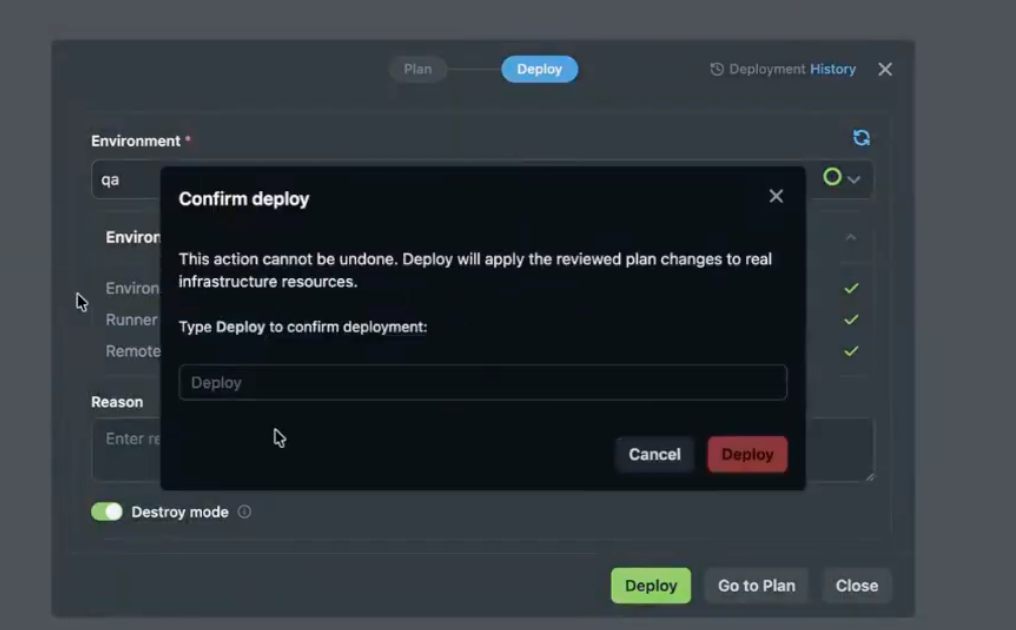
Before apply or destroy runs, StackGen shows a confirmation dialog. Type deploy in the text field to enable the final action button. This step helps prevent accidental production changes or teardowns.
Keep these points in mind:
- Run Deploy only after you have reviewed the plan result for the same environment.
- If the topology changes after the plan succeeds, StackGen requires a fresh Plan before Deploy is allowed again.
- Use the same project environment that has the required credentials and variables attached.
Cancel a stuck Plan or Deploy run
If a Plan or Deploy run stays Running in the UI after the job has finished or stopped updating, use Force Cancel on that run. That clears the stuck state so you can start again. Use the Plan & Deploy panel or CLI Runs.
Read CLI Runs & Log Viewer
After you trigger Plan or Deploy, you can review it in two layers: a summary in CLI Runs, and the full tool output in logs.
Click to view
CLI Runs (list and metadata) In the project,
- Open CLI Runs in the left sidebar. You get a list of runs.
- Open the row for your Plan or Apply run. You should see status (for example completed or running).
- The run detail can also show metadata, such as how many resources were added, changed, or removed, when the product shows that view.
Logs (init, plan, apply, stderr) On that run, open View Logs. The log viewer uses tabs for each stream.
- Use plan_stdout to read the full Terraform or OpenTofu plan. That is the same information you would see at the end of a local
terraform planortofu plan: what would be created, changed, or destroyed. - If init failed, open the init (or init_stdout) tab.
- If plan failed or printed errors, check plan_stderr or the stderr tab.
- For Apply runs, use the available apply log output in the run viewer to confirm what StackGen executed during the deployment step.
There is a known issue where Apply logs and Apply UI stats can be hard to read or incomplete in some cases. If you see unexpected Apply output, confirm the result in your cloud environment and review the current known issue: Incoherent Logs and Incorrect UI Stats for Apply.
From the appStack You do not have to start from CLI Runs.
When Plan finishes on the appStack, open init and plan logs from the success area. See Plan, Deploy, and Destroy.
Next Steps
- IaC in StackGen: full Plan UI steps, screenshot, and link from Plan success to logs.
- Environment configurations: project environment templates.
- StackGen Settings: create and manage secrets used by deployment flows.
- CLI Runs: the CLI Runs list and how runs appear in the app.