Topology
Topology Canvas
Overview
The Topology Canvas in StackGen is a visual design tool for creating, managing, and validating cloud infrastructure. You can add cloud resources, configure Terraform, connect resources, and export Infrastructure as Code (IaC). The canvas helps you plan and validate infrastructure before deployment.
When something fails, StackGen can show an error popup that includes a request ID (also described as an error ID tied to the failing request). Support may refer to the same value as a trace ID. Use the copy control to capture that ID and send it to StackGen so engineering can match the event in observability and backend logs without asking you to export the browser Network tab.
On a new or empty appStack, the center of the canvas shows Get started guidance plus cards for Add Resource, Terraform Config, Create Module, and Resource Packs. You still drive most work from Add New, the tabs at the top of the canvas (Topology and IaC), and the header actions.
The list below follows the numbered callouts on the screenshot (1 through 14) so you can match the UI to this guide.
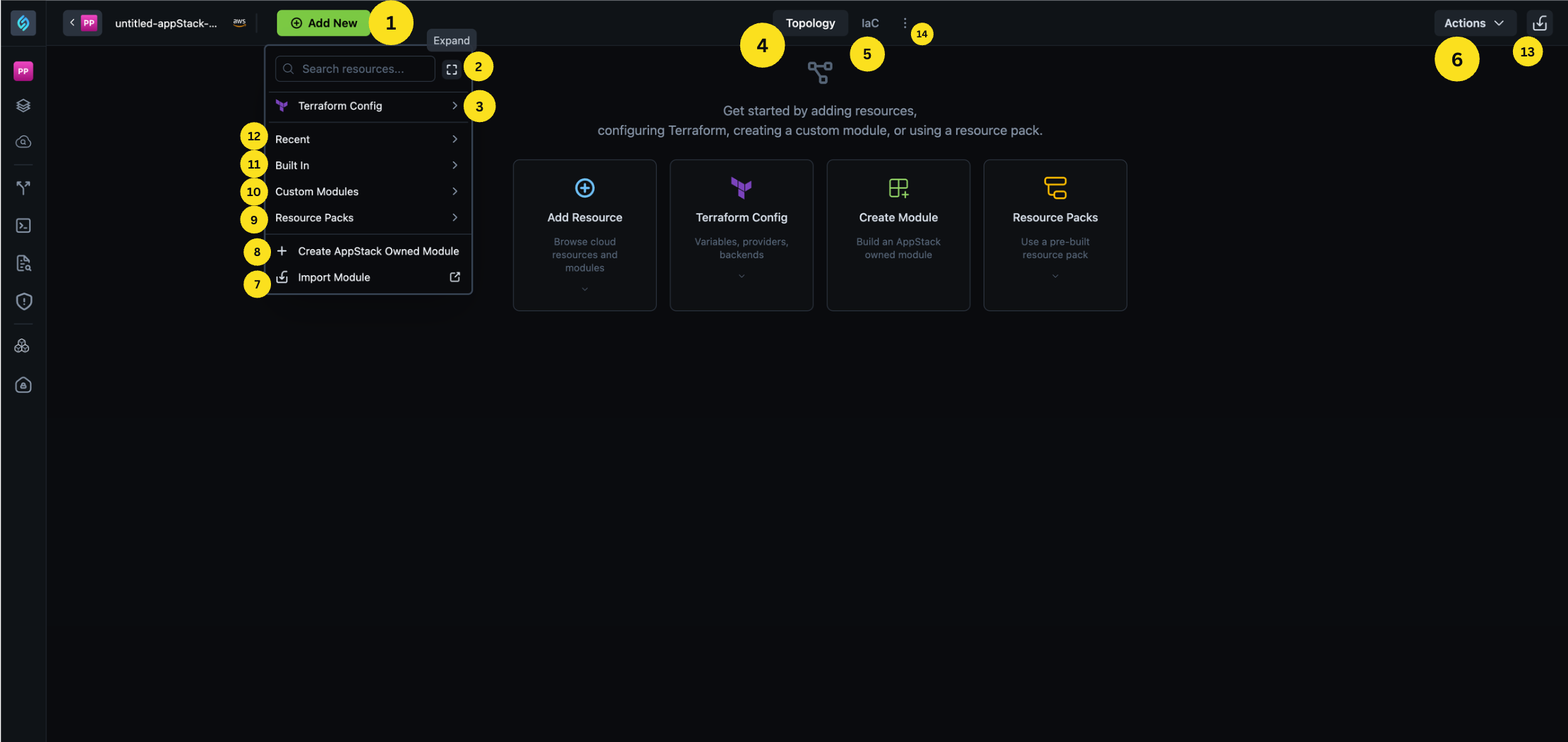
Numbers 1 through 14 refer to the labels on the reference image above. Wording in the product may vary slightly by release.
1. Add New
Opens the side panel where you browse cloud resources, Built In and Custom Modules, Resource Packs, and Terraform Config. The Add new entry is grouped as a dropdown in the header rather than a single fixed Add control. For the full add experience, see Adding resources.
2. Expand
Sits next to the search field in the Add New panel. Click it when you want to expand or collapse the panel so you have more room for the resource list (tooltip Expand).
3. Terraform Config
The Terraform Config entry at the top of the Add New panel (Terraform logo) takes you to variables, providers, backends, outputs, and related Terraform settings for the appStack. The panel uses a side menu to move between variables, locals, outputs, and related sections. Refer to appStack Outputs, Environment profiles, and Backend configuration.
When you work with variables across multiple environments, the environments table keeps headers pinned while you scroll so column labels stay visible. When you add a new environment, its header follows the same pinned-header behavior.
The Provider bindings section appears only after your appStack includes a supported Terraform blocks provider.
Resource-level Identifier, Provider bindings, count, and for_each live on the Advanced tab in the Configure Resource panel. See Configure a Resource.
You can also rename a variable from the variable editor. If you change a variable name, update any references to that variable manually in the appStack.
4. Topology
The Topology tab shows the diagram: resources on the canvas and how they connect. This is the default view while you design the appStack.
5. IaC
The IaC tab shows the Infrastructure as Code StackGen generates for the appStack. To learn more, refer to IaC generation.
6. Actions
The Actions dropdown on the top right opens stack-level workflows. In the menu you will typically see:
- Plan & Deploy (cloud with upload icon): run plan and deploy for this appStack.
- Push to git (branch icon): push generated IaC to your Git remote. Refer to Git configurations to set up the repository and credentials first.
Which rows are enabled depends on context. If the stack has no resources yet, the product may show a message such as Please add a new resource to enable push to git. When you work in Personal Workspace, Plan & Deploy can be unavailable and a tooltip may explain that it is Not supported in personal workspace. Switch to a project.
7. Import Module
Import Module lives in the Add New panel and starts the flow to bring a module into the appStack. For broader import scenarios, refer to Importing infrastructure.
8. Create appStack Owned Module
Create appStack Owned Module (plus icon) starts building an appStack-owned module from the current topology. To edit an existing appStack-owned module and sync updates to every placed instance on the canvas, see Edit and Sync appStack-Owned Modules.
9. Resource Packs
Under Resource Packs you pick pre-built packs to add to the topology, similar to other resource browsers in the panel.
10. Custom Modules
Custom Modules lists modules your organization maintains so you can place them on the canvas.
11. Built In
Built In lists built-in resources from StackGen for the supported cloud and service you are using.
12. Recent
Recent surfaces resources you added or opened lately so you can add them again without searching the full catalog.
13. Export
The export control on the far right of the header lets you download or export IaC from the topology. Refer to Exporting IaC.
14. Three-dot (⋮) menu
Click the three-dot (⋮) control next to IaC to open Resources, Policies, and Cost Estimate. To use the tabular resources view and that workflow, refer to Resources tab.
Command palette on Topology
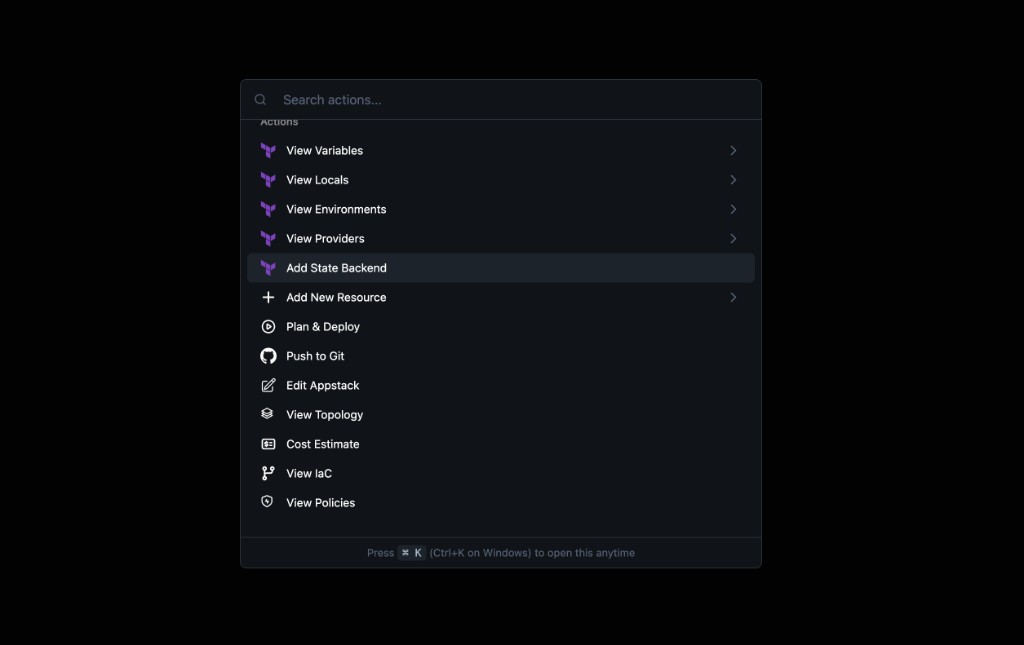
On Topology, press Command+K on macOS or Ctrl+K on Windows to open the command palette so you can search and jump to actions from the keyboard. The footer in the palette reminds you of the shortcut.
You can jump to actions such as View IaC and variables. An add path can open the add variables panel directly. The menu can also list variables already on the app stack and other shortcuts shown in the palette.
Use Arrow up and Arrow down to move the selection. Press Enter to open a sub-menu when the item supports one. Press Backspace or Delete to go back to the previous level.
StackGen can also show a shortcut hint on the canvas the first time you use the page. After you dismiss the hint, or open the command palette successfully, it stays hidden.
Additional reading
- appStack Agent: build topology, configure Terraform, and run plan and deploy from natural-language prompts.
- Resource Connections between modules and resources.
- Policy enforcement.
- Actions required and Policy violations.