AppStack Outputs
AppStack Outputs
appStack Outputs let you expose important values from your deployed stack (for example a Lambda URL, CloudFront domain, bucket ARN, or resource ID) so you can read them after apply without digging through full Terraform or OpenTofu output.
You define outputs in Terraform Configuration on the Topology canvas, the same place you manage variables. StackGen writes them to outputs.tf. After a successful apply, you see the resolved values in a simple Outputs table in the UI, or as an Outputs block in the CLI when you use verbose provision.
What you will learn:
- Why define outputs for developer-friendly post-apply values
- How to create an output and verify
outputs.tf - How to view and copy values after apply in the UI
- How to print outputs from the CLI
For where outputs.tf fits in the export layout, see IaC in StackGen. For variables, locals, and other Terraform blocks on the canvas, see Topology canvas, Terraform Config.
Why define appStack outputs
When you design infrastructure on the Topology canvas, StackGen creates resources from your modules. Many useful values appear only after apply. They are not shown on the canvas by default.
If you do not define outputs, you often have to open the cloud console or parse raw apply logs to find a URL or ID. With outputs defined, StackGen shows those values in a clear name-and-value list after apply.
Typical values to expose:
- A Lambda function URL or invoke URL
- A CloudFront distribution domain name
- A storage bucket name or ARN
- A database endpoint or ID
When you configure outputs, you can:
- Give developers quick access to post-deploy values inside StackGen
- Avoid searching cloud consoles or raw Terraform output for day-to-day URLs and IDs
- Export specific values for runbooks, automation, or other stacks (see also sharing infrastructure outputs)
You still choose which attributes to expose. StackGen does not invent outputs for every module field. Define the outputs your team needs, then apply.
Create an appStack output
Click to view
Follow these steps to define a new output on the Topology canvas.
Open the Outputs configuration
- In the top navigation bar on the canvas, click Add New.
- Hover over Terraform Config in the dropdown menu.
- Click Outputs in the secondary menu.
StackGen opens the Terraform Configuration modal on the Outputs tab.
Configure the output name
- Click + Create Output in the top right of the modal.
- In Output Name, enter an identifier (for example
cloudfront_domainorlambda_url).
The field accepts alphanumeric characters, underscores, and hyphens. A real-time HCL preview panel on the right updates as you type.
Map the value expression
- Click inside Value expression to open autocomplete suggestions.
- Select
module.from the suggested types. - Select your resource instance from the list (for example your CloudFront, Lambda, or Athena module instance; the UI may show an internal module string such as
stackpen_f1263e32...). - Select the attribute to output (for example a domain name, function URL, ARN, or ID).
- Click Create Output at the bottom right of the modal to save.
Verify outputs in the IaC view
Click to view
After you configure outputs in the UI, confirm StackGen generated the expected Terraform code.
- Close the configuration modal. At the top center of the canvas, switch from Topology to IaC.
- In the left file explorer, open the
terraformdirectory and clickoutputs.tf. - Review the auto-generated HCL. Each output should map to the module attributes you selected:
output "cloudfront_domain" {
  value = module.stackpen_f1263e32-d7a3-4d6c-b880-cdf2644a9b06.domain_name
}

output "lambda_url" {
  value = module.stackpen_a1b2c3d4-e5f6-7890-abcd-ef1234567890.function_url
}
Module instance strings in generated code match your appStack when you save the output. If you rename or replace a module on the canvas, reopen Outputs and confirm expressions still point at the correct instance.
View outputs after apply (UI)
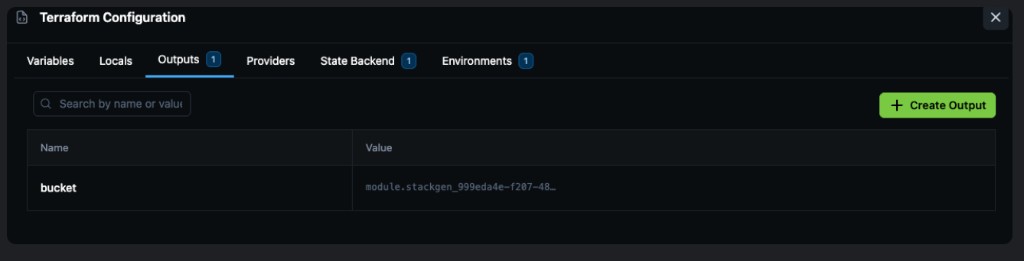
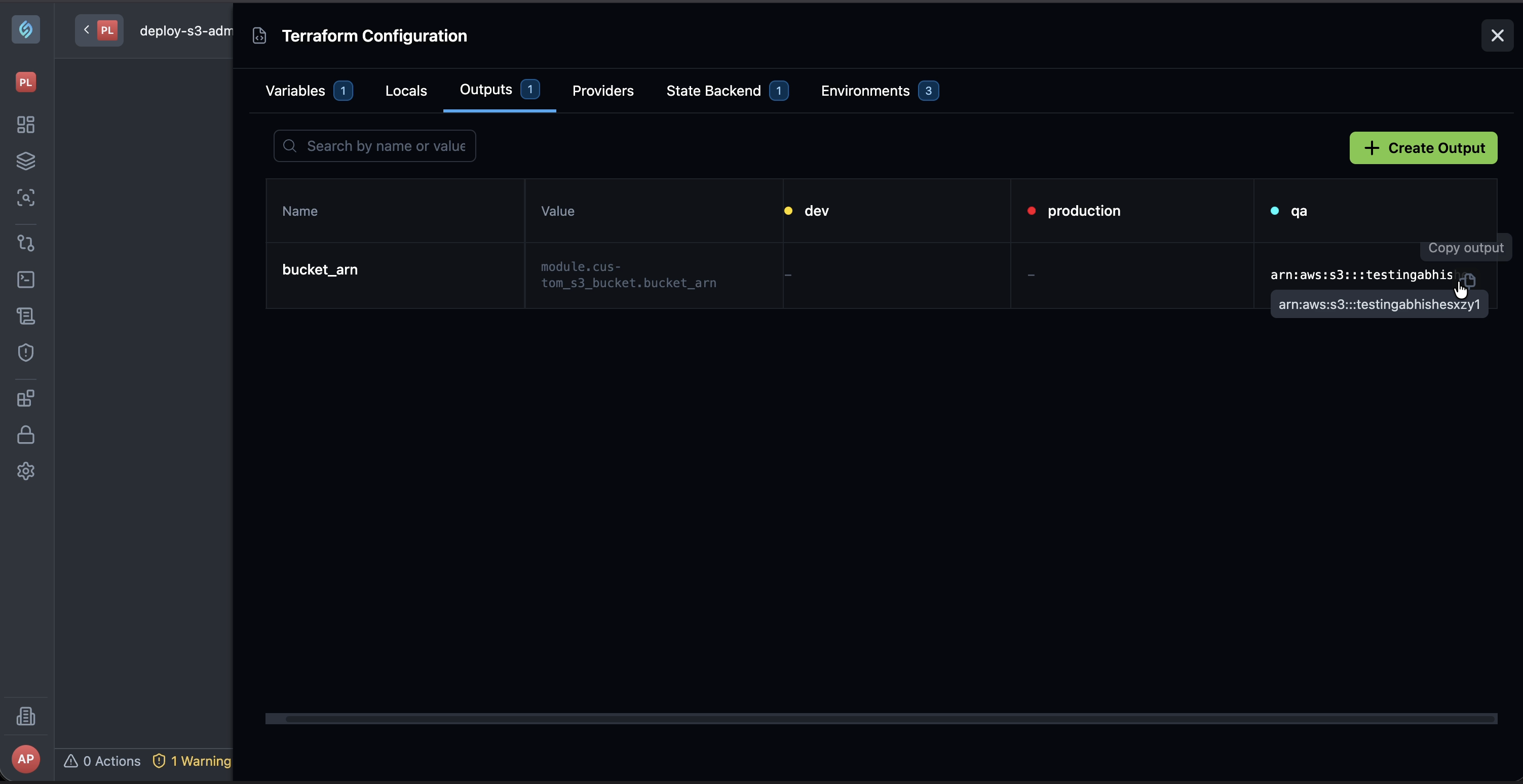
After a successful apply (from Plan & Deploy or from the CLI), StackGen reads output values from the state backend and shows them in the Outputs table on the Terraform Configuration panel.
- Open Add New > Terraform Config > Outputs (or reopen the Outputs tab from Terraform Configuration).
- Review each output name and its resolved value (for example a CloudFront domain or Lambda URL).
- Use Copy when you need the full value on the clipboard (useful for long URLs).
You can add supported output types and delete outputs from the same panel. Renaming an existing output in the UI is not supported yet. Create a new output, or edit the name in the IaC view, if you need a different identifier.
View outputs after apply (CLI)
When you apply with the CLI and want outputs printed in the terminal:
stackgen provision --appstack <appstack-id-or-name> --apply -v
- Use
--applyso StackGen runs apply (not plan only). - Use
-v(verbose) so subprocess stdout, including the Outputs block, is printed. Without-v, the CLI does not print that Terraform or OpenTofu output.
Example verbose stdout after apply:
Apply complete! Resources: 1 added, 0 changed, 0 destroyed.

Outputs:

cloudfront_domain = "d111111abcdef8.cloudfront.net"
lambda_url = "https://xxxxxxxxxx.lambda-url.us-east-1.on.aws/"
Output names and values match what you configured on the appStack. The same values appear in the UI Outputs table after apply.
Read more in Provision infrastructure with the CLI.
Best practices
- Define outputs for values people need after apply (URLs, endpoints, IDs), not for settings you already expose as variables.
- Use clear output names (for example
lambda_url,cdn_domain) that match how your team talks about the stack. - After you add or change resources on the canvas, recheck
outputs.tfin the IaC view before you export or deploy. - Use Plan & Deploy to confirm the stack applies cleanly before you rely on output values in downstream work.
Next steps
- Plan & Deploy: run plan and apply from the UI.
- Provision infrastructure with the CLI:
stackgen provision --apply -vand printed outputs. - Sharing infrastructure outputs: reuse values across projects.
- Terraform Outputs Rendering (v2026.5.5) and One-Click Copy (v2026.5.8): related release notes.