Add New Resource
Add New Resource
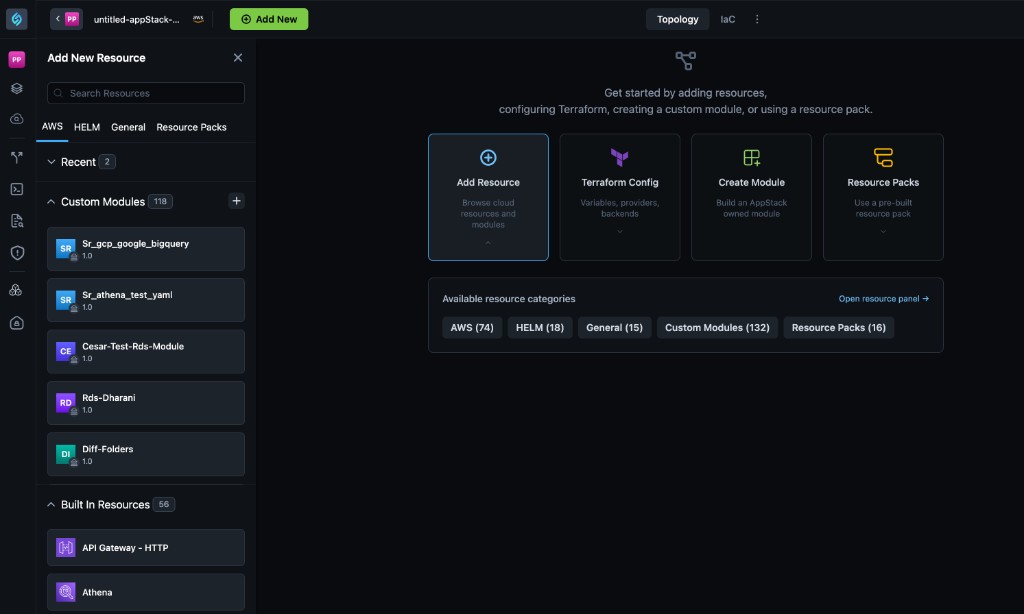
The Add New Resource panel on the Topology canvas is where you browse cloud resources, custom modules, and packs, then place them on the canvas. The panel includes a search field, category tabs (such as AWS, HELM, General, and Resource Packs), and expandable sections like Recent, Custom Modules, and Built In resources.
Click Add New in the topology header to open this side panel. The main canvas may also show Get started shortcuts, including Add Resource, Terraform Config, Create Module, and Resource Packs, so you can open the same kinds of work without hunting through menus.
For Terraform Config (variables, providers, backends, outputs, and related settings), use that entry from the add experience or the Get started card. Refer to appStack Outputs, Environment configurations, and Backend configuration.
To run plan and deploy from the canvas, open Actions in the topology header and choose Plan & Deploy when it is available for your workspace. You must set up environment configuration before running Plan. For detail, refer to Environment configurations and Plan, Deploy, and Destroy.
Add Resources to Your Topology
Follow these steps to add resources to your topology canvas:
- Click Add New in the topology header to open the Add New Resource panel.
- Choose a category tab if needed (AWS, HELM, General, or Resource Packs), use Search Resources, and expand Recent, Custom Modules, or Built In until you find what you need.
- Place the resource on the canvas. You add a resource primarily by clicking it to place it on the canvas; you can still drag a resource onto the canvas where the product supports it. Use the expand control in the panel when you need the older pop-up style layout.
- Configure the resource in the side panel that opens.
- Your resource is ready to be connected with other resources in your topology.
For resources such as Lambda and EC2, StackGen places the selected resource on the canvas as an individual node. Supporting resources are not added automatically.
Types of Resources
StackGen supports adding the following resource types to your topology canvas:
Custom Modules
You typically define Terraform (.tf) files to create reusable modules via the Module Editor.
You can:
- Create custom modules within the appStack and edit them in the Module editor.
- Edit the module directly within the editor.
- Publish your modules. But you will need to reference and reuse them within the appStack post-publish.
- View the associated Terraform code that is displayed alongside the module.
Check out the documentation on Module Editor and Module Catalog.
Cloud Provider
Provides a comprehensive catalog of resources from the Cloud Provider you have selected at the time of appStack creation.
Supported Cloud Providers: AWS, Azure, GCP, and Civo Cloud
Features
- Add resources by clicking to place them on the canvas (and drag where the product supports it) for compute, networking, storage, and IAM resources.
- Displays resource-specific icons and details for easy identification.
- Supports multi-cloud architecture design within a single canvas.
Check the full list of supported resources at Supported Technologies.
Helm
Facilitates the integration of Helm-based Kubernetes resources directly into the Topology Canvas.
Features
- Import Helm charts from Git-based repositories.
- Edit workload resource bundles within the canvas.
- Configure Kubernetes components such as:
- Ingress
- Horizontal Pod Autoscaler (HPA)
- Service Accounts (inside or outside the resource bundle)
Use Case: Easily manage Kubernetes deployments alongside cloud infrastructure for unified visibility.
General
Includes custom modules and generic infrastructure components that are not tied to a specific cloud provider.
Features
- Define abstract resource types to model non-cloud-specific components.
- Map abstract resources to specific cloud services during later configuration stages.
- Useful for hybrid and multi-cloud environments where certain resources may exist outside of traditional cloud ecosystems.
Resource Pack
Enables users to create and manage predefined infrastructure templates for consistent, reusable deployments.
Features
- Import, customize, and deploy modular resource configurations.
- Simplify complex deployments by grouping commonly used resources into a single pack.
- Supports versioning for tracking changes across different deployments.
Example: A Resource Pack for a standard web application stack might include:
- Load Balancer
- Application Servers
- Database
- Required IAM Roles

Starred and Recent Resources in a project are shared among the project members. They are private only in Personal Workspaces.
Recent and Starred Resources
The Add New Resource panel lets you get back to resources you use often. Recent appears as an expandable section in the panel; Starred (or equivalent favorites) may appear as its own section or tab depending on your product version.
Recent Resources
Recent lists resources you have used lately in your topologies so you can reuse common components quickly.
Starred Resources
You can mark resources as favorites with the star icon next to a resource. Those starred resources show up in Starred for quick access when your workspace supports it.
Resource Sharing Behavior
When working with Recent and Starred resources, it's important to understand how they are shared:
In Personal Workspaces
- Recent and Starred resources are private to you.
- Only you can see the resources you've marked as favorites or recently used.
In Project Workspaces
- Recent and Starred resources are shared across the entire project.
- When you star a module, it becomes accessible to all project members in their Starred tab.
- If another project member removes a star from a resource, it will be removed from the Starred tab for all project members.
- Recent resources are also visible to all project members, even if they personally didn't use that resource.
This sharing behavior promotes collaboration and consistency within projects but means that your starred resources may change if modified by other project members.
Custom Module Permission Scopes
When working with custom modules, you'll see different permission scopes that determine who can access them:
- Project Scope: The custom module is shared with your project.
- Enterprise Scope: The custom module is shared enterprise-wide.
- Personal/Workspace Scope: The custom module is created in your personal workspace and will be available only for your personal use.