Configure a Resource
Configure a Resource
The Configure Resource panel in the Topology Canvas provides a centralized interface for defining and modifying resource-specific settings. This panel allows users to configure cloud resources in real time, ensuring that each resource is set up correctly before deployment.
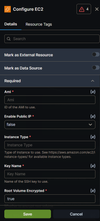
The Configure Resource panel enables you to:
- Modify resource properties such as instance type, storage capacity, security policies, and networking configurations.
- View resource-specific configuration options based on the selected cloud provider.
- Ensure real-time validation of settings to prevent configuration errors.
- Set values for sensitive module variables: for abstract and custom modules, variables declared with
sensitive: trueshow an input field in the side attribute panel so you can enter values in the UI.
Terraform Expressions
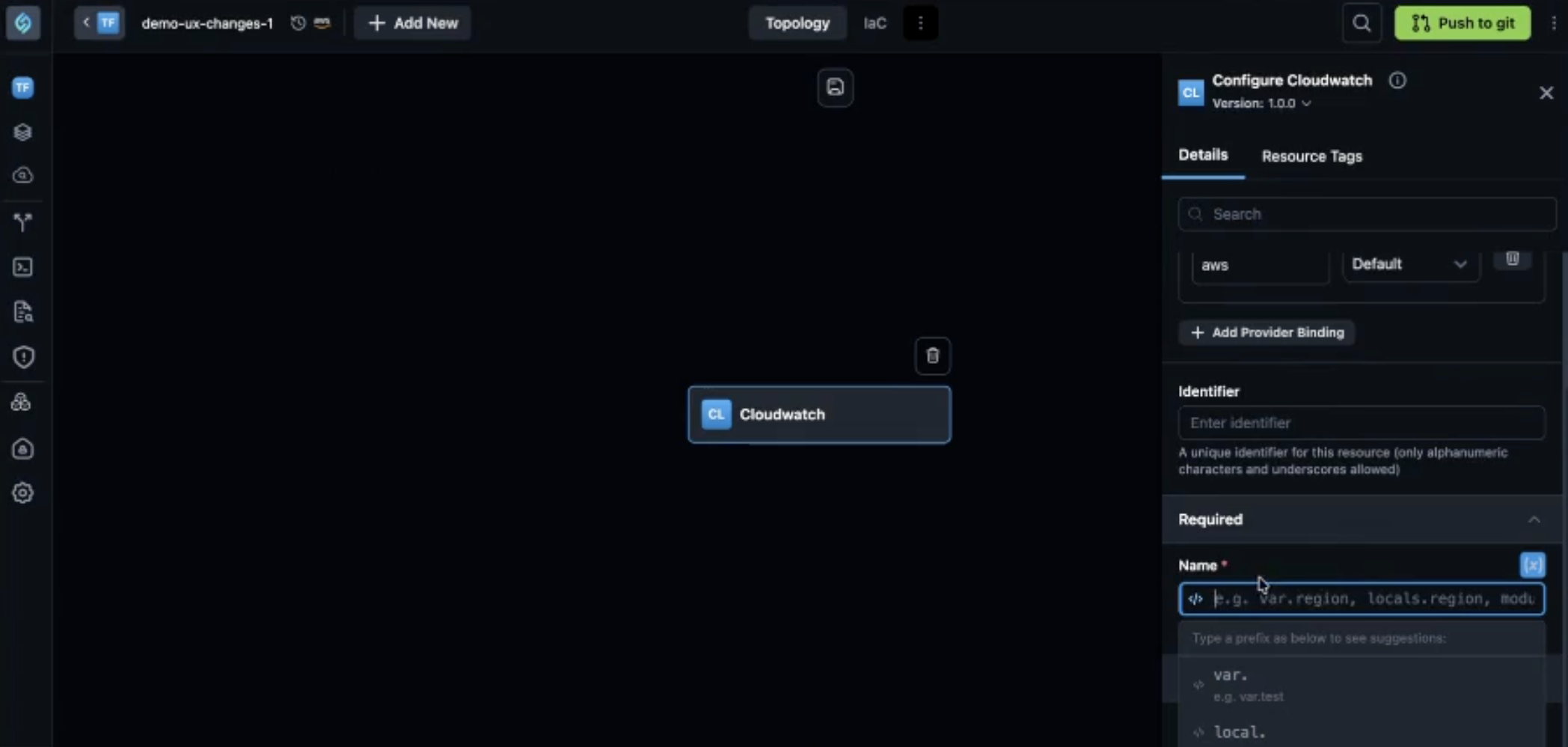
You can use Terraform expressions in resource attribute fields. Click the expression toggle icon (code symbol) next to a resource attribute field to enter Terraform expression mode. When expression mode is on, the input field switches to a code mode editor with distinct text styling, a dropdown with suggestions appears as you type (for example, var., local.), and the text color changes to indicate you are in code mode.
The suggestions dropdown is clickable: you can pick an entry to insert it instead of typing the full reference every time.
If you type something first and then click a suggestion, the editor may concatenate text in a way you did not intend. Choosing a suggestion cleanly (without mixing typed text and a click in that sequence) behaves more predictably. A follow-up fix for that concatenation behavior was anticipated beyond the March 2026 scope.
StackGen supports complex Terraform expressions such as concat, merge, and jsonencode in resource attribute fields. For example, when configuring an IAM role's policy as a Terraform expression, you can use jsonencode to wrap the JSON policy. If Terraform supports the expression, StackGen supports it.
Advanced settings
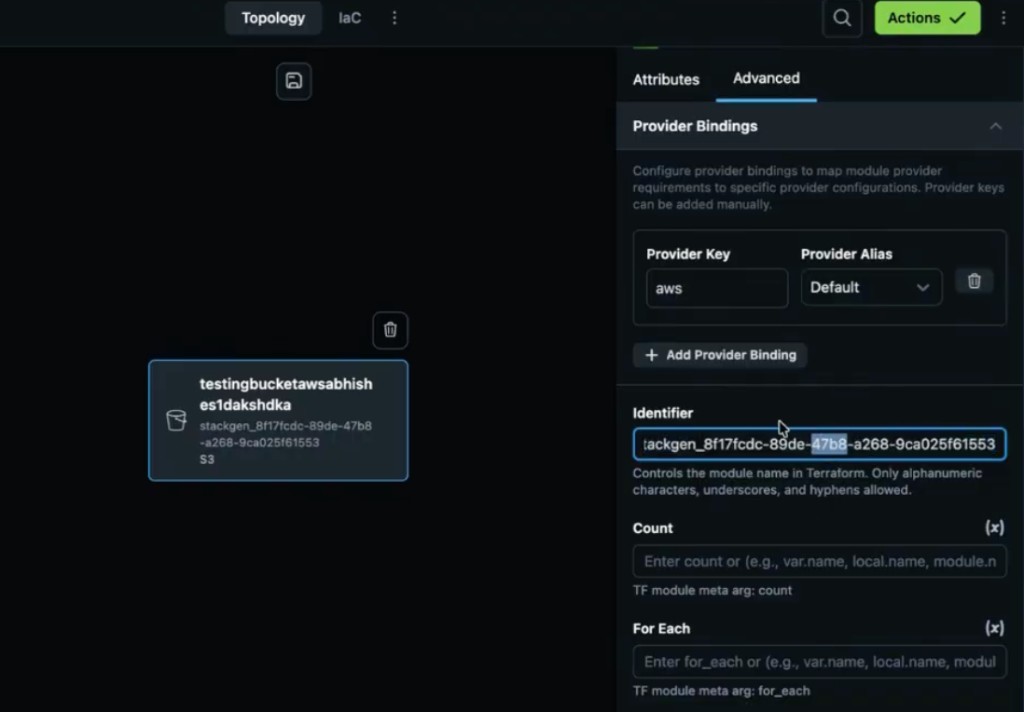
The Configure Resource panel includes an Advanced tab for technical fields that used to sit on the main attribute form. Use it for Identifier, Provider bindings, and Terraform meta-arguments.
Key controls
- Identifier - Set the module or resource identifier used in generated IaC. See Terraform Identifier Constraints.
- Provider bindings - Wire provider configuration for the resource.
- Count - Create multiple identical instances with a numeric value or Terraform expression (for example, create three S3 buckets with count
3). - For_each - Iterate over a map or set of strings to create one resource per entry.
You cannot set count and for_each on the same resource. Plan fails with a clear error if both are present.
Terraform Identifier Constraints
In StackGen, the Identifier field defines the local HCL block name used to declare and reference resources, modules, variables, and data sources in generated Terraform code.
To ensure valid Terraform code generation and prevent downstream plan or apply errors, identifiers are validated in real time against strict syntax requirements.
Overview
When you add or configure a resource or module on the Topology canvas, open the Advanced tab in the Configure Resource panel. The Identifier field controls the local name in the underlying HCL configuration (for example, resource "aws_internet_gateway" "<identifier>").
Syntax rules
An identifier must meet all of the following requirements:
- Starting character: Must begin with an ASCII letter (
a-z,A-Z) or an underscore (_). - Allowed characters: May contain only letters, numbers (
0-9), underscores (_), and hyphens (-). - Disallowed characters: Must not contain spaces, leading digits, or special characters (such as
$,#,@,%,!).
Validation behavior
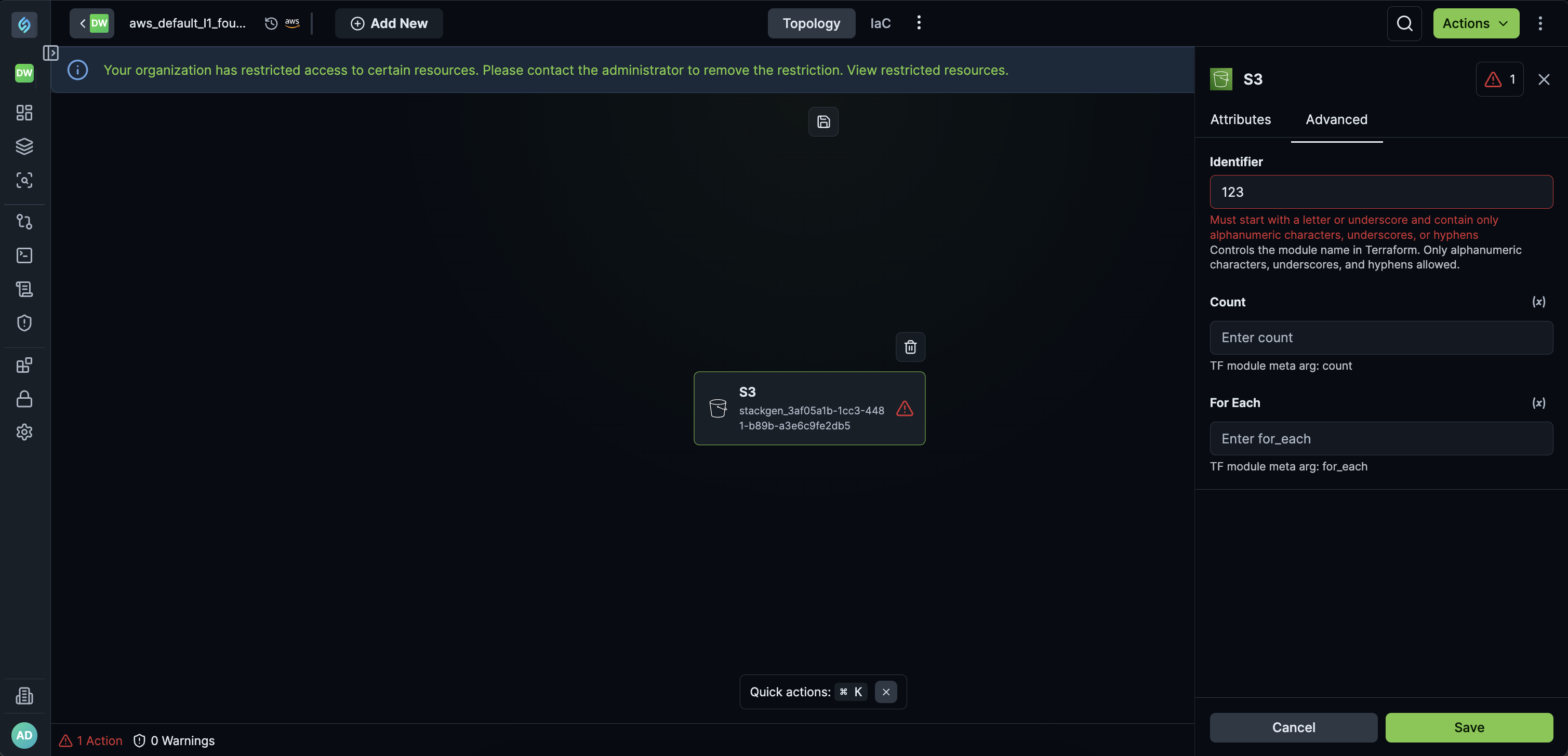
StackGen validates the identifier in real time. If you enter an invalid value:
- A warning appears directly below the Identifier input field.
- The Save button stays disabled until you provide a valid identifier.
Click to view
UI validation error message:
Must start with a letter or underscore and contain only alphanumeric characters, underscores, or hyphens. Controls the module name in Terraform. Only alphanumeric characters, underscores, and hyphens allowed.
Identifier examples
| Identifier input | Status | Reason / issue | Corrected alternative |
|---|---|---|---|
test_valid_name_1234 | Valid | Starts with a letter and uses allowed characters (_, numbers). | N/A |
_my_resource | Valid | Starts with an underscore. | N/A |
aws-vpc-main | Valid | Uses allowed hyphens. | N/A |
Internet Gateway | Invalid | Contains spaces. | internet_gateway |
123_gateway | Invalid | Begins with a number. | gateway_123 |
##### | Invalid | Contains special characters. | my_resource |
test_$$$ | Invalid | Contains special characters ($). | test_resource |
Style recommendations
Hyphens (-) are syntactically allowed. Prefer snake_case (lowercase letters and underscores) to align with common HashiCorp Terraform naming conventions.
Configure Parameters
Each resource type has unique configuration options based on its cloud provider. Below are common configuration parameters:
Let's understand them in more details:
Compute Resources
- AWS EC2 Instance: Instance type, AMI ID, security groups, IAM roles, storage settings.
- Azure Virtual Machine: VM size, OS image, attached disks, network interfaces.
- GCP Compute Engine: Machine type, disk configuration, startup scripts.
Storage Resources
- AWS S3 Bucket: Bucket name, access policies, encryption settings, versioning.
- Azure Blob Storage: Storage tier, replication settings, lifecycle management.
- GCP Cloud Storage: Storage class, access control, logging.
Networking Resources
- AWS VPC & Subnets: CIDR block, route tables, NAT gateway settings.
- Azure Virtual Network: Address space, subnets, security rules.
- GCP VPC & Firewall Rules: Network ranges, ingress/egress rules.
Security and IAM Resources
- AWS IAM Role: Trust policies, permission policies, role assignments.
- Azure IAM Role Assignments: Role definitions, scope settings, access levels.
- GCP IAM Policies: User roles, service accounts, resource-level permissions.
How to Configure Resources
- Click on a resource in the Topology Canvas to open the Configure Resource panel.
- Adjust instance sizes, networking rules, access permissions, and other parameters based on your cloud provider.
- The system checks for misconfigurations or missing fields and provides error notifications if any adjustments are needed.
- Save the updated configurations. Changes will reflect in the Topology Canvas immediately.
Validation and Error Handling
- The panel highlights misconfigured or missing parameters to prevent deployment issues, such as incorrect IAM roles, missing network interfaces, or improper storage encryption settings.
- Errors such as incorrect IAM policies, unassigned network interfaces, or missing storage encryption settings are flagged for correction.
- If a validation error is outside the visible part of the side panel, clicking Save scrolls the panel to the field that needs attention.
- Custom identifiers: Values that include spaces or unsupported special characters trigger a clear error in the UI so you catch naming problems at entry time instead of later in Terraform or deployment.
Refer to the Actions Required and Policy Violation pages to learn more.
Next Steps
Once resource configurations are complete, users can:
- Establish resource connections.
- Resolve policy violations flagged in the Policy Violation tab.
- Export the infrastructure as code for deployment.