Project Dashboard
Use the Project Dashboard to review project-level health, continue setup work, and move quickly to the project areas that still need attention. This guide explains what the Project Dashboard is, who can use it, what it shows, and how it helps you manage project setup after onboarding.
What you will learn:
- What the Project Dashboard is used for
- Which users can access it
- What project metrics and actions are available on the dashboard
- How the setup guide helps complete unfinished project configuration
Overview
The Project Dashboard is the project-level landing page for project setup and project health checks. It brings key project metrics and follow-up actions into one place so you can see what is configured and what still needs attention.
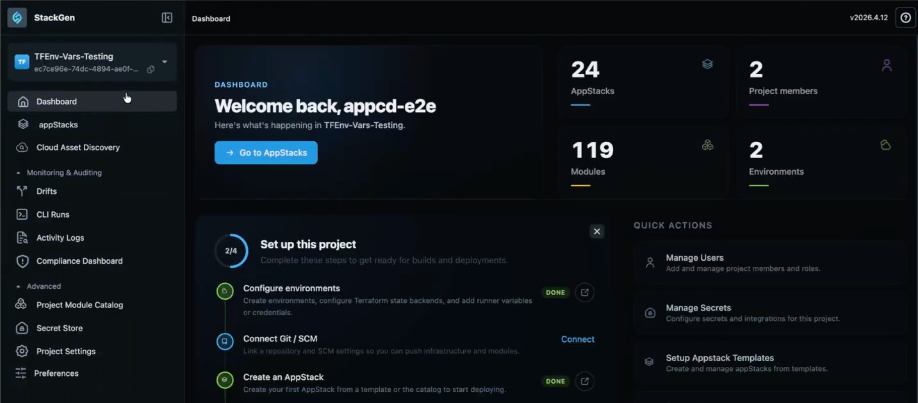
The dashboard can include:
- Project metrics such as appStacks, members, modules, and environments
- Interactive links from dashboard cards into related project areas
- A setup guide for tasks such as SCM, environment configuration, and create an appStack
Who can use the Project Dashboard
| Role | Access |
|---|---|
| Project Admin | Yes |
| DevOps | Yes |
| Developer | No |
The Project Dashboard is intended for project setup and administration. Developer users do not see this dashboard, by design.
What the Project Dashboard shows
Click to view
The Project Dashboard can show the following project-level information:
- appStacks: The number of appStacks in the current project
- Members: The number of users assigned to the project
- Modules: The number of modules available in the project context
- Environments: The number of environments configured for the project
These cards also act as shortcuts into related project pages so you can move directly into the area that needs attention.
Setup Guide on the Project Dashboard
Click to view
The setup guide helps you complete project configuration after onboarding.
Use it when you still need to finish tasks such as:
- Connect SCM
- Configure environments
- Create an appStack
If you skipped optional steps during project onboarding, the setup guide remains available on the dashboard so you can return and complete them later. You can also restart the setup guide when you want to walk through initialization again.
Why Use the Project Dashboard
- It gives you one project-level view of current project health.
- It helps you finish setup work that was skipped during onboarding.
- It reduces navigation time by linking directly to the project areas behind each dashboard metric.
Benefits
- Project metrics and setup actions are available in one place.
- Admin and DevOps users can review project readiness without searching across multiple pages.
- The setup guide makes it easier to complete project configuration in stages instead of blocking progress during onboarding.
Best Practices
- Use the Project Dashboard after onboarding to complete any optional steps that were skipped.
- Review environments, members, and appStacks from the dashboard before starting new deployment or setup work.
- Treat the dashboard as the project-level checkpoint for readiness, especially before creating new appStacks or updating project configuration.
- Use the linked project pages from the dashboard cards when you want to move directly from a metric to the related setup area.
Next Steps
- Navigating UI: how to navigate the StackGen UI.
- Project Onboarding: how to create a project with guided onboarding.
- Environment Configurations: how to configure environments for a project.