Project Onboarding
Use guided onboarding to create a Project and complete its initial setup in a single flow. This guide explains who can use project onboarding, what the onboarding flow includes, and how to continue setup after the project is created.
Project creation and guided onboarding are intended for Admin and DevOps users.
What you will learn:
- What guided onboarding includes during project creation
- How to create a project step by step
- How to prefill values from an existing project
- What happens after onboarding is complete
Overview
Guided onboarding replaces the earlier basic project creation form with a multi-step workflow. Depending on your tenant configuration, the flow can include:
- Project details
- Members
- SCM / Git configuration
- Environment setup
- Governance
- Summary
This structure helps you complete core project configuration before the project is created.
Who can create projects
| Capability | Admin | DevOps | Developer |
|---|---|---|---|
| Create a project with guided onboarding | Yes | Yes | No |
| Add members during onboarding | Yes | Yes | No |
| Configure project setup during onboarding | Yes | Yes | No |
| Review project dashboard after creation | Yes | Yes | Yes |
Create a project
Click to view
Follow these steps to create a project:
- Open Settings > Projects.
- Click + New Project.
- In the first step, enter the Project name and Project description.
- Add members if needed, and adjust the Role within Project for each member you add.
- Continue through the onboarding steps for SCM, environment setup, governance, and summary.
- Review the summary and finish project creation.
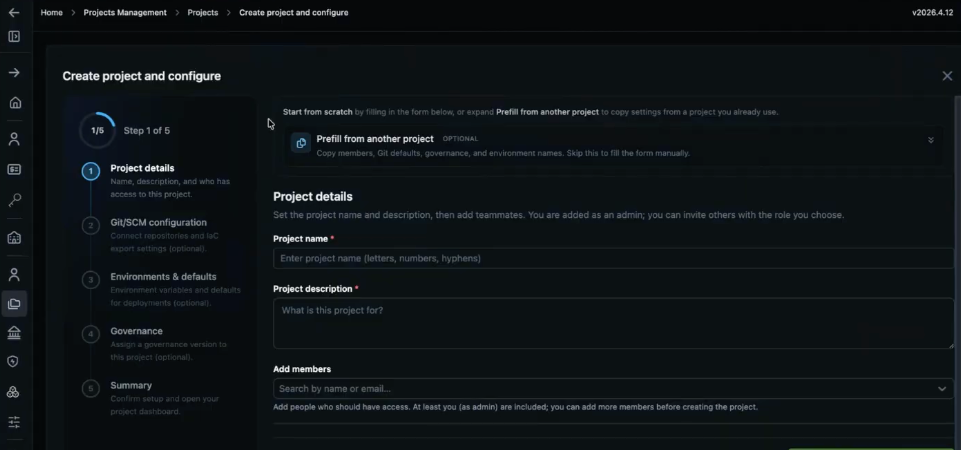
You can skip optional setup steps and complete them later from the Project Dashboard.
Prefill from another project
Click to view
Use Prefill from another project when the new project should start from an existing project baseline.
- In the first onboarding step, open Prefill from another project.
- Select the Source project.
- Click Apply copy.
- Review the copied values before you continue.
StackGen can copy items such as:
- Members
- SCM defaults
- Environment names
- Governance
The copied values remain editable before you save the project.
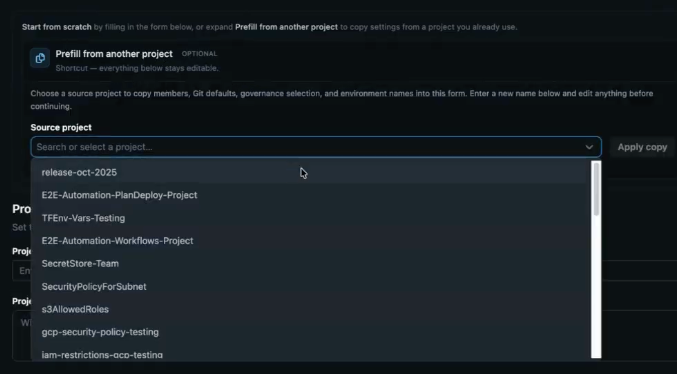
After project creation
When onboarding is complete, StackGen opens the Project Dashboard. Use this page to review:
- Project-level metrics such as appStacks, members, modules, and environments
- The setup guide for any step you skipped
- Links to Members, Environment Configuration, and related project pages
If you skipped an optional onboarding step, return to it from the setup guide.
Benefits
- Guided onboarding helps you capture project setup in a consistent sequence.
- Project creation, membership setup, and follow-up configuration are grouped into one flow.
- Prefill support helps teams start new projects from an existing baseline instead of repeating the same setup manually.
Best practices
- Add the right members and roles during onboarding so project access is correct from the start.
- Use Prefill from another project only when the source project is a valid baseline for the new project.
- Review copied values before you finish, especially SCM, environment, and governance settings.
- Use the Project Dashboard to complete any optional steps that were skipped during onboarding.