Export Your IaC
Export Your IaC
Hashicorp configuration language (HCL) is the default format for Infrastructure as Code (IaC) exports, making it easier to maintain consistency, streamline your CI/CD workflows, and support reusability. You’ll see HCL pre-selected in the following scenarios:
- Exporting and deploying built-in resources for AWS, GCP, and Azure.
- Exporting and deploying custom modules.
- Creating
tfvarswith complex types such aslist(map(string))andlist(string). - Pushing IaC exports to GitHub.
If you are an existing customer and would prefer maintaining your .json file format, please email us at support@stackgen.com, and we can change your preferences from the new default HCL to the previous default JSON.
When you're ready to deploy your infrastructure, StackGen offers two methods for exporting your Infrastructure as Code (IaC) to streamline your workflow. You can either download your IaC in a .zip file or push it directly to a Git repository.
You can export your IaC in following ways:
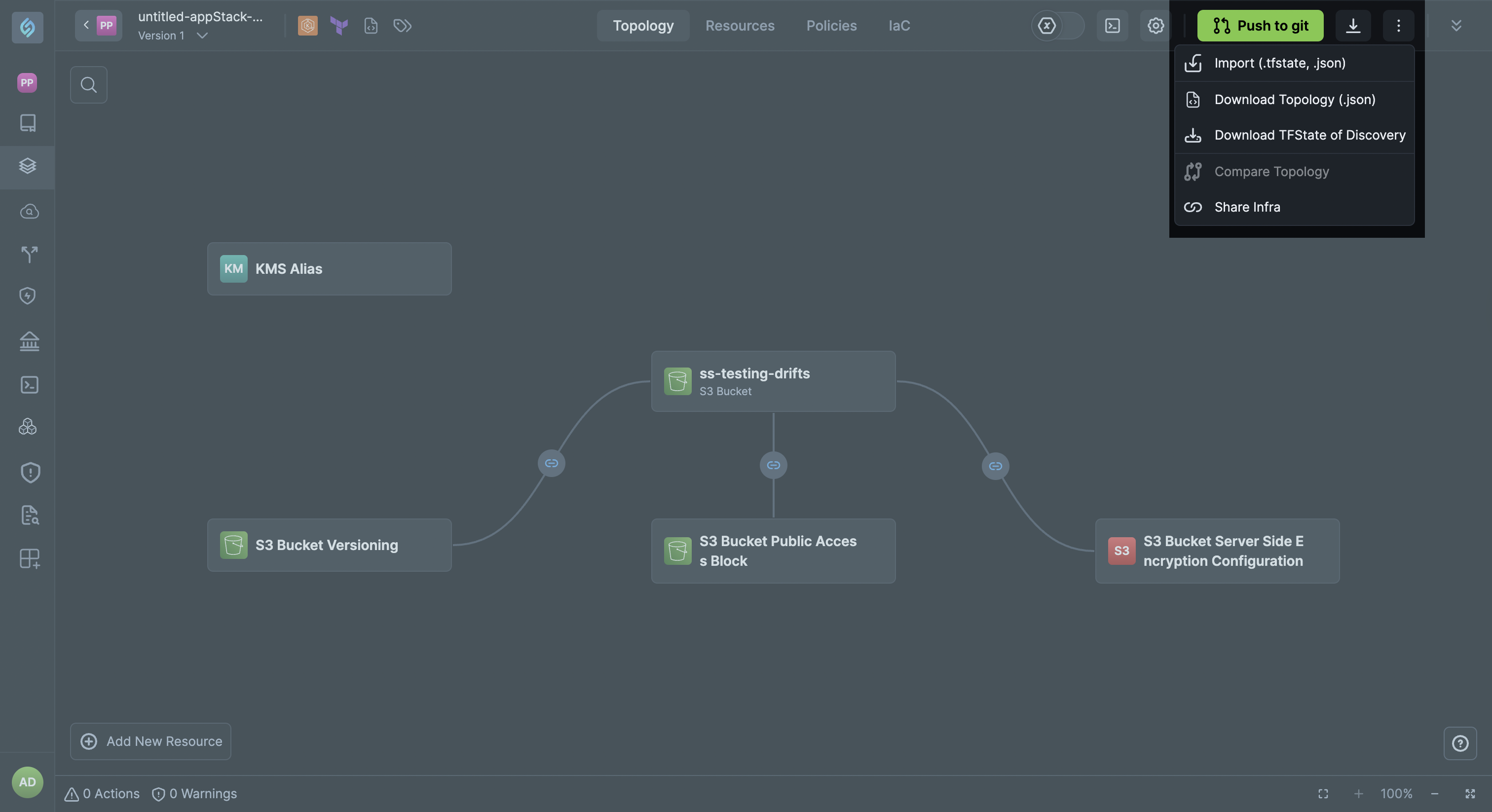
Push to Git
Click to view
This method is ideal for projects leveraging CI/CD to automatically deploy infrastructure changes. This method enables direct integration with Git, allowing you to automate deployments through CI/CD pipelines.
To use the Push to Git option, you need to configure your Git repository settings first. For detailed instructions on creating and managing Git configurations, including authentication tokens, repository URLs, branches, and target paths, refer to the Git Configurations guide.
- Click the Push to Git button on the Topology tab.
- Select your configured Git configuration or configure a new one.
- Click Push to Git to export your IaC automatically.
Use .stackgenignore with Push to Git
When StackGen pushes IaC through Push to Git, it opens a pull request with generated files under the Target path from your Git configuration. StackGen reads a .stackgenignore file at the repository root to skip files inside that target path that your team manages outside StackGen.
How it works
.stackgenignorefollows the same pattern style as.gitignore.- Patterns match paths inside the target path. Do not write absolute repository paths.
- Files that match a pattern are excluded from StackGen-managed PR changes.
Best practices
- Dedicated target path - Pick a folder (for example
infrastructure/orterraform/) that StackGen owns. Keep that folder empty of non-StackGen files when you can. - Externally managed files - If you must keep files your team owns inside the target path, list each one in
.stackgenignore. - Glob patterns only - Use patterns such as
**/sample.txtorREADME.md. Do not use absolute paths like/demo/sample.txt.
Example
Repository layout:
demo/
  sample.txt    # managed by your team, not StackGen
  main.tf       # generated by StackGen
Git configuration Target path: demo
.stackgenignore at the repository root:
**/sample.txt
StackGen includes generated IaC in the PR and leaves sample.txt unchanged.
See Git Configurations for Target path setup.
Download IaC (.zip)
Click to view
This method is ideal for local deployments or when you want to inspect the generated IaC before pushing it to a version control system. It allows you to download the generated IaC for a manual deployment. The downloaded file contains your Terraform configuration files in a .zip format. After unzipping, you can deploy the infrastructure manually using your preferred cloud provider's CLI or UI.
- Click the Download IaC (.zip) button in the top-right corner of the Topology tab.
- Unzip the downloaded file to access your Terraform configuration files.
- Deploy the infrastructure manually using your preferred cloud provider's CLI or UI.
Download Topology (.json)
Click to view
Use this method to download your topology as a .json file for easy sharing. Your teams can import the file into StackGen to review, collaborate, or reuse the same topology. This method exports your topology in JSON format, which you can use to:
- Automate checks or generate custom reports.
- Store snapshots for backup or version control.
- Import into other tools for visualization or analysis.
- Inspect raw resource details not shown in the UI.
- Access the download options menu in the Topology tab.
- Select Download Topology (.json).
- The topology configuration will be exported as a
JSONfile.
Download TFState
Click to view
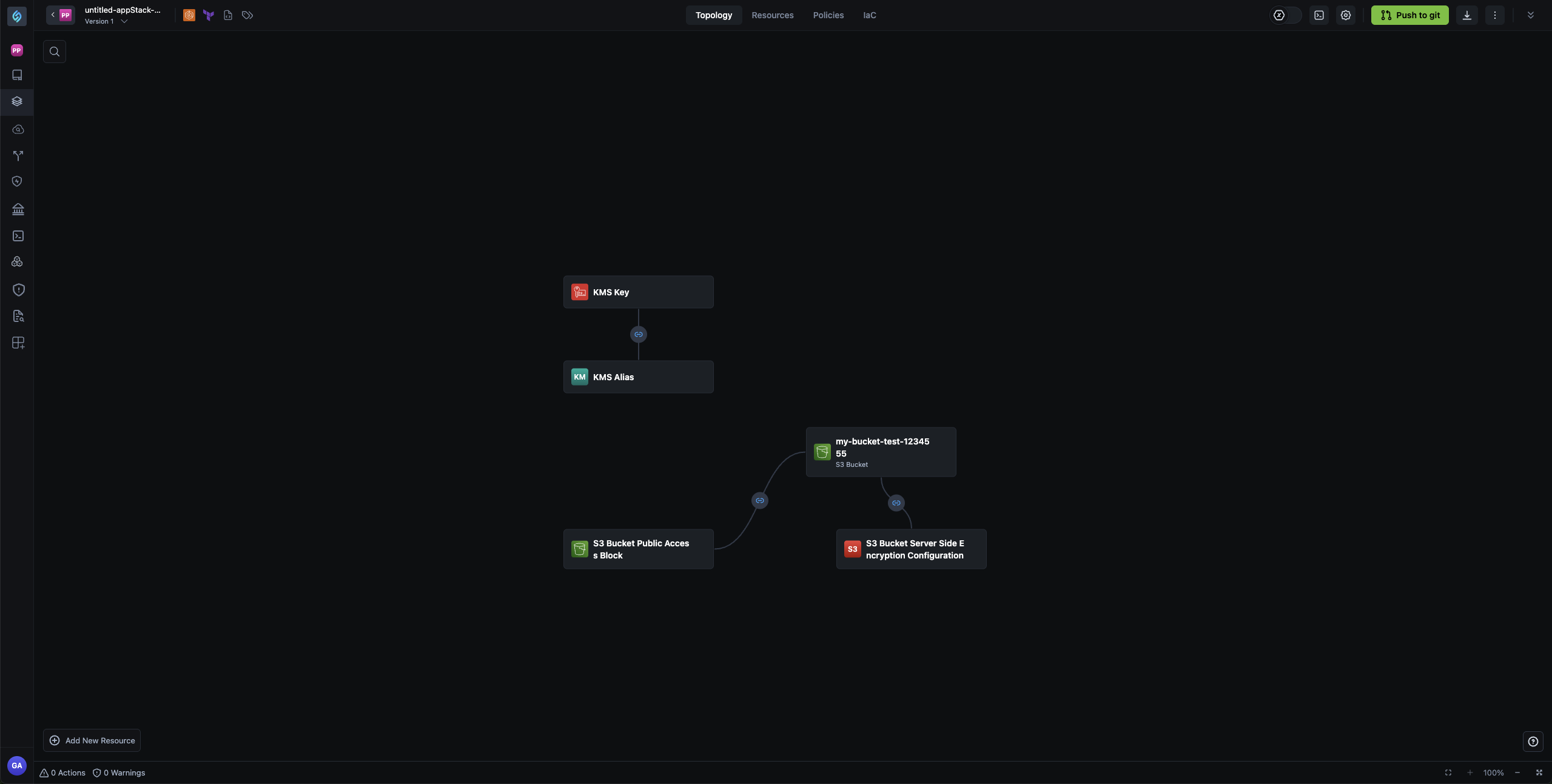
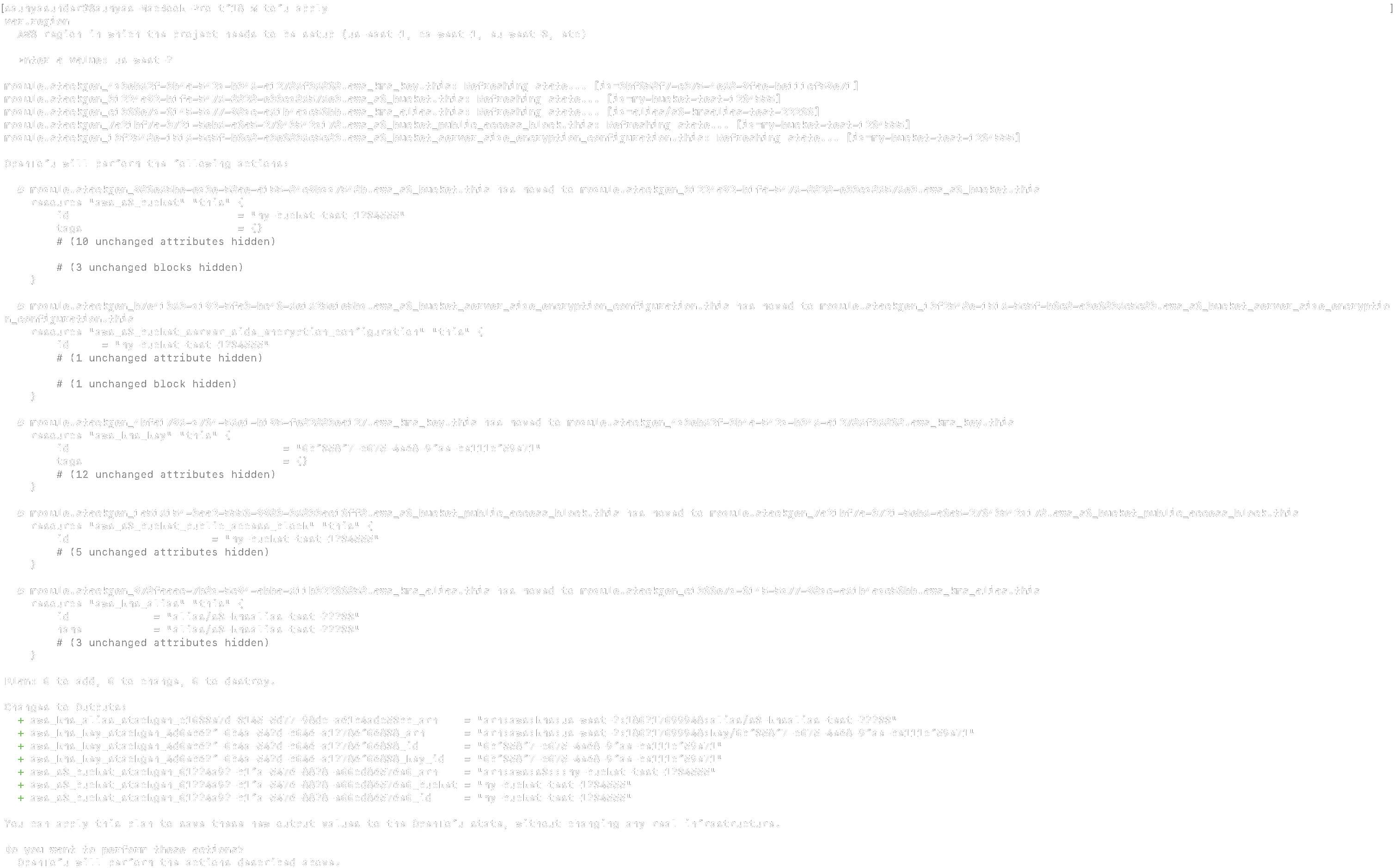
Use this method to download your IaC along with the cloud metadata from your original .tfstate file, and reuse it to provision and deploy infrastructure consistently. Check out Carve-out appStacks from .tfstate import for more information. This method exports your topology in JSON format, including the cloud metadata from your original .tfstate file. You can run terraform plan or tofu plan to validate and provision your IaC and deploy the same using terraform apply or tofu apply.
- Access the download options menu in the Topology tab.
- Select Download TFState.
- The topology with cloud metadata will be exported.
Control Provider File Creation
Click to view
By default, StackGen creates provider.tf and variables.tf files when exporting IaC, even when your topology uses only custom resources. If you want more control over provider versioning or prefer to manage provider files explicitly, you can disable this default behavior.
When to disable default provider files:
- You're using only custom resources and want to manage provider versions explicitly
- You need to use newer Terraform or provider versions that differ from StackGen's defaults
- You want cleaner, more minimal IaC exports
- You're following advanced Terraform workflows with explicit provider version management
How to disable default provider files:
You can control provider file creation using the StackGen CLI preference command:
stackgen preference set --preference-key topology.iac.export.terraform.exportRootProviderFilesIfOnlyCustomResourcesUsed --owner-type Organization --value false --project <projectid>
This disables the creation of default provider files when only custom resources are used in your topology. To learn more about managing preferences, refer to the Preference Key documentation.