Review, approve, and execute requests safely
Review, approve, and execute requests safely
Use this page when you are ready to authorize work from the Requests Inbox. A ticket does not authorize work by itself. A human must click Approve & execute. After that, workspace policies can still stop individual tool calls.
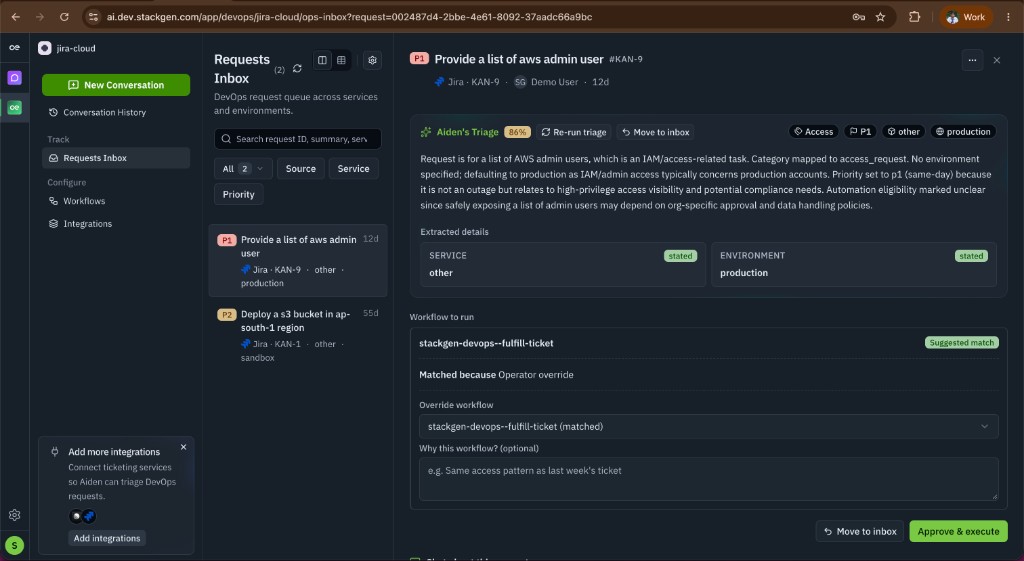
Open Aiden DevOps -> Requests Inbox, then select a request.
Who can authorize execution
Anyone who can open the request in the Requests Inbox (Admin, Workspace Admin, or Workspace User) can click Approve & execute. The product does not restrict inbox approval to admins only.
You can approve from any request status, including after a completed, deferred, or failed run, so you can re-run fulfillment without a separate reopen step.
Policy approvals after execution starts are different: they appear under Workspace Settings -> Governance -> Approvals and require Admin or Workspace Admin. See Approvals.
What to review before you approve
Read these sections on the request detail panel in order:
| Area | What to check |
|---|---|
| Original request | The source ticket text matches the work you intend to allow |
| Aiden's Triage | Category, priority, service, and environment are correct; confidence is high enough for your risk appetite |
| Workflow to run | The matched or overridden workflow description fits this ticket; prefer a specific workflow over a vague catch-all |
| Why this workflow? (optional) | Optional note for auditors: why this workflow is the right choice |
| Execution history | Prior runs or failures that should change your decision |
If triage is wrong, use Change Category, Change Priority, Change Service, or Change Environment, or Re-run triage, before you approve. Manual corrections clear the displayed confidence score. You cannot re-triage while status is Approved or In progress.
If the wrong workflow matched, pick another with Workflow to run on approve, or use Describe Workflow to draft a reusable workflow and review it in Workspace Settings -> Workflows before relying on it for production.
Which credentials perform the work
| Concern | Credentials used |
|---|---|
| Pulling tickets, webhooks, posting comments, auto-marking ticket status | Tracker credentials you saved under Integrations (Linear API key, Jira token, ServiceNow user and token) |
| Starting Approve & execute | The signed-in operator's session; the run is attributed to that user |
| Tools inside the workflow (cloud, SCM, observability, and so on) | Workspace integrations and vault secrets bound to those tools |
| Native StackGen AppStack or infrastructure tools | Your signed-in StackGen identity (no separate DevOps token) |
Tracker credentials alone never run the workflow. Connecting Linear or Jira only enables intake and ticket updates.
Inbox approval vs later policy gates
- Inbox approval (Approve & execute) starts the matched workflow (or the fulfill-ticket fallback when none is set). This is the DevOps human gate for the request.
- Policy gates can still pause a sensitive tool call mid-run. Those items land in Approvals based on your Policies. Approving the inbox request does not skip those checks.
- Outcomes remain visible on the request Execution history and in Audit Logs.
Automatic ticket updates vs approval-gated actions
These fire when a request is first added to the inbox (sync or webhook). They are not approval and they do not execute a workflow:
| Setting (Configure Inbox) | Effect |
|---|---|
| Auto post to ticket | Posts the Ops Inbox link (and default triage blurb) to the source ticket |
| Auto-mark ticket status | Moves the source ticket to a chosen status (for example In Progress). Failures are logged and do not block triage |
You can still Post to ticket manually from request actions.
Approval-gated operational actions start only after Approve & execute: the workflow run, agent tool calls, and any further policy approvals. Chat about the request (Start chat) clarifies without starting that path. See New Conversation for chat outside a ticket.
After execution
- Status moves through Approved → In progress → Resolved (or stays deferred/closed depending on outcome).
- Expand Execution history for import, classification, approval, and run events.
- To run again, click Approve & execute once more with the same or an overridden workflow.
- Delete from inbox is blocked while status is Approved or In progress.
For failures and recovery steps, see Troubleshoot intake and workflow execution.