Quickstart: Your first DevOps request
Quickstart: Your first DevOps request
This walkthrough follows the same path as the Introduction: enable the app, connect a tracker, confirm the ticket in the Requests Inbox, review triage, then approve a workflow (or describe one). Use a ticket that asks only for a confirmation comment. Prefer a non-production workspace the first time.
Open Aiden DevOps from the app rail, then follow the steps below.
Prerequisites
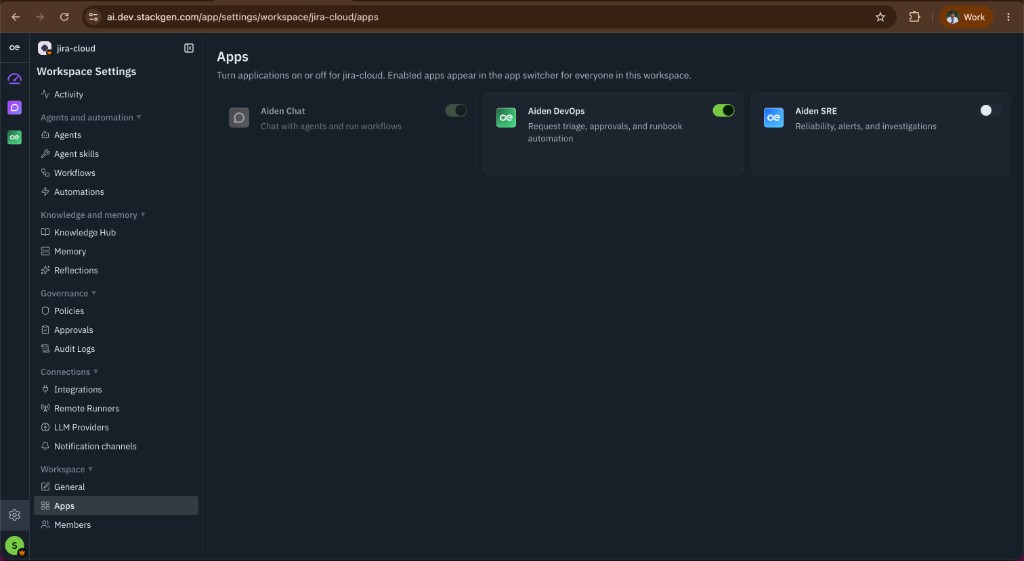
- Aiden for DevOps is enabled for your tenant (ask your Customer Service Manager or support@stackgen.com if you do not see Aiden DevOps in the app rail). Turn it on under Workspace Settings -> Apps when you have access.
- You can open a workspace where you are Admin, Workspace Admin, or Workspace User.
- You have credentials for one issue tracker: Linear, Jira, or ServiceNow. See Connect your ticketing system.
- Prefer a sandbox team, project, or assignment group so the test ticket does not land in a production queue.
Step 1: Connect a tracker
- Open Aiden DevOps -> Integrations (under Configure).
- Choose Linear, Jira, or ServiceNow.
- Enter the credentials for that provider and click Verify connection (or continue when verification succeeds).
- Optionally set inbox filters (teams, assignees, labels) so only your test tickets appear.
- Click Connect and continue.
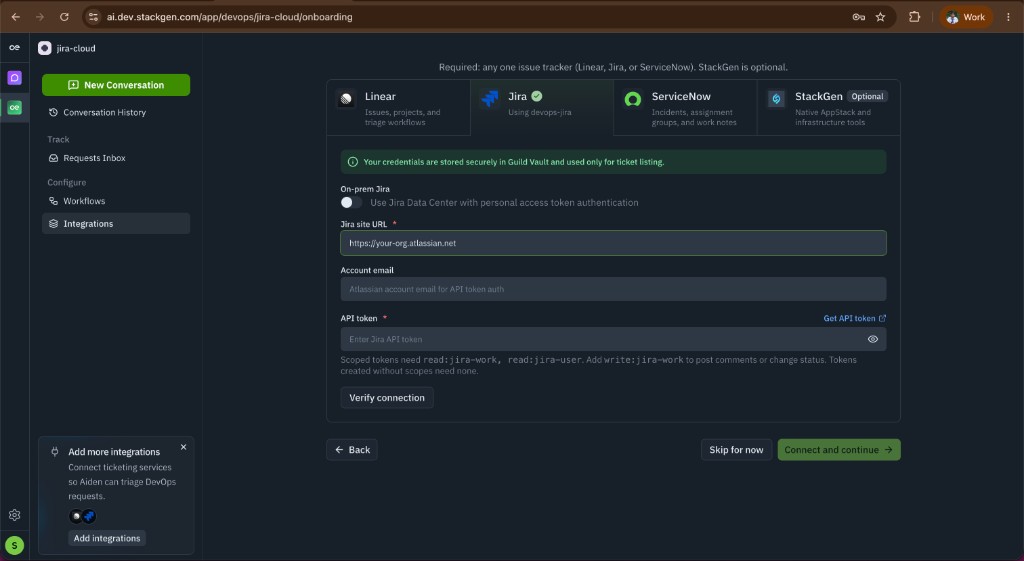
Expected result: The Integrations page shows the tracker as connected. You can open Requests Inbox.
Step 2: Create a low-risk test ticket
In the connected tracker, create a ticket with a clear, non-destructive title and body. Example:
Title: Aiden DevOps smoke test: post confirmation only
Body: Please post a short confirmation comment on this ticket that Aiden received the request. Do not change infrastructure, credentials, or permissions.
Assign or label the ticket so it matches your inbox filters (for example the team or label you configured in Step 1).
Expected result: The ticket exists in the tracker and is eligible for Aiden intake.
Step 3: Confirm the request appears
- Open Aiden DevOps -> Requests Inbox.
- If the ticket is not listed yet:
- Wait a few seconds if a webhook is configured (the open inbox also refreshes about every 5 seconds).
- Or click Refresh Requests Inbox, then run a Sync from Configure Inbox if your team uses pull sync.
- Select the card for your test ticket.
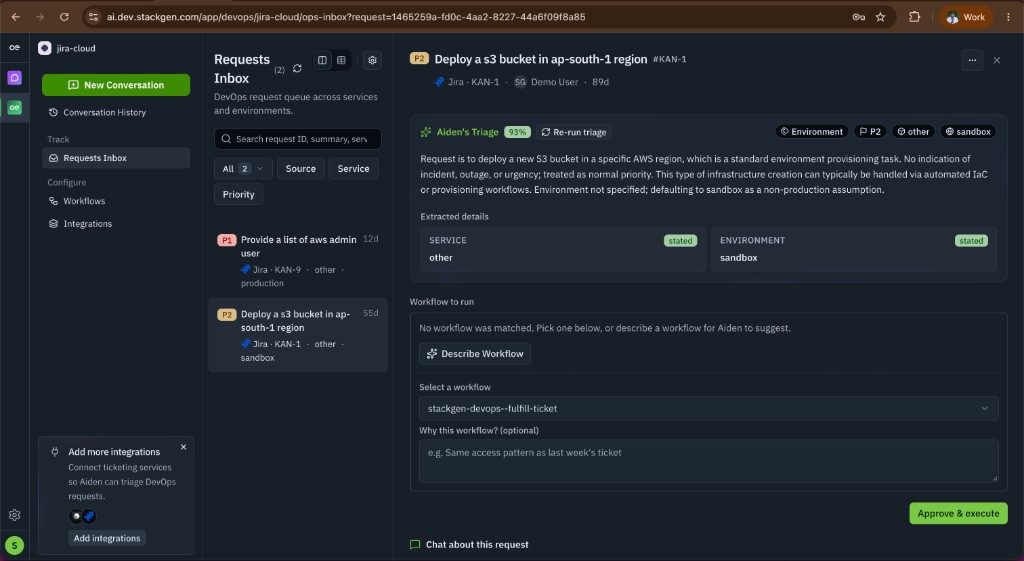
Expected result: The request shows priority, source link, and status such as New, Triaging, or Awaiting approval. The detail panel shows the original ticket text under Original request.
Step 4: Review triage and choose a workflow
- Read Aiden's Triage (category, priority, service, environment, confidence).
- Correct fields with Change Category, Change Priority, Change Service, or Change Environment if needed.
- Under Workflow to run:
- If a workflow matched, confirm the description fits a comment-only confirmation.
- If none matched, use Describe Workflow for a reusable draft, or pick an existing workflow with Workflow to run on approve.
- Optionally fill Why this workflow? with a short note.
Expected result: You have a workflow selected that will only comment or otherwise stay within a safe smoke-test path. See Review, approve, and execute before you approve production work.
Step 5: Approve and execute
- Click Approve & execute.
- Watch Execution history as the request moves to Approved, then In progress, then (when the run finishes) Resolved.
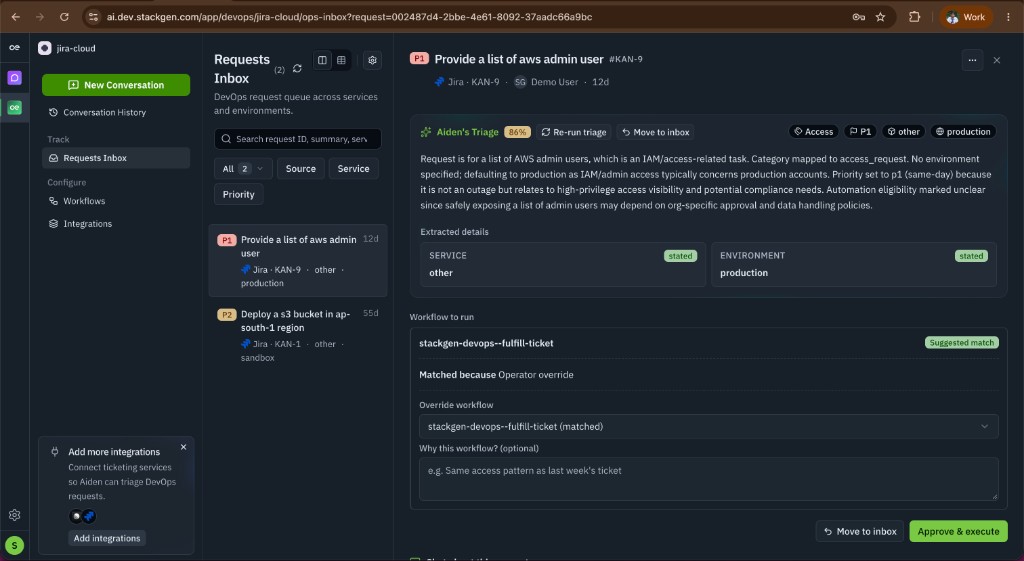
Expected result: Execution starts without a separate “start run” button. The timeline records import, classification, approval, and run events.
Step 6: Verify in the source ticket and inbox
- Open the source ticket in Linear, Jira, or ServiceNow.
- Confirm any comment Aiden posted (automatic inbox link if Auto post to ticket is on, plus the workflow outcome).
- Back in the Requests Inbox, confirm status and expand Execution history for detail.
Expected result: The source ticket shows Aiden activity, and the inbox request is resolved or clearly in progress with a timeline you can audit.
Next steps
- Review, approve, and execute requests safely
- Requests Inbox for filters, re-triage, and overrides
- Workflows for description matching
- Troubleshoot intake and workflow execution if a step fails