Manage Workspaces
Manage Workspaces
Aiden Workspaces provide a clear, secure, and contextual environment for interacting with Aiden and related persona agents. A workspace acts as a defined universe of resources; integrations, knowledge, policies, and linked StackGen projects that Aiden uses to understand context and perform actions safely.
This guide explains how you can create, manage, and interact with Aiden using Workspaces.
What Is a Workspace?
A workspace is a scoped environment that defines:
-
Which cloud or service integrations can Aiden access.
-
Which knowledge sources Aiden can reference.
-
What skills and actions Aiden can perform.
-
Which StackGen Core project (if any) is linked for appStacks, governance, and policy data.
Integrated experienceIf you're using the Aiden StackGen integrated experience, Aiden can connect with your StackGen projects, allowing you to associate workspaces with your existing projects. Admins can manage workspace-project associations at
https://yourcompany.stackgen.com/ai/workspaces.
Workspaces ensure Aiden only operates within the right boundaries for a specific team, application, or environment.
Key Benefits
- Security and Isolation: Aiden only accesses integrations and data provisioned within the selected workspace.
- Contextual Accuracy: Responses and agent actions are based on workspace-specific configurations.
- Scalability: Multiple teams and applications can operate independently within their own workspaces.
- Clarity for Users: A simple workspace selector allows switching contexts at any time.
How to Use a Workspace
The workspace dropdown appears at the top-left of the Aiden interface. When you click it, you will be able to view the list of workspaces you have access to.
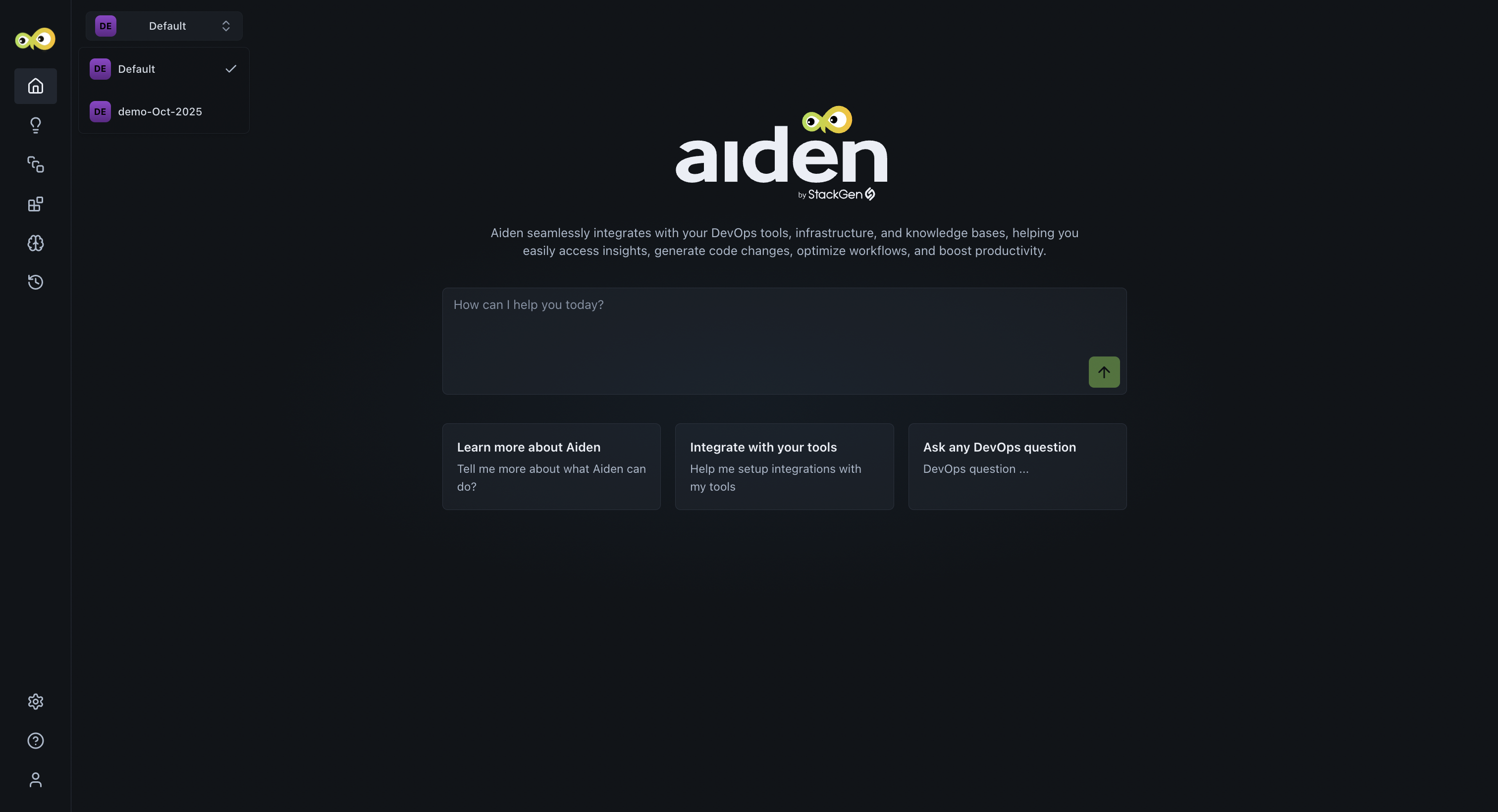
The default view shows the currently active workspace. Switching workspaces refreshes the entire Aiden UI and context, including:
- Integrations
- Knowledge sources
- Conversation history
- Available skills
To switch between Workspaces, simply click the dropdown and select the workspace of your choice. Aiden will reload with the context and configurations of your selected workspace.
Workspace Management
If you are an Aiden Admin you can manage workspaces via Organization Settings > Manage Workspaces.
Managing a Workspace
To create a workspace, follow these steps:
- From the Aiden home page, navigate to Organization Settings > Manage Workspaces.
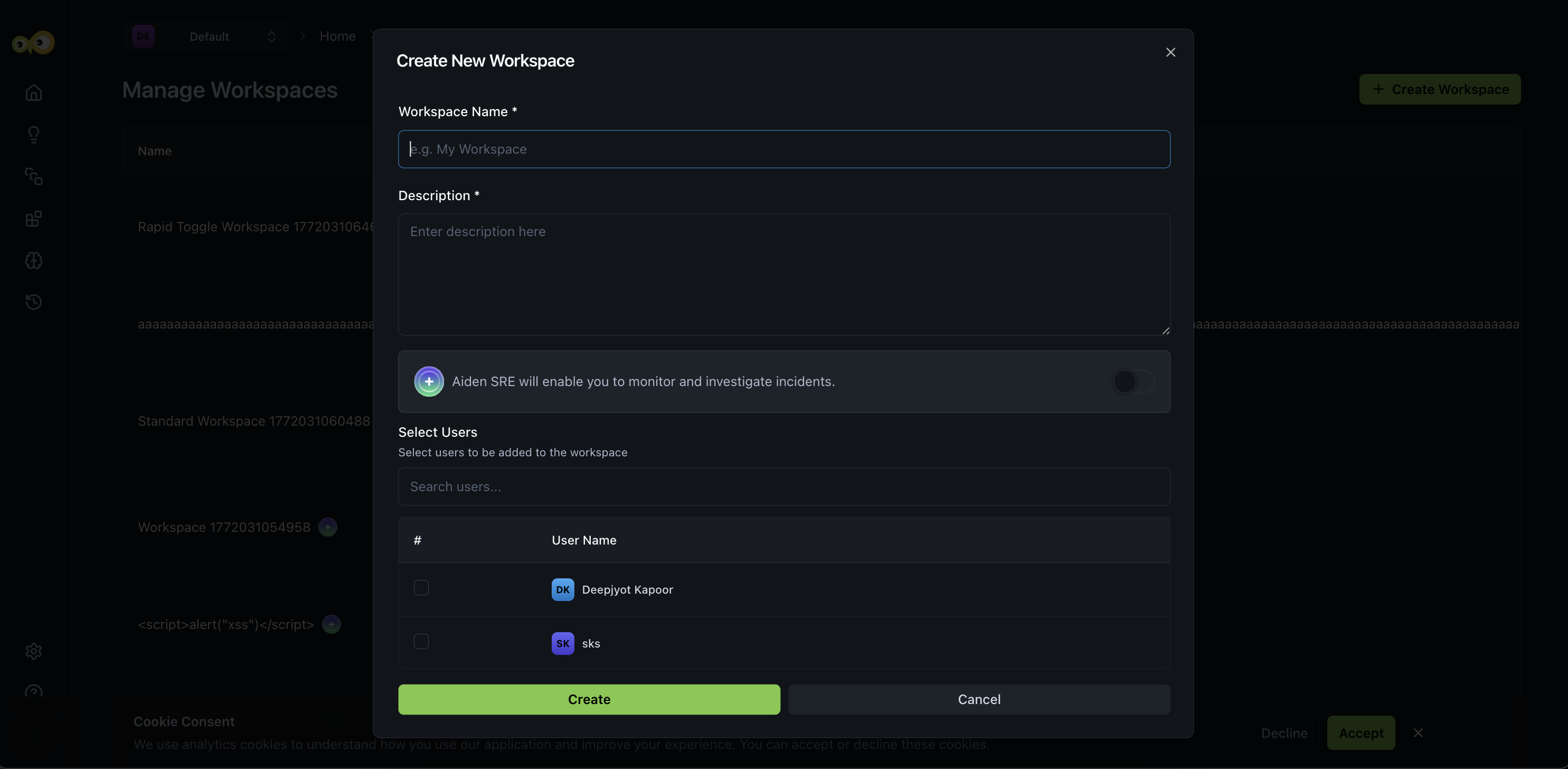
- Click + Create Workspace.
- Enter a Name and Description for your workspace. Use names and descriptions that are meaningful to your end users so they can switch contexts as needed.
- Optionally enable Enable Aiden SRE if you want this workspace to use Aiden for Site Reliability Engineering (SRE) workflows (observability, incident management, and infrastructure discovery). When enabled, you will go through SRE onboarding after the workspace is created. See Aiden SRE for details.
- If you have a:
- StackGen Platform User license, you will additionally be able to link your Workspaces in Aiden with your StackGen Projects.
- To unlink a Project, simply edit a workspace and uncheck the selected project(s).
- Aiden User license, you will have to search and select the users that would belong to the workspace.
- Click Create.
- To delete a workspace, click the delete icon next to the workspace in the list and confirm Delete.
How Aiden Operates Within a Workspace
- Integrations: Aiden can access integrations configured within a workspace (e.g., AWS, Datadog, PagerDuty).
- Knowledge: Aiden references workspace scoped knowledge base, including:
- Runbooks
- Documentation
- Internal playbooks
- Skills: Admins can customize Aiden’s skills for a workspace to tailor its behavior across:
- Different environments (dev/stage/prod)
- Different teams (platform, infra, SRE).
- Applications
Infra Provisioning Agent Behavior
If you have a StackGen Platform User, this is possible by linking a Project with a Workspace. When linked to a StackGen project:
- Aiden impersonates the user by default.
- Operations are limited strictly to the connected project.
- Skills may optionally use Aiden’s own service account if configured.
When you're using the Infrastructure Provisioning Agent:
- Aiden automatically uses the appStacks associated with the StackGen Project linked to the Workspace.
- Your infrastructure provisioning aligns with the correct architecture and standards defined within the project.
Limitations
- You cannot give prompts that require actions across workspaces you have access to.