Discovery
Discovery
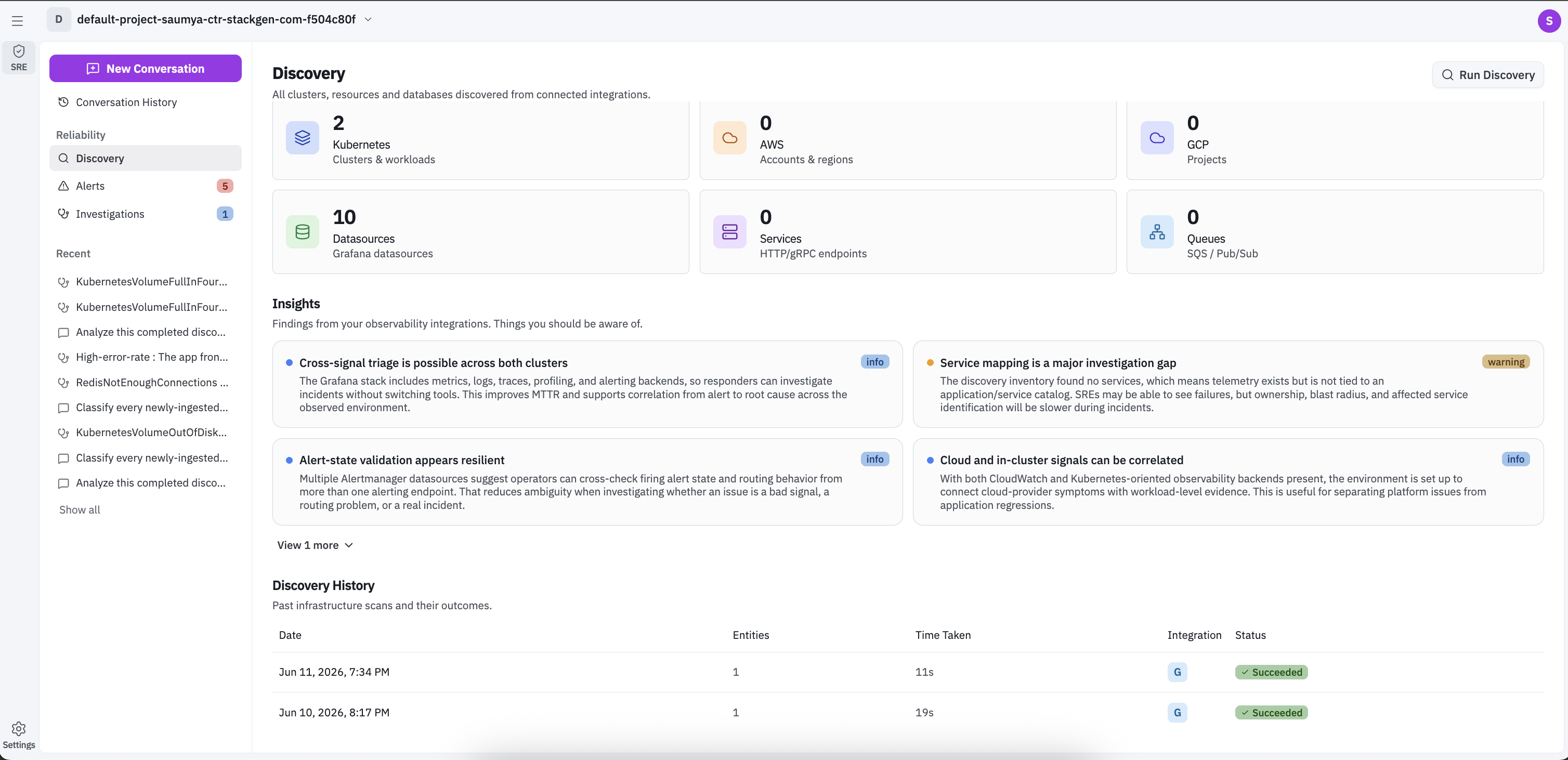
Discovery scans connected integrations and identifies entities across your observability and cloud stack. Those entities feed Aiden's knowledge base so investigations have context. Use this page to check coverage, review insights, inspect past runs, and start a fresh scan.
Open Aiden SRE -> Discovery.
Page actions
| Control | What it does |
|---|---|
| Run Discovery | Opens the Run Discovery dialog so you can select integration instances and start a scan |
| Discovered Entities | Explains what the Discovered Entities section shows |
| Insights | Explains what the Insights section shows |
If no entities were found after the last run, the page shows an empty state with the same Run Discovery action and a message to verify telemetry ingestion and integration configuration.
The page also shows Last run time and Duration for the most recent scan.
Discovered Entities
Discovered Entities summarizes what Aiden found from connected integrations. When discovery succeeds, counts can include clusters and workloads, clouds, datasources, services, and queues, depending on what your integrations expose.
Each tile helps you see where coverage is strong and where data may be missing.
Insights
Insights highlights findings from observability data after entities are discovered. Cards can surface patterns such as service mapping gaps, telemetry blind spots, and correlation opportunities, often labeled by severity (for example info or warning).
When nothing has been discovered yet, the section shows No insights and Insights appear after entities are discovered.
Discovery History
Discovery History lists previous scan runs. Use the page-size control to change how many rows appear.
Each row typically includes:
| Column | Meaning |
|---|---|
| Date | When the run started |
| Entities | Number of entities discovered in that run |
| Time Taken | Run duration |
| Integration | Integration used for the run |
| Status | Outcome such as Succeeded |
Run Discovery
- Click Run Discovery.
- In the Run Discovery dialog (Select integration instances to run discovery), review the list grouped by provider (for example AWS, Datadog, GitHub).
- Select or clear the checkboxes for the instances to include. Instances are selected by default when available.
- Optionally follow Want to add a new o11y integration? if you need to connect another observability source first.
- Click Run Discovery to start the scan, or Close to cancel without running.
When the run completes, entity counts, insights, and Discovery History refresh from the selected integrations.