Alerts
Alerts
The Alerts page is where Aiden triages alerts from connected integrations for the current workspace. Use it to filter by status and category, search and refine the list, configure how each integration sends alerts, and import alerts on demand.
Open Aiden SRE -> Alerts.
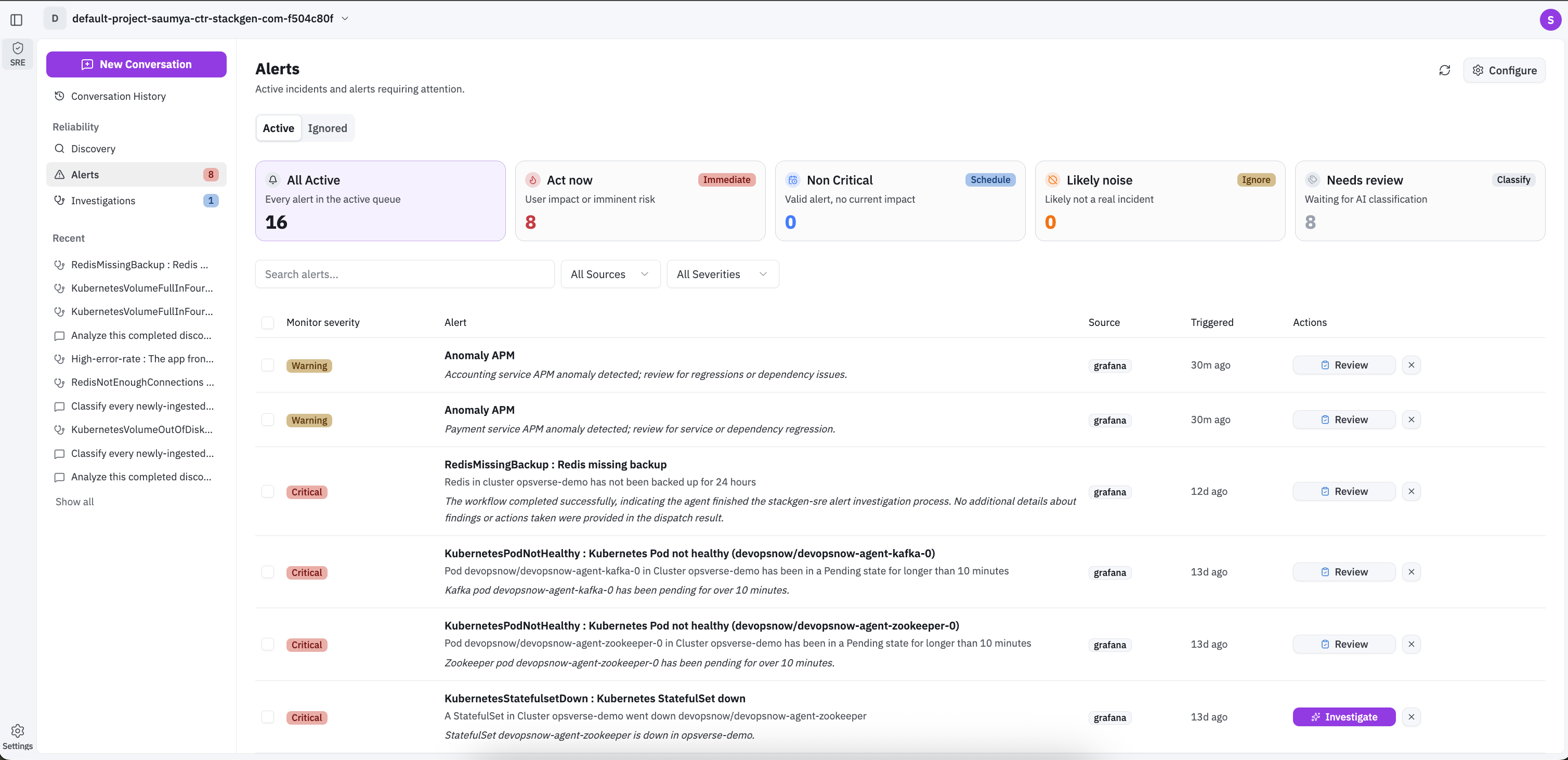
Page actions
| Control | What it does |
|---|---|
| Refresh | Reloads the alerts list |
| Import alerts | Opens the Import alerts panel to pull active alerts from selected integrations now |
| Configure | Opens Configure Alerts to set webhooks, scheduled import, ingestion filters, and auto-investigate per integration instance |
Active and Ignored
Use the Active and Ignored tabs to switch queue scope.
Summary cards
Summary cards filter the table immediately. Counts update with the current filters.
| Card | Meaning |
|---|---|
| All Active | Every active alert in the current view |
| Act now | Requires action. These alerts need immediate attention. |
| Non Critical | Confirmed real alerts that are not urgent |
| False Positive | Likely false positive. These alerts may not need action. |
| Needs review | Human review needed to classify. Review once analysis completes. |
Search and filters
- Use Search alerts to find alerts by text.
- Click Show filters to open additional filter controls (for example source and severity).
- Select rows with the table checkbox when bulk actions are available.
When no alerts match, the list shows No alerts found and Try changing the tab or filter.
Import alerts
- Click Import alerts.
- Read the panel description: Pull active alerts from selected integrations now.
- Select the integration instances to pull from (grouped by provider, for example Datadog).
- Click Import alerts to run the pull, or Close to cancel.
If no importable integrations are connected, the panel says so and the import action stays disabled until at least one instance is available and selected.
Configure Alerts
Click Configure to open the Configure Alerts panel: Choose how Aiden receives alerts from each integration instance.
- Expand an integration instance (for example a Datadog instance). The row may show a badge such as Scheduled import when that mode is active.
- Choose how that instance delivers alerts:
Webhooks
Webhooks is recommended for the fastest delivery when the source supports it.
For Datadog, the panel explains that Datadog pushes alerts to Aiden in real time when monitors include @webhook in the message.
- Open the Webhooks tab (the badge shows how many webhooks exist).
- Click Add new webhook to create a webhook for the instance.
- Complete the webhook setup in the panel, then close when finished.
Scheduled import
Scheduled import pulls monitors on a cadence instead of (or in addition to) push delivery.
For Datadog, the panel explains that Aiden pulls Datadog monitors in Alert or Warn state on a set schedule, and recommends webhooks for the fastest delivery.
- Open the Scheduled import tab.
- Set Schedule to one of:
- Manual
- Every 15 mins
- Every 1 hr
- Daily at 9:00 AM
- Weekly Monday 9:00 AM
- Every day at...
- Every week on...
- Custom (cron)
- For Custom (cron), enter a Cron expression (format: minute · hour · day · month · weekday). Example placeholder:
0 9 * * 1. - Optionally turn on Ingestion filter. Only pulled alerts matching the rules are ingested. Rules run on the object returned by the pull sync and apply to both scheduled and manual imports.
- Optionally turn on Auto-investigate alerts to open an investigation automatically for pulled alerts that pass the ingestion filter.
- Click Save pull config to apply, or Close to leave without saving.
Review and classify
When an alert needs manual classification, select the Needs review card or open the alert details from the list.
The details panel includes metadata such as source, severity, investigation status, summary, and payload. Assign a category (Act now, Non Critical, or False Positive) and apply the change.
Investigate
From an alert row, start an investigation to open investigation chat for that alert. The chat includes the alert context, follow-up input, and investigation panels (threads, evidence, and events). See Investigations for the full investigation experience.