Custom Module
Custom Module
Custom Modules in StackGen allow you to define and manage infrastructure components that are not natively available through cloud providers. This feature extends StackGen's capabilities, enabling the modeling and deployment of unique infrastructure tailored to specific use cases.
Key Features
- Define Custom Infrastructure: Model infrastructure components beyond standard cloud offerings.
- Connections: Link custom modules and other resources on the topology canvas. StackGen supports connections between any two resources when the canvas allows that edge.
- Version Control: Manage module changes through versioning for traceability.
- Cross-Platform Support: Create custom modules for AWS, Azure, GCP, and Helm charts.
- Reusability: Save and reuse custom module templates across different projects.
Custom Module Actions
You can perform the following actions on a custom module:
Only Admin and DevOps users can create, modify, or delete custom modules. Developer users have read-only access: they can use shared custom modules on the topology canvas, but they cannot create, import, edit, or delete them.
For appStack-owned modules, Project DevOps users can create the module and publish it back to the appStack. After publish, every placed instance on that appStack updates in place. See Edit and Sync appStack-Owned Modules and RBAC for Custom Modules.
Create
You can create a custom module using two methods:
Copy-Paste Terraform Code
If you have Terraform code ready, you can manually input it while creating a custom module.
- Navigate to the topology canvas of an appStack.
- Click Add New Resource, and select Custom Module.
- Choose Copy-paste TF code.
- Paste your Terraform configuration in the Module Configuration IaC section.
- Optionally, configure Custom Provider details and define Configuration Variables. Learn more about custom providers.
- Click Create to add the custom module to the topology.
Source from Git Repository
If your Terraform configuration is stored in a Git repository, you can import it directly.
- Navigate to the topology editor of an appStack.
- Click Add New Resource, and select Custom Module.
- Choose Source from Git Repository.
- Provide the Git Repository URL containing the Terraform code.
- Select the Branch, Commit, or Tag to pull the correct version.
- Add a Secret Token from the Secret Store to authenticate with the repository.
- Specify a Subdirectory if the Terraform code is not in the root folder.
- Click Create to import and configure the custom module.
Modify
How you modify a custom module depends on where it lives.
Catalog (shared) custom modules
Catalog custom modules are modified through versioning. Create a new version, apply changes there, then choose which version the appStack uses. See Custom Module Versioning.
Default version
When a custom module is overridden in an appStack, the latest semantic version is applied by default. DevOps and Admin roles can also manually peg a specific version to be used as the default for resource overrides. This ensures consistent and controlled usage of approved module versions across deployments.
appStack-owned custom modules
appStack-owned modules support in-place edits. Open the module from Existing AppStack Owned Modules, change Terraform or stackgen.yaml, click Publish to appStack, and every placed instance on the canvas updates while keeping saved attribute values. You do not need to delete and re-drag the module.
For the full flow, see Edit and Sync appStack-Owned Modules.
Delete Custom Modules
DevOps and Admin roles in StackGen can delete custom modules directly via the topology canvas. Delete Behavior
When you delete a custom module, it is permanently deleted from StackGen and it is no longer listed under the Add New Resource panel. You will not be able to use it in new appStacks.
However, if the module remains in any existing stacks or configurations where it is used, StackGen will prompt you to remove it wherever it is being used before proceeding with the deletion process.
Conditions for Deletion:
Modules can only be deleted if they are not actively used in:
- Custom Security Policy
- Governance Configurations
- Resource Override Mapping Policy
- appStack
- Custom Migration Mapping Policy
- Resource Pack
Active override mappings: If a module or a specific version is in use, StackGen will prevent custom module deletion and throw an error displaying the list of appStacks where the custom module is being used.
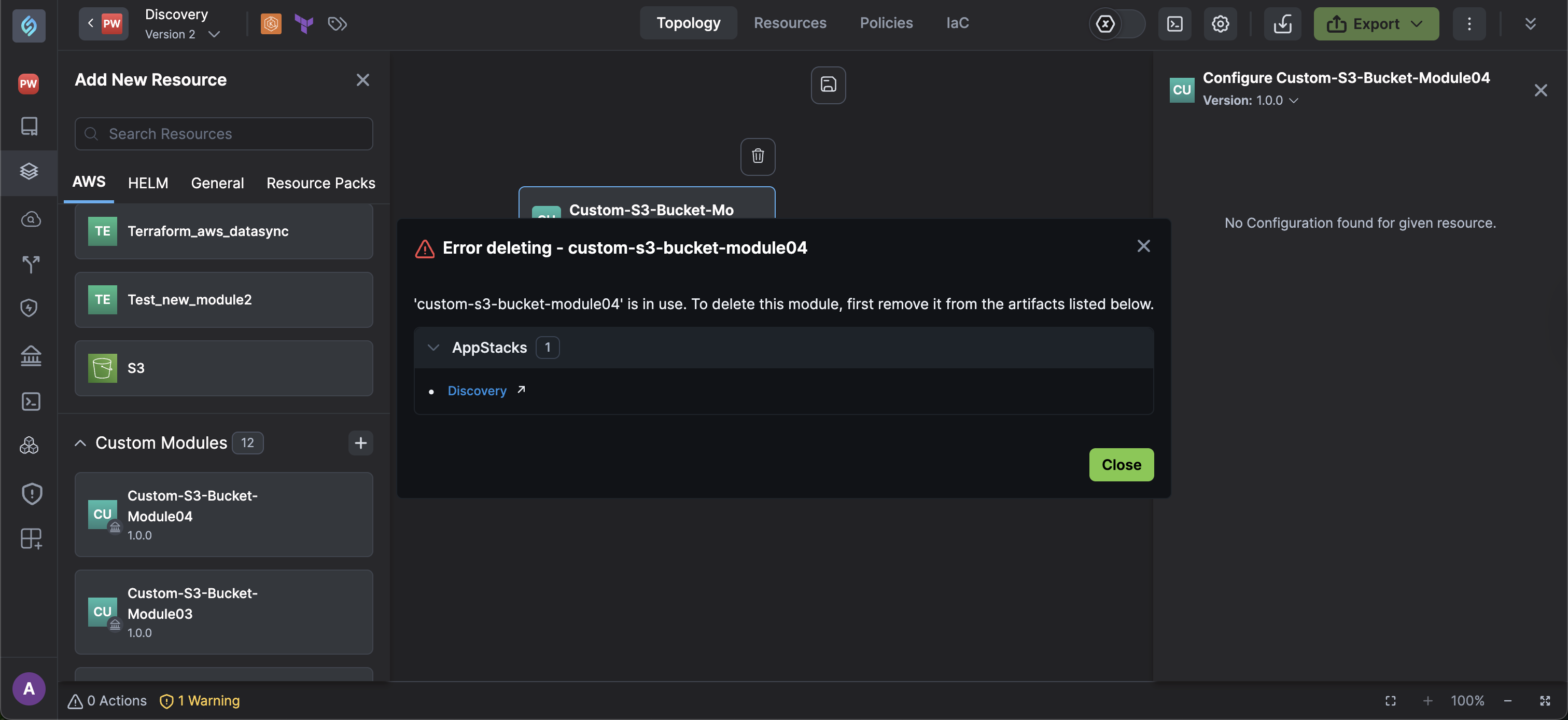
To delete a custom module, follow these steps:
-
Navigate to Home > appStack > + Add New Resource.
-
Hover over the custom module and click on the settings wheel to select Delete.
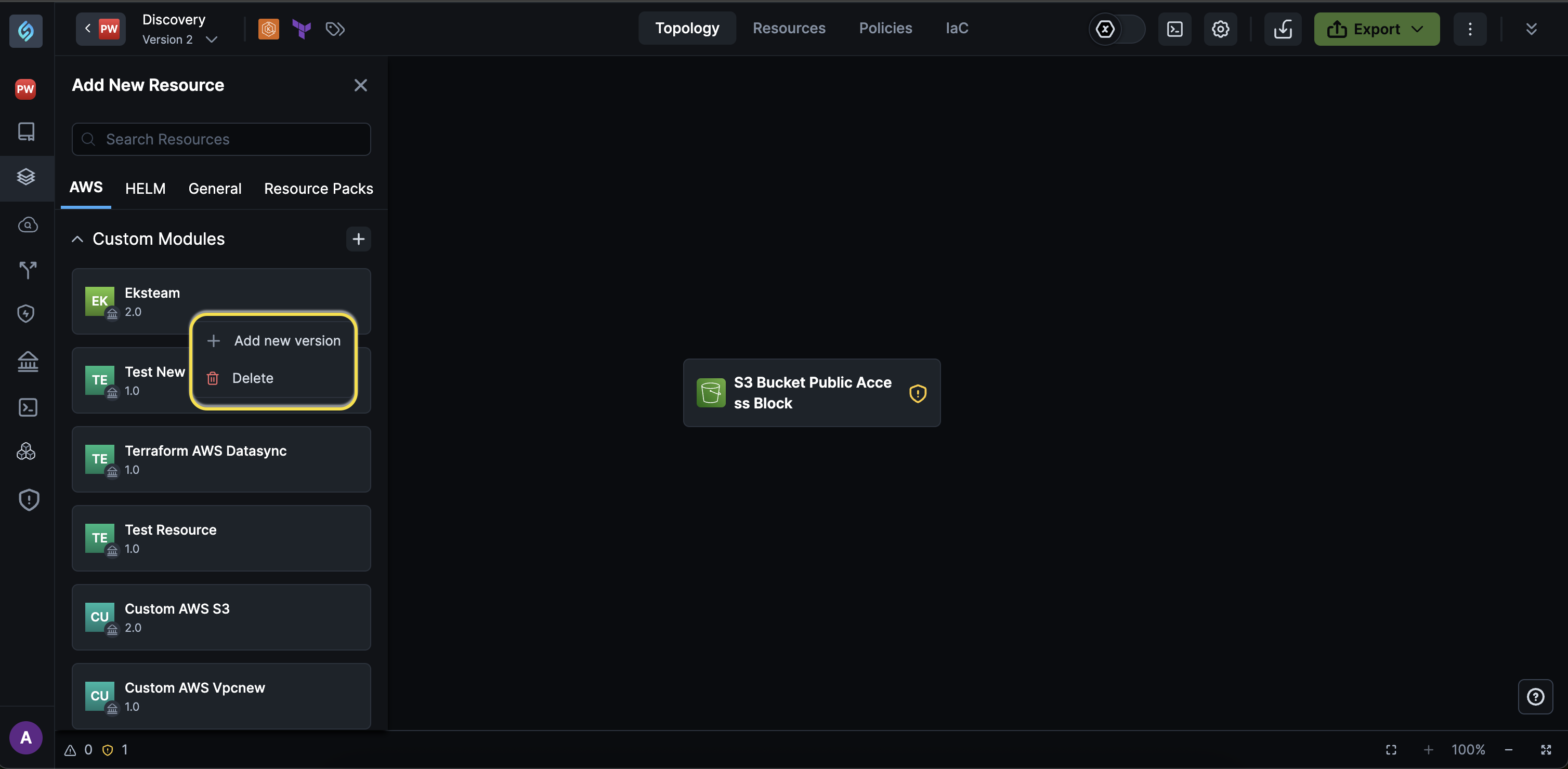
-
From the Delete Module dialog, you can:
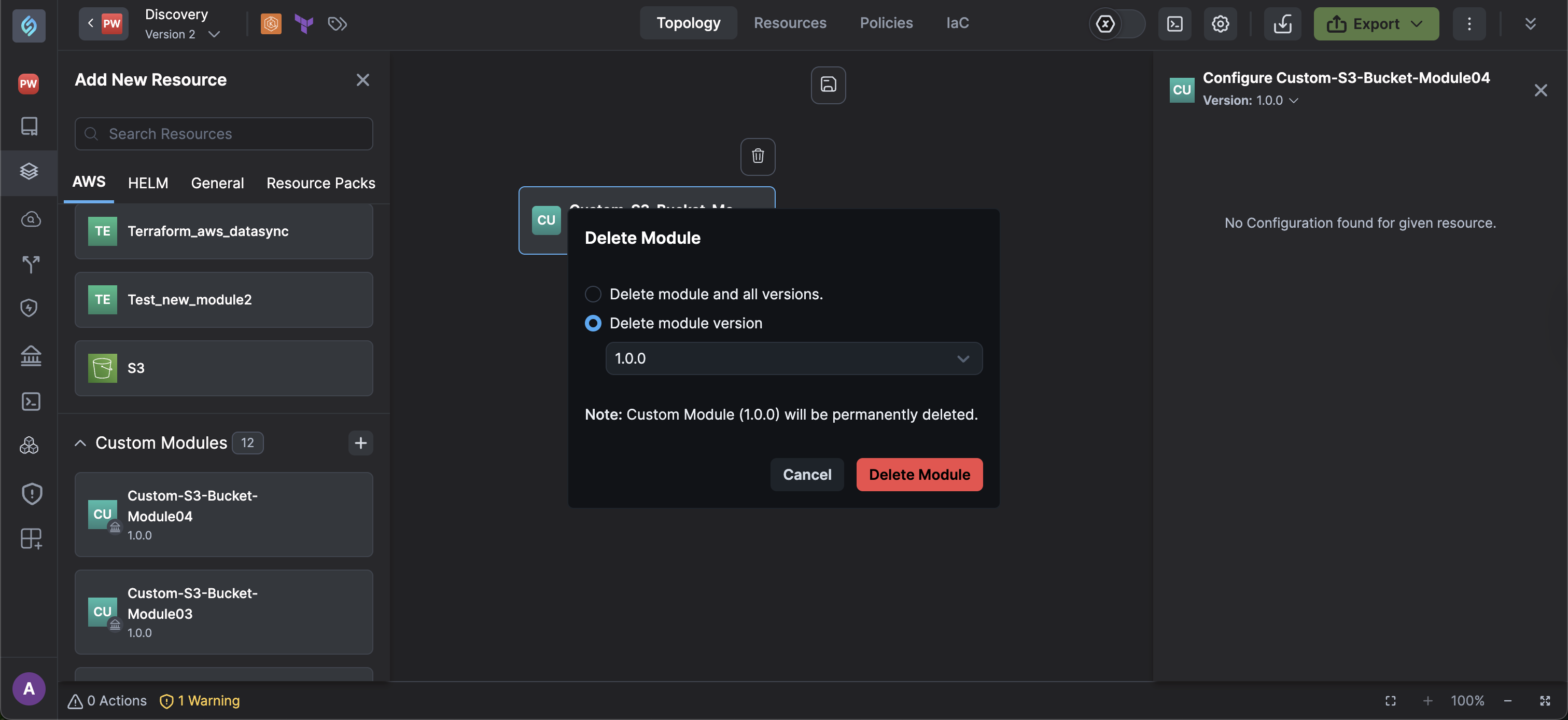
- Delete module and all versions: Deletes a custom module and all versions permanently and prevents further use in new deployments.
- Delete Module Versions: Select a Custom Module version to delete specific versions.
- Click Delete.
Resource connections
On the topology canvas you can connect a custom module to other resources. StackGen supports connections between any two resources when the canvas allows that edge.
Resource connection behavior
The resource connection behavior table outlines how resource connections, including custom modules, behave within StackGen. This helps you understand the impact of specific configurations.
| Action | Result | Notes |
|---|---|---|
| Connecting to IAM Role | Grants necessary permissions to the module | Ensure least privilege policies apply |
| Linking Database to App | Enables data flow between app and database | Verify networking configurations |
| Unlinking a Resource | Removes dependency, may impact service delivery | Validate before unlinking critical paths |
| Assigning Security Group | Applies rules to the connected module or resource | Check for overlapping rules |
| Adding Environment Variable | Propagates the variable to connected components | Use consistent naming conventions |
Imported TFState Linkage
When a Terraform state file is imported into StackGen, any resources provisioned by a multi-resource custom module are automatically grouped under that module.
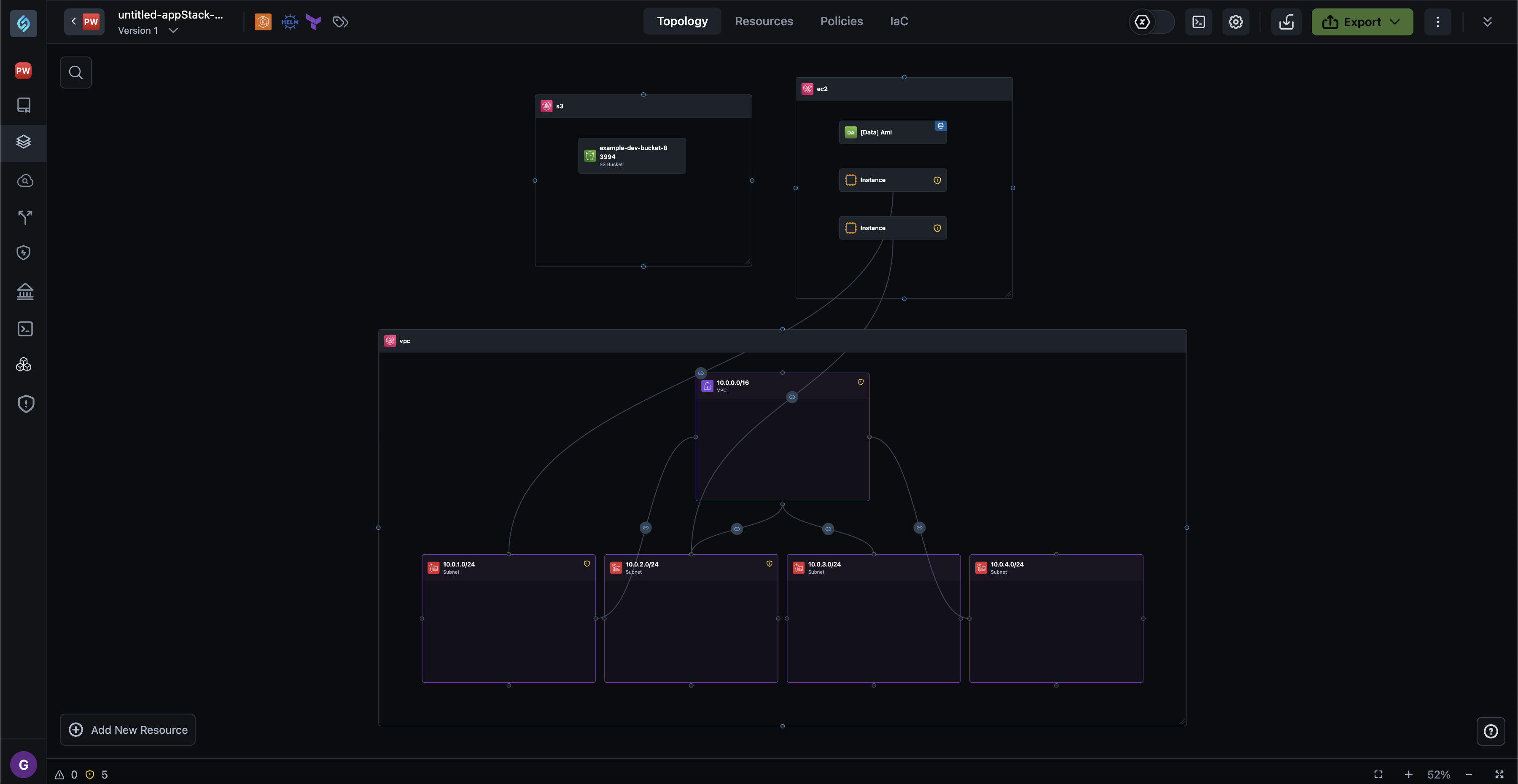
-
If the custom module already exists in StackGen, the imported resources are linked to it and can be managed using versioning and governance policies.
-
If the module is not present in StackGen, the resources are still grouped under the module name, but module management features (like upgrades) are unavailable.
This ensures that imported infrastructure maintains structural and organizational consistency, especially during brownfield onboarding.
Additional Information
View Custom Modules
Custom modules are accessible within the Topology Canvas under the Custom tab. They are also included in exported Infrastructure as Code (IaC) files as follows:
- Terraform modules listed under the
modules/directory. - Helm modules stored in the
charts/directory or referenced inChart.yaml.
Output Requirements
Custom modules must output a Resource Name to ensure compatibility with IAM roles and support connections within StackGen.
| Limitation | Details |
|---|---|
| Immutable Versions | Existing catalog module versions cannot be edited; create a new version to apply changes. appStack-owned modules support in-place updates instead. |
| No Cross-Referencing | You cannot reference other topology components from within custom modules. |
| IAM Dependencies | Must output a Resource Name to establish IAM connections. |