Filters
Filters
SRE has four filtering stages. Choose the one that changes the behavior you intend.
| Filter | Where to set it | Effect |
|---|---|---|
| Queue search and filters | Alerts list | Narrows the displayed alerts; does not change ingestion or automatic investigation |
| Filter at source | Configure -> instance -> Scheduled import | Limits what the provider API returns before ingestion rules run |
| Ingestion filter | Webhook settings or Scheduled import | Selects which incoming alerts enter Aiden |
| Only auto-investigate matching alerts | Inside Auto-investigate alerts | Limits automatic investigations while retaining other ingested alerts for triage |
Narrow the alert queue
On Alerts, combine Active or Ignored, a category card, Search alerts, All Sources, All Severities, and All Correlation. Correlation can be Root signal or Downstream effect. Use the sort control to change ordering and Rows per page to change page size.
If a row seems missing, reset the category, source, severity, correlation, and search controls, then check the other queue tab. These controls do not change what an integration sends.
Filter at source
This control appears for supported import providers; the current source-filter implementation supports FireHydrant. It does not appear for Grafana or ObserveNow.
- Open Configure -> FireHydrant instance -> Scheduled import.
- Enable Filter at source.
- Choose one Filter parameter, enter its value, and review the preview.
- Select Save pull config.
Parameters include Teams, Users, Services, Signal rules, Environments, Functionalities, Tags, Tag match strategy, and Has any incident. ID fields take comma-separated provider IDs, not display names. Tag match strategy accepts any, match_all, or exclude; Has any incident takes true or false.
The current form supports one source-filter condition. Use ingestion rules for additional conditions on fields present in the returned object. Saved pull settings apply to both scheduled and manual imports.
Build an ingestion rule
- Open the instance's webhook settings or Scheduled import tab.
- Enable Ingestion filter and choose All rules (AND) or Any rule (OR).
- Enter a JMESPath expression, choose an operator, and enter a value.
- Use Add rule for more conditions, then save the webhook settings or pull configuration.
JMESPath selects a field or computes a value from JSON. For example, labels.environment selects the environment inside the labels object. Use the actual source payload, not a column name or Aiden's generated summary.
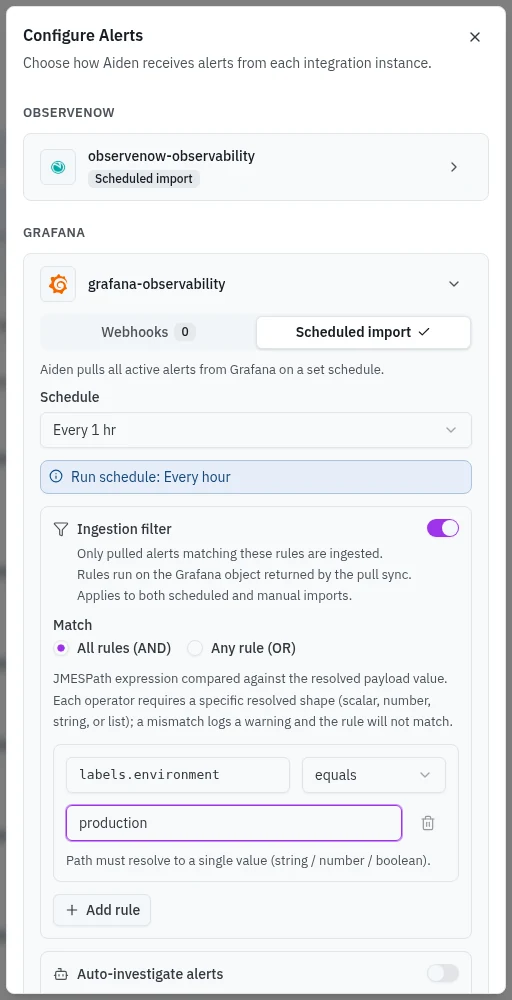
The example shown is a draft. Use it only if your payload contains that path. Webhook rules evaluate the webhook payload; import rules evaluate the object returned by the pull. Their structures can differ even for the same provider.
Operators and value shapes
| Operator | Expression must return | Example |
|---|---|---|
| equals / not equals | One string, number, or boolean | labels.environment equals production |
| greater than / less than | A number or numeric string | priority greater than 2 |
| contains | A list of scalar values | tags contains env:production |
| starts with / ends with | A string | name starts with checkout- |
contains tests list membership, not a substring inside a string. For a text substring, a JMESPath expression can produce a boolean, then compare it with equals and true.
A missing path or incompatible value shape does not match, including for not equals. A disabled filter or one with no rules does not restrict ingestion. Pull filtering preserves resolution records and legacy records without a capturable payload so recovery processing is not silently lost; do not use ingestion rules as an access-control boundary.
Worked example
For this illustrative pull object:
{
  "labels": {"environment": "production", "severity": "critical"},
  "tags": ["service:checkout", "team:payments"],
  "priority": 3
}
Use All rules (AND) with:
| Expression | Operator | Value |
|---|---|---|
labels.environment | equals | production |
tags | contains | team:payments |
The sample matches both rules. Changing the environment to staging makes the filter fail. With Any rule (OR), either matching rule would be enough, so staging alerts tagged team:payments would also pass.
Limit automatic investigations
To retain production alerts but investigate only critical ones automatically:
- Use an ingestion rule for
labels.environmentequalsproduction. - Enable Auto-investigate alerts.
- Enable Only auto-investigate matching alerts and add
labels.severityequalscritical. - Save the settings for the delivery method you are configuring.
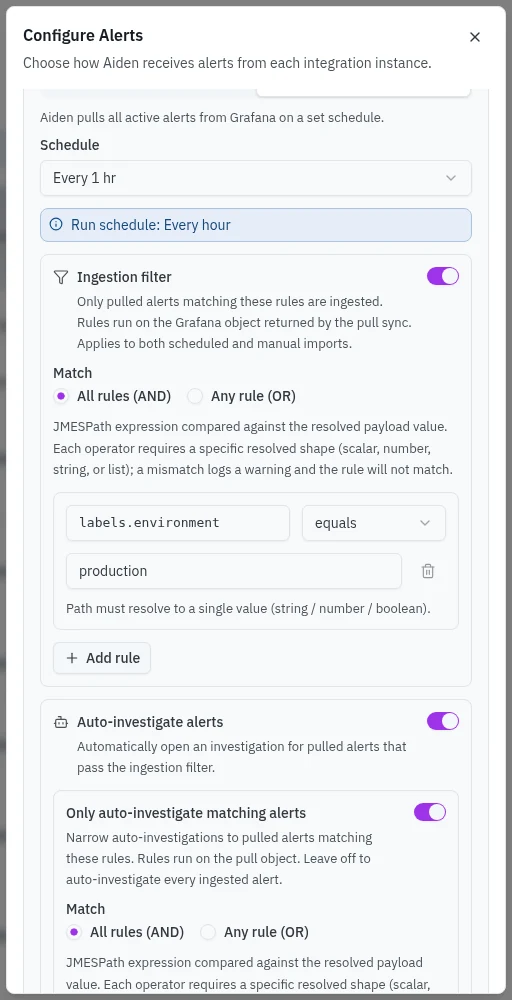
For the illustrative payload above, a production warning enters the queue but does not automatically start an investigation. A staging critical alert fails ingestion first. Turning off the additional auto-investigate filter allows every ingested alert through that stage.
Check a rule before relying on it
Inspect Alert payload in an existing alert or a sample delivery from your provider. Confirm field names, nesting, capitalization, and the type of the returned value. Compare a sample that should match with one that should not, then save and verify the next delivery or import.
The form does not provide a payload test console. If a rule has an unexpected result, first check the payload shape and AND/OR choice. If an alert is present but has no automatic investigation, inspect the separate auto-investigation rules rather than the queue filters.