MCP
MCP
Shipyard has two Model Context Protocol (MCP) servers. The local server, shipyard mcp serve, comes with the Shipyard CLI, and AI assistants such as Claude Code, Claude Desktop, Cursor, Codex and Kiro use it to list, inspect, rebuild and debug your Shipyard environments. The hosted server, at https://mcp.shipyard.build/mcp, needs no CLI: you sign in from your assistant, then add apps and check their environments.
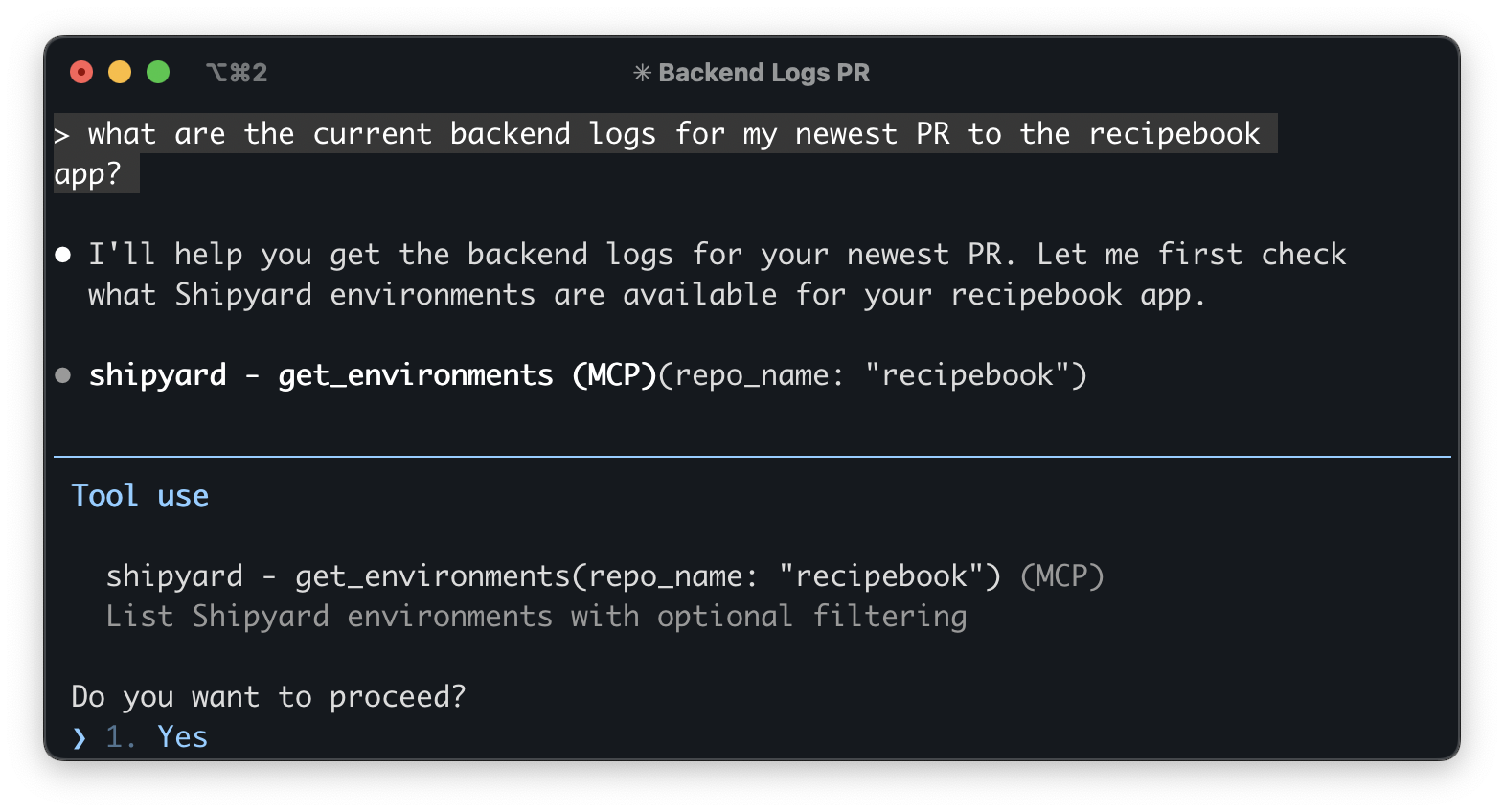
Use it for writing and running tests, code review, incident triage, and verifying a change against its environment before you merge.
Use the Shipyard MCP integration with the Playwright MCP integration for visual testing with agents against your Shipyard environments.
Learn more: Playwright MCP on GitHub
This page is a summary. The full guide (configuration, every tool, the verify prompt, troubleshooting) lives with the CLI: docs/mcp.md on GitHub.
Hosted or local
| Hosted server | Local server | |
|---|---|---|
| Runs | On Shipyard, at https://mcp.shipyard.build/mcp | On your machine, as shipyard mcp serve |
| Needs | A browser sign-in from your client | Shipyard CLI and shipyard login, or an org API key |
| Org | The one you pick when you sign in | Your default org, or the org of an org API key |
| Tools | 8: add and reconfigure apps, check environments, builds and failures | All of them, including stop, rebuild, service logs, env vars and volumes |
Use one or the other in a client: each defines a server named shipyard.
Hosted server
The hosted plugin, shipyard-hosted, adds the server and a skill that tells the assistant how to add an app safely. It holds no token.
| Client | Install | Connect |
|---|---|---|
| Claude Code | claude plugin marketplace add shipyard/shipyard-plugins, then claude plugin install shipyard-hosted@shipyard | Run /mcp in Claude Code and choose the Shipyard server |
| Codex | codex plugin marketplace add shipyard/shipyard-plugins, then codex plugin add shipyard-hosted@shipyard | codex mcp login shipyard |
| Kiro | In the Powers panel, choose Add Custom Power, then Import power from GitHub, and enter https://github.com/shipyard/shipyard-plugins/tree/main/hosted | Connect Shipyard from Kiro's MCP servers panel |
Connecting opens Shipyard in your browser. Sign in, pick the org the assistant works in, and allow access. Your client keeps the token. Then start a new session and ask "list my Shipyard environments".
You can add the server without the plugin, but you won't get the skill:
claude mcp add --transport http shipyard https://mcp.shipyard.build/mcp
codex mcp add shipyard --url https://mcp.shipyard.build/mcp
The hosted plugin hasn't been tested in Cursor yet. Use the local server there.
A hosted connection accepts only the token from this sign-in: shipyard login tokens and org API keys don't work. It reaches one org, so connect again to use another.
What it can do
plan_application: preview adding a pushed GitHub branch as an app. Changes nothing.create_application: create an app from a plan you confirmed. Env values go to Shipyard and are never returned.update_application: change an app's branches, services, routes or reposget_environments,get_environment,get_build_history,get_failure_details,get_build_logs: check environments, builds and failures
What it can't do
The hosted server has only the tools above. For anything else, use the local server, or the Shipyard dashboard where it offers the same action.
- Control an environment: stop, restart or revive it, cancel a build, rebuild on request, or deploy a detached copy.
update_applicationrebuilds only when a change needs it, so asking for the same configuration or a newer commit queues nothing. - Change env vars later: you can set values only when
create_applicationcreates the app. After that, the hosted server can't read, change or delete them. - Work inside a running environment: read live service logs, restart a service, run a command, port-forward or connect with Telepresence.
get_build_logsdoes return a build's stored build, run and crash logs. - Manage data: list, reset or restore volumes and snapshots.
- Switch orgs: connect again and pick the other org.
- Use the
verifyprompt: the hosted server offers tools only. The hosted plugin's skill tells the assistant how to check a change instead.
Some limits apply to both servers:
- You can add an app only from a pushed branch of a GitHub repo that's shared with the Shipyard GitHub app. The repo needs a Docker Compose file, and an org reaches one GitHub account unless support connects another.
- Neither server can delete an app.
- To change build args on an existing app, use the Shipyard dashboard.
Every sign-in allows creating and changing apps, reading environments and opening previews. You can't limit it to read-only. update_application can rebuild an app, restart a stopped one and unlink repos. The plugin's skill tells the assistant to ask first, but your client decides whether a tool can run without asking.
What the answers mean
update_application says what happened:
| Status | Meaning |
|---|---|
updated | A build was queued |
not_rebuilt | No build was queued and none is unfinished. A stopped app stays stopped, and new commits aren't built. |
build_in_progress | No build was queued, but an earlier one is unfinished and can still replace what's deployed |
When Shipyard needs something done first, such as installing the GitHub app, pushing the branch or choosing a plan after a trial ends, the answer is status: needs_action with a next_step. The assistant shows you the message and link, and waits for you. If the app already exists, the answer is already_exists, and nothing you asked for was applied.
More: The hosted server.
Installation
The rest of this page covers the local server. It needs Shipyard CLI 1.9.0 or later. Adding apps from it needs 1.11.0 or later.
brew tap shipyard/tap
brew install shipyard
shipyard --version
Other install methods: Shipyard CLI README.
Log in, so the server can find your token:
shipyard login
If you belong to more than one org, set a default: shipyard set org <org_name>.
Plugin
Claude Code, Codex, Cursor and Kiro can install the Shipyard plugin. It adds the MCP server and a short skill that tells the assistant how to use it safely, in one step. The plugin contains no code and no token: it runs shipyard mcp serve, so you still need the CLI installed and shipyard login.
| Client | Install |
|---|---|
| Claude Code | claude plugin marketplace add shipyard/shipyard-plugins, then claude plugin install shipyard@shipyard |
| Codex | codex plugin marketplace add shipyard/shipyard-plugins, then codex plugin add shipyard@shipyard |
| Cursor | cursor-agent plugin marketplace add https://github.com/shipyard/shipyard-plugins, then Cursor Settings, Plugins: install Shipyard |
| Kiro | In the Powers panel, install from the GitHub URL https://github.com/shipyard/shipyard-plugins |
The Cursor app decides whether to ask from its Auto-Run setting, not from the tool hints. With Auto-Run on and MCP Tools Protection off, Cursor runs Shipyard tools without asking, including stop_environment. Before you connect Shipyard, open Cursor Settings, Auto-Run, and choose Ask Every Time or turn on MCP Tools Protection. Then check that a destructive call asks you first.
The plugin runs shipyard from the PATH the client sees, and you can't change that command. If the server fails to start with "command not found" (desktop apps opened from the Dock or Start menu may not see your shell's PATH), use the manual setup below instead, with the absolute path from which shipyard as the command.
Restart the session afterwards. Use the plugin or the manual setup below, not both. If you added a server by hand, remove it first (claude mcp remove shipyard, or delete the entry from Cursor's or Kiro's mcp.json). Otherwise Claude Code may keep your server and skip the plugin's, so the plugin's permission rule below doesn't match. Codex is the exception: a [mcp_servers.shipyard] entry replaces the plugin's server, so you can keep one for the Unattended use settings below.
Setup
Every client runs the same command, shipyard mcp serve. After shipyard login, no token is needed in the client config.
.cursor/mcp.json, .kiro/settings/mcp.json and Claude Code's .mcp.json live in the repository and tend to get committed. Use shipyard login, or put the token in a per-user file only.
Desktop apps often don't see your shell's PATH. If the server fails to start, use the absolute path from which shipyard as the command.
- Claude Code
- Claude Desktop
- Cursor
- Codex CLI
- OpenCode
- Kiro
claude mcp add shipyard -- shipyard mcp serve
Add --scope user to make it available in every project. Check it with /mcp inside Claude Code.
Settings, Developer, Edit Config (claude_desktop_config.json):
{
  "mcpServers": {
    "shipyard": {
      "command": "/opt/homebrew/bin/shipyard",
      "args": ["mcp", "serve"]
    }
  }
}
Replace the command with the output of which shipyard, then restart Claude Desktop.
~/.cursor/mcp.json (every project) or .cursor/mcp.json (one project):
{
  "mcpServers": {
    "shipyard": {
      "command": "shipyard",
      "args": ["mcp", "serve"]
    }
  }
}
Reload the window, then check Settings, MCP. Cursor asks you to approve the server the first time, and again if its command changes.
codex mcp add shipyard -- shipyard mcp serve
Or edit ~/.codex/config.toml:
[mcp_servers.shipyard]
command = "shipyard"
args = ["mcp", "serve"]
~/.config/opencode/opencode.jsonc (every project) or opencode.jsonc (one project).
{
  "$schema": "https://opencode.ai/config.json",
  "mcp": {
    "servers": {
      "shipyard": {
        "type": "local",
        "command": ["shipyard", "mcp", "serve"]
      }
    }
  }
}
Check the connection with /mcps inside OpenCode or opencode mcp list.
~/.kiro/settings/mcp.json (every workspace) or .kiro/settings/mcp.json (one workspace). The Kiro IDE and Kiro CLI share these files.
{
  "mcpServers": {
    "shipyard": {
      "command": "shipyard",
      "args": ["mcp", "serve"]
    }
  }
}
Kiro reloads the file on save. Read Unattended use before running Kiro CLI non-interactively.
Then start a new session and ask "list my Shipyard environments".
Tools
From Shipyard CLI 1.10.0, each tool tells the client whether it only reads, may change or remove something, or only adds state. Clients use this to decide when to ask you.
Read-only
get_environments,get_environment: list environments, or one environment's detailsget_build_history: an environment's buildsget_failure_details(Shipyard CLI 1.10.0 or later): why a build failed, in one call (phase, reason, failing services, log excerpts)get_build_logs(Shipyard CLI 1.10.0 or later): a build's stored build, run or crash logs, also after the environment stoppedget_services,get_logs: services in an environment, and their logsget_env_vars: environment variables (hidden values masked)get_volumes,get_snapshots: volumes and their snapshotsget_orgs,get_org: your orgs, and the current defaultplan_application(Shipyard CLI 1.11.0 or later): preview adding a pushed GitHub branch as an appport_forward: returns the CLI command to run; forwards nothing itself
May change or remove something
stop_environment,cancel_environment,rebuild_environment: stop, cancel the latest build, rebuildupdate_branches: point repos in an environment at other branchesrestart_service: restart one serviceput_env_vars,delete_env_var: set or delete environment variablesreset_volume,load_snapshot: reset a volume, or restore a snapshot over itexec_service: run a command in a service container. Off by default; enable withSHIPYARD_MCP_ALLOW_EXEC=truein the client's env, ormcp.allow_exec: truein~/.shipyard/config.yamlset_org: change the default org that later calls usetelepresence_connect: runtelepresence connecton your machinecreate_application,update_application(Shipyard CLI 1.11.0 or later): create an app from a plan, or change its branches, services, routes or reposdelete_detached(Shipyard CLI 1.11.0 or later): delete a detached environment
Only adds state
restart_environment,revive_environment: start a stopped environment, revive a deleted onedeploy_detached: create an independent copy of an environmentcreate_snapshot: snapshot a volume
The server also provides a verify prompt that walks an agent through checking a pushed change against its environment. See the full reference.
Unattended use
In an interactive session, each client asks before a tool call. For an agent that runs on its own (script, CI, headless session), allow only the read-only tools:
| Client | Setting |
|---|---|
| Claude Code | "permissions": {"allow": ["mcp__shipyard__get_*"]} in .claude/settings.json, or claude -p --allowedTools "mcp__shipyard__get_*". With the plugin, use mcp__plugin_shipyard_shipyard__get_* instead. |
| Codex | With Shipyard CLI 1.10.0 or later: default_tools_approval_mode = "writes" under [mcp_servers.shipyard] (it relies on the tool hints added in 1.10.0). With Shipyard CLI 1.9.0: approve each read-only tool instead, one table per tool, for example [mcp_servers.shipyard.tools.get_orgs] with approval_mode = "approve". With the plugin, keep command and args in the [mcp_servers.shipyard] block: it replaces the plugin's server. |
| Cursor CLI | "permissions": {"allow": ["Mcp(shipyard:get_*)"]} in .cursor/cli.json or ~/.cursor/cli-config.json. Needs a server added by hand: cursor-agent doesn't load the plugin's server. |
| Kiro CLI | "disabledTools": [...] listing every tool under "May change or remove something" and "Only adds state" (otherwise deploy_detached can still create environments). Kiro CLI non-interactive mode runs MCP tools without asking. disabledTools is a block-list: a tool added in a later release is enabled until you list it, so recheck after each Shipyard CLI upgrade. Set it on a server you added by hand, and uninstall the Shipyard power first: the power's server is not covered by it. |
Prefer an org API key over your personal token for shared machines and CI: it only reaches one org. Details: Permissions and least privilege.
Updating and removing
- Update:
shipyard upgrade(Shipyard CLI 1.10.0 or later), orbrew upgrade shipyard. Restart the client afterwards. - Update the plugin:
claude plugin update shipyard@shipyardorcodex plugin marketplace upgrade shipyard. In Cursor, runcursor-agent plugin marketplace update shipyard, then reinstall the plugin from Cursor Settings, Plugins. In Kiro, uninstall the power and import it from GitHub again. - Remove from a client:
claude mcp remove shipyard,codex mcp remove shipyard, or delete theshipyardentry from the Cursor, Kiro or Claude Desktop config file. - Remove the plugin:
claude plugin uninstall shipyard@shipyard,codex plugin remove shipyard@shipyard, uninstall it from Cursor Settings, Plugins, or uninstall the power from Kiro's Powers panel. - Remove the token: delete
api_tokenfrom~/.shipyard/config.yaml. - Hosted plugin: update with
claude plugin update shipyard-hosted@shipyardorcodex plugin marketplace upgrade shipyard; in Kiro, uninstall the power from the Powers panel and import it again. Remove it withclaude plugin uninstall shipyard-hosted@shipyard,codex plugin remove shipyard-hosted@shipyard, or from Kiro's Powers panel. To disconnect, remove the server or sign out of it in your client's MCP settings.
More, including rolling back to an earlier release: Updating, uninstalling and rolling back.
Troubleshooting
- "Connection closed", or
unknown command "mcp": theshipyardthe client runs is older than 1.8.0. Runwhich -a shipyard, then upgrade or remove the stale copy, or use the newer binary's absolute path. - Tools fail with a missing token: run
shipyard login, then restart the client's Shipyard server. The client's environment is not your shell's. - The hosted server shows "Needs authentication", or says the connection is no longer valid: connect it again from your client's MCP settings.
- More: Troubleshooting.