Alerts
Alerts
Alert automation triages alerts from your connected integrations, reduces noise, and automates investigation. The Alerts page shows active incidents and alerts scoped to the current workspace and visible to members with access. Use it to triage alerts by category, review and classify ambiguous signals, configure import behavior, and open investigation chat from the same workflow.
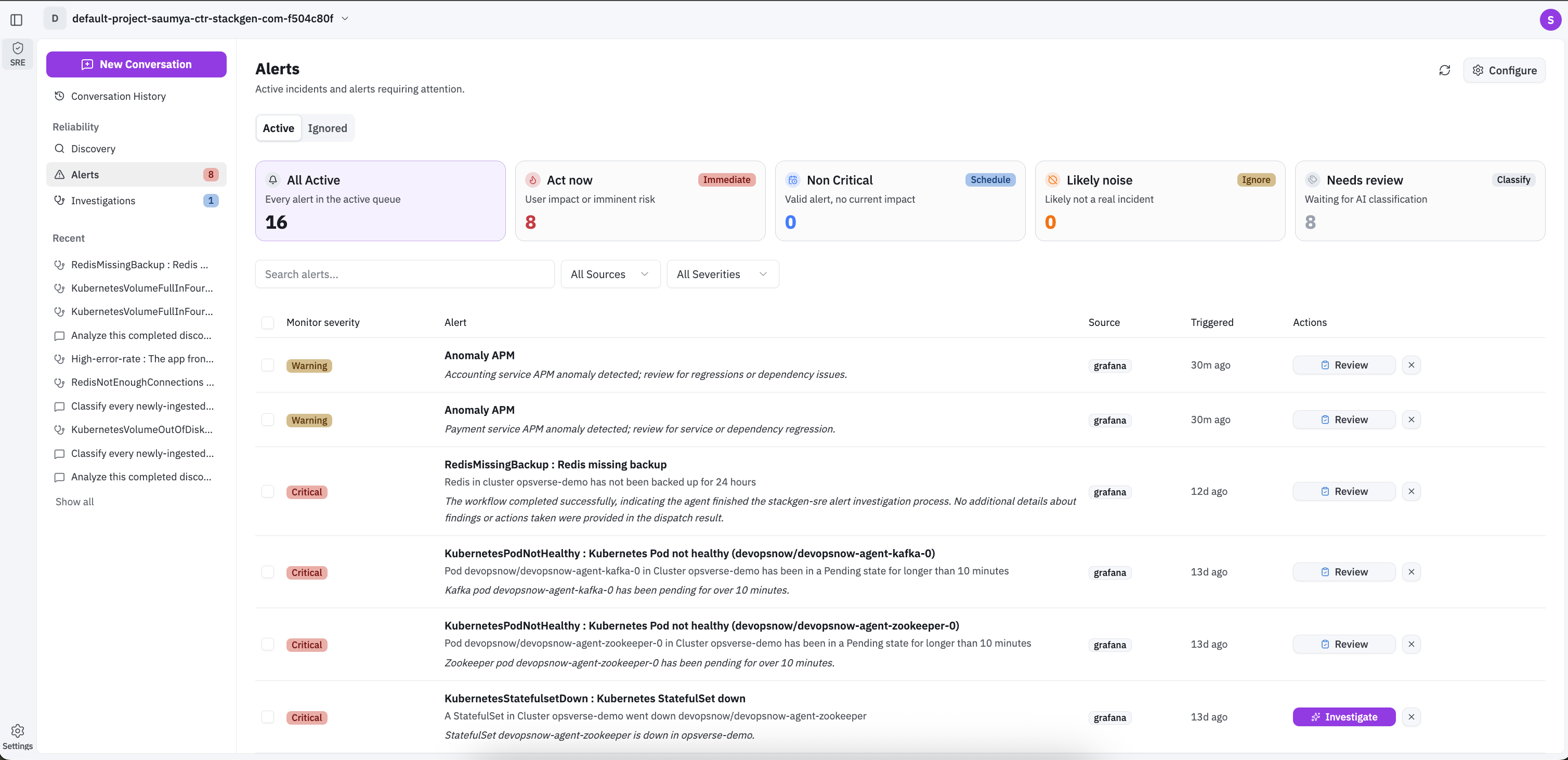
Use Active and Ignored tabs to switch queue scope.
- Summary cards segment active alerts into operational buckets: All Active, Act now, Non Critical, Likely noise, and Needs review. Selecting a card filters the table immediately.
- Use Search alerts, All Sources, and All Severities dropdowns to narrow results.
- You can Investigate or Review the listed alerts.
Configure and Import Alerts
Click Configure to open the Configure Alerts panel for each integration instance.
-
From there, you can manage Webhooks.
-
Define Scheduled imports, when you want regular updates (for example hourly).
-
Run one-time Import when you need to pull current active alerts on demand.
Review and Classify Alerts
When an alert needs manual classification, click Needs Review summary panel or Review next to a listed alert to open the details panel.
This panel includes key metadata, source, severity, investigation status, summary, and payload. After review, assign the appropriate category, such as Act now, Non-Critical, or Likely Noise, and click Apply.
Investigate Alerts
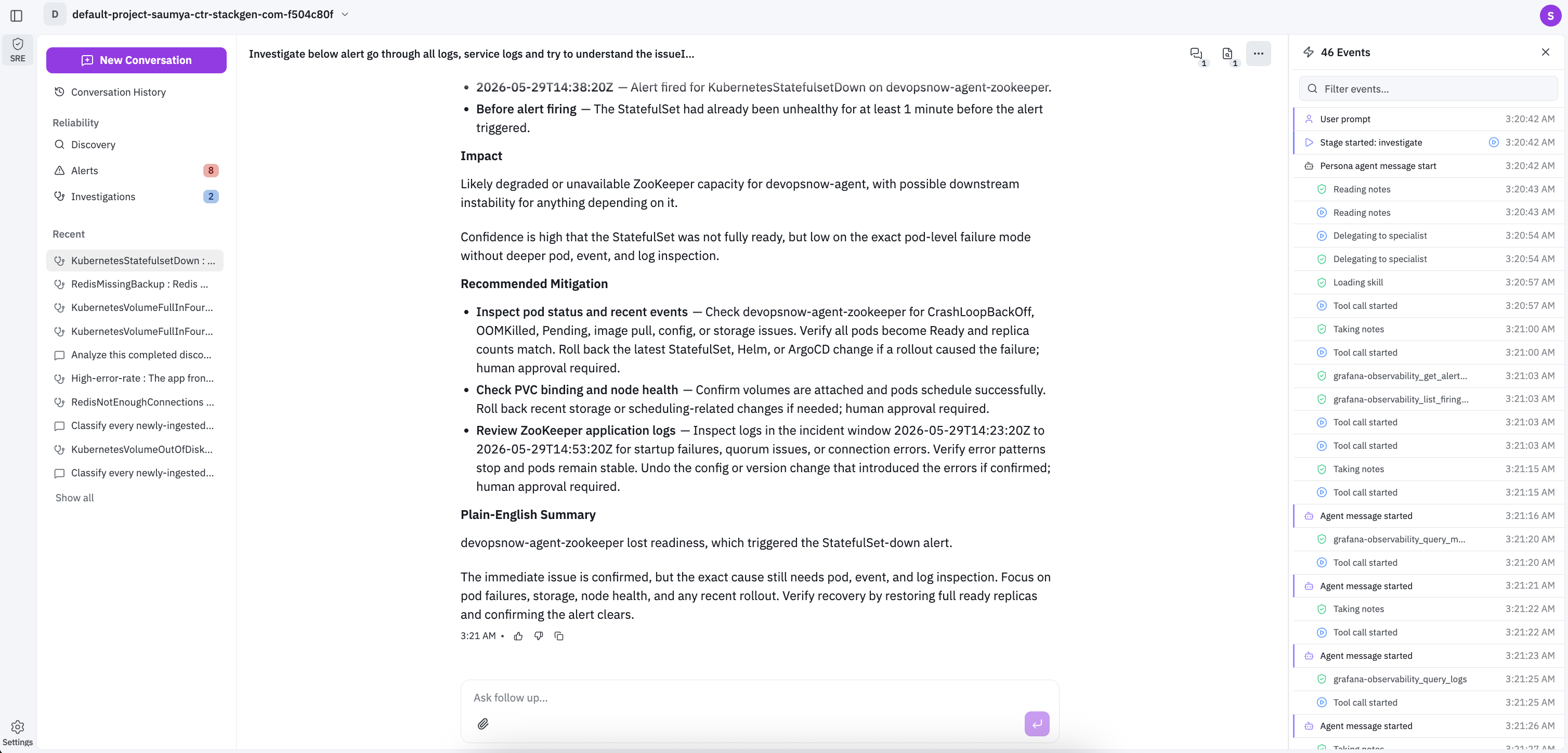
Click Investigate on any row to open that alert directly in a new chat windows. The chat view includes the investigation thread, follow-up input, and the event timeline panel, so responders can move from triage to analysis without switching context.