Sign-in and Identity
Sign-in and Identity
This page explains how people sign in to StackGen and how admins keep users and groups in step with the company identity provider (IdP).
How users sign in
Go to your StackGen URL. The Log in to StackGen page lists the methods your installation allows:
- Continue with GitHub, Continue with GitLab or Continue with Bitbucket. Methods your installation does not allow appear dimmed.
- Single sign-on (SSO). StackGen uses an identity broker (Dex) that connects to the IdP your organization uses, over SAML 2.0 or OIDC, for example Microsoft Entra ID or Okta. StackGen configures the connection for your enterprise. To create the app registration in your IdP, see Configure Your Microsoft Entra ID (Azure AD) OAuth 2.0 or Configure Okta OIDC sign-in.
If only one method is allowed, StackGen skips the page and sends you straight to it. This is the usual setup for SSO.
Email one-time passcode. Where your installation turns on email login, StackGen emails a code with the subject <code> is your StackGen login code. The code expires after 5 minutes and allows 5 attempts. If no account matches the email, you get an email with the subject No StackGen account for this email instead.
A user that an admin has disabled in User Management cannot sign in with any method. See Disable or enable a user.
Link more sign-in methods
Link several methods to one account so that, for example, a GitHub login and your company SSO land in the same StackGen user instead of two.
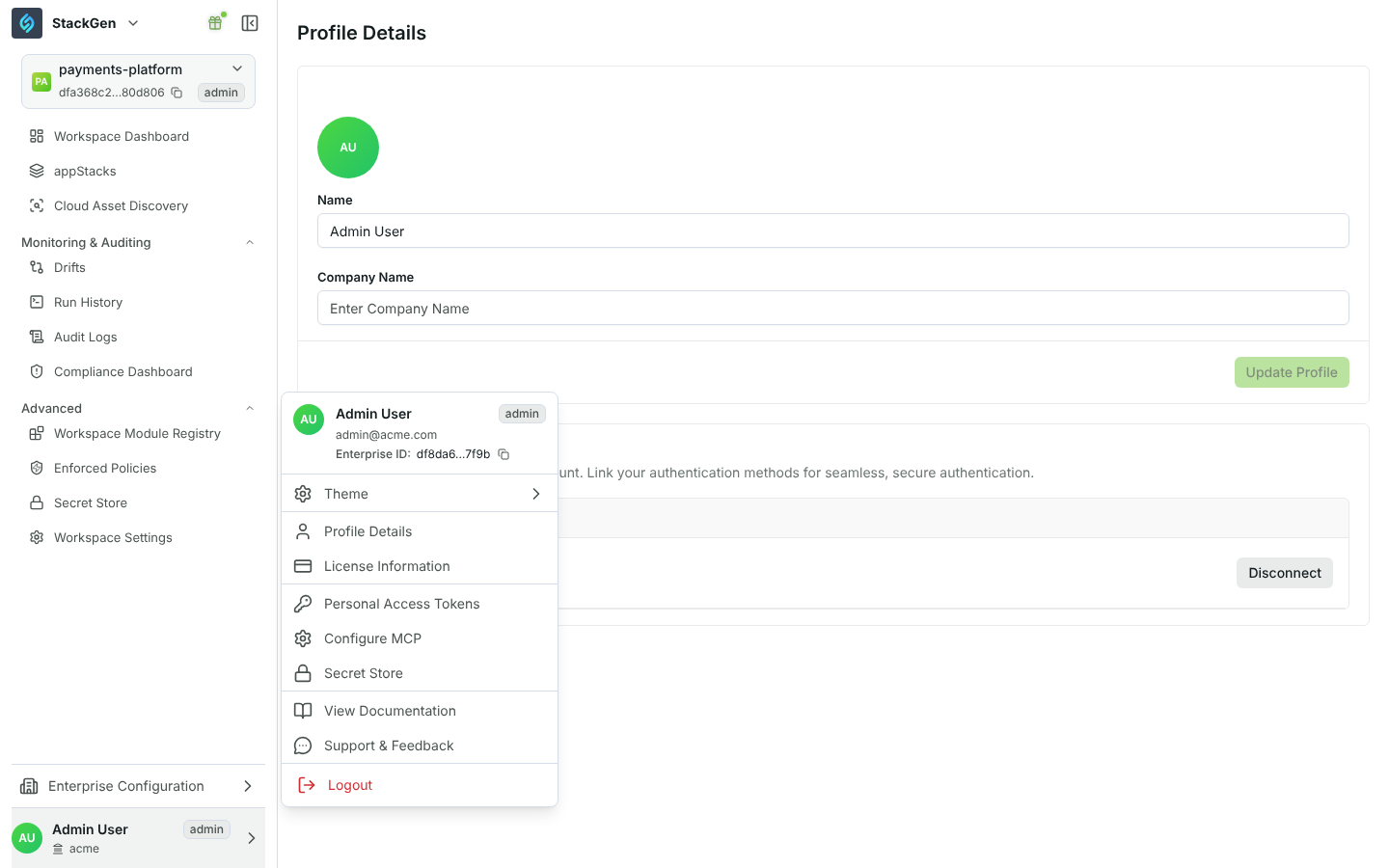
- Select your name at the bottom of the sidebar, then Profile Details.
- In Sign-in Methods, the Connected list shows your linked methods. Available To Connect lists the other methods enabled for the enterprises you belong to.
- Select Connect next to a method and sign in with it.
To remove a method, select Disconnect and confirm. You cannot disconnect the method marked Primary.
Belong to several enterprises
One login can be a member of more than one enterprise (tenant). An Admin of the other enterprise adds you with Invite members to organization in User Management.
When you belong to more than one, open the profile menu at the bottom of the sidebar and select the current enterprise name to list the others:
- Select an enterprise to open it in a new browser tab. Your current tab stays where it is.
- Use Set as default organization on a row to choose which enterprise opens when you sign in.
The profile menu also shows the Enterprise ID of the enterprise you are in, with a copy button.
SCIM 2.0 provisioning
Use SCIM to create, update and deactivate StackGen users from your IdP (for example Okta or Microsoft Entra ID).
Create a SCIM token
There is no UI for SCIM tokens. An enterprise Admin creates one with the API, for example with a Personal Access Token:
curl -X POST "https://<your-stackgen-host>/appcd/api/v1/scim/token" \
  -H "Authorization: Bearer <ADMIN_PAT>" \
  -H "Content-Type: application/json" \
  -d '{"name": "Okta SCIM", "expiresAt": "2027-01-01T00:00:00Z"}'
name,descriptionandexpiresAtare optional.- The response returns the
tokenonce, with itstokenIdandtenantId. Store the token in your IdP right away. - The token works for one enterprise only and is not tied to a user session.
- List tokens (metadata only) with
GET /appcd/api/v1/scim/token. Revoke one withDELETE /appcd/api/v1/scim/token/{tokenId}.
Configure your IdP
- Base URL: the StackGen SCIM endpoint ends in
/scim/v2. Ask support@stackgen.com for the exact URL for your installation. - Authentication:
Authorization: Bearer <SCIM token>.
What is supported
| Resource | Supported | Not supported |
|---|---|---|
| Users | List, get, create, replace, patch (active, userName, externalId, name.formatted) and delete. Filter by userName eq "..." or externalId eq "...". | Other filters. |
| Groups | List, get, create, and patch members (add or remove). | Filters on the group list (returns 400). PUT and DELETE on a group (return 501). |
| Service | ServiceProviderConfig, ResourceTypes, Schemas. Up to 200 results per page. | Bulk, sort, ETags, password change. |
Things to know:
- Deleting a user in SCIM deactivates the StackGen user. It does not erase it.
- New SCIM users get the Developer role. Change roles in User Management.
- A SCIM user matches an SSO user when
externalId(or the primary email whenexternalIdis empty) is the same identifier your IdP sends at sign-in. - SCIM groups map to StackGen workspaces, not to the user groups on the Groups tab. Members added through SCIM are marked as managed by the external system.
Group sync from Microsoft Entra ID
Where it is enabled for your enterprise, StackGen syncs Microsoft Entra ID groups into User Management > Groups. Membership updates apply on the sync interval after a user has signed in once. Entra stays the source of truth: manual changes to a linked group are reverted on the next sync.
See Entra ID group sync for details and Users and Roles for what each role can do.