Secret Store
Secret Store
The Secret Store holds the credentials StackGen uses on your behalf. Values are stored encrypted. Other screens refer to a secret by name, so you never paste a token into an appStack.
Common uses:
- Cloud credentials for Plan & Deploy. Create an AWS Cloud Provider, Azure (service principal) or GCP secret, then attach it to a workspace environment under Workspace Settings > Deployment > Provider Credentials. See Plan & Deploy.
- SCM tokens. GitHub, Gitlab, Bitbucket and Azure DevOps secrets authenticate Git configurations, module imports and pushes to Git. See Git Configurations.
- Notifications. A Slack secret authenticates a Slack notification channel. See Notifications and Alerts.
- Other integrations. The Secret Type list also includes LLM keys (OpenAI, Anthropic, Gemini, Amazon Bedrock), CI/CD, observability, database, Kubernetes, container registry and Generic Secret types.
This page uses the current names, such as Workspace. If your sidebar shows Projects, see the Glossary.
Open the Secret Store
- Select a workspace from the selector at the top of the sidebar.
- In the sidebar, under Advanced, select Secret Store.
The page has two tabs:
- Internal Secrets: secrets stored in StackGen.
- External Stores: connections to a secrets manager you already run.
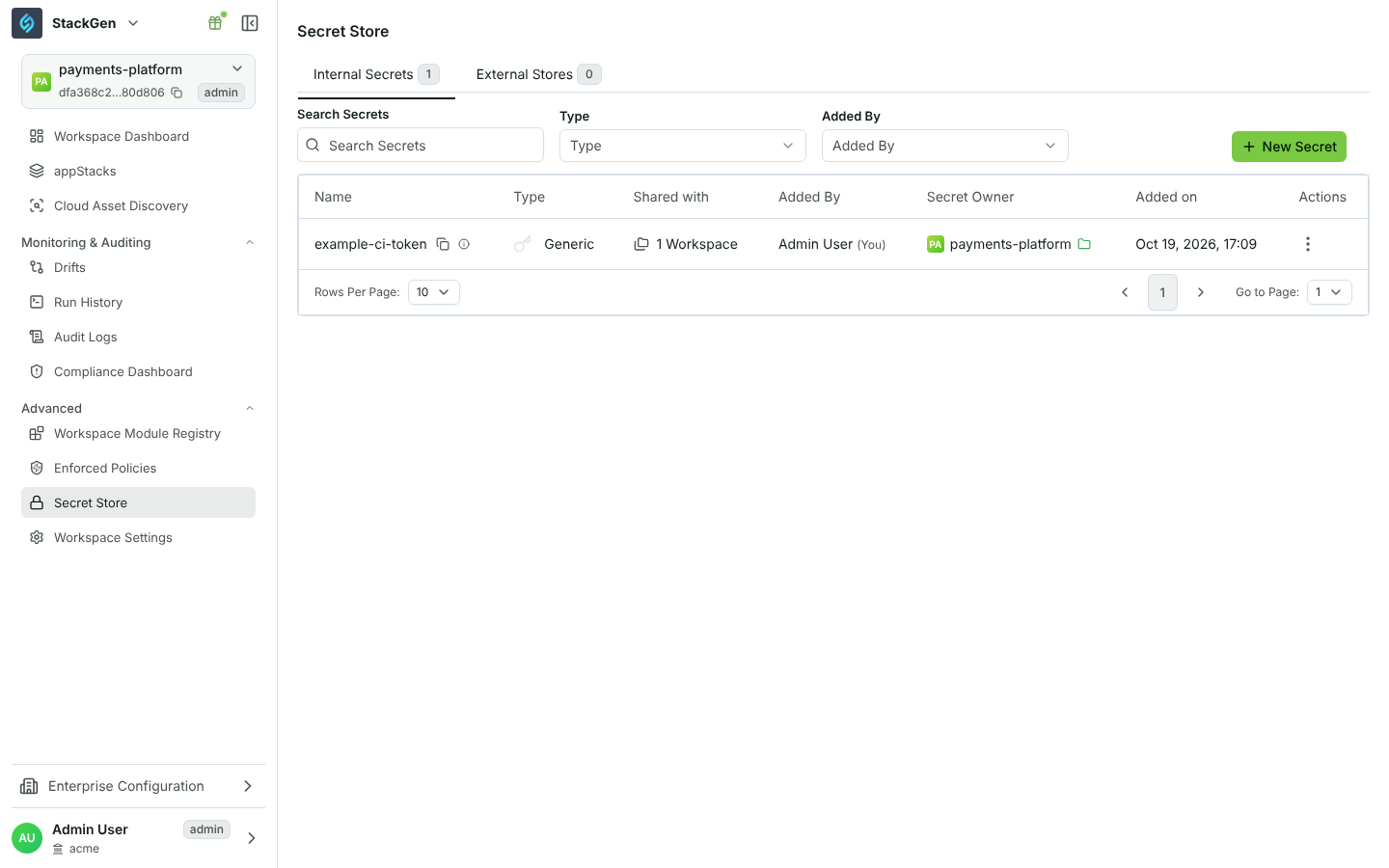
The table shows each secret's Type, Shared with, Added By, Secret Owner (the workspace that owns it) and Added on. Select the copy icon next to a name to copy the Secret UUID for automation.
Create an internal secret
- On the Internal Secrets tab, select New Secret.
- In Secret Type, search for and select the type, for example AWS Cloud Provider or GitHub.
- Enter a Secret Name and a Secret description. You cannot change the name or type later.
- Fill in the fields for that type. Fields change with the type you pick. For example, AWS Cloud Provider has an Authentication Method that switches between role and access key fields, and AWS EKS Cluster shows a Setup Instructions panel.
- Choose who can use the secret (see Scope and sharing).
- Select Create Secret.
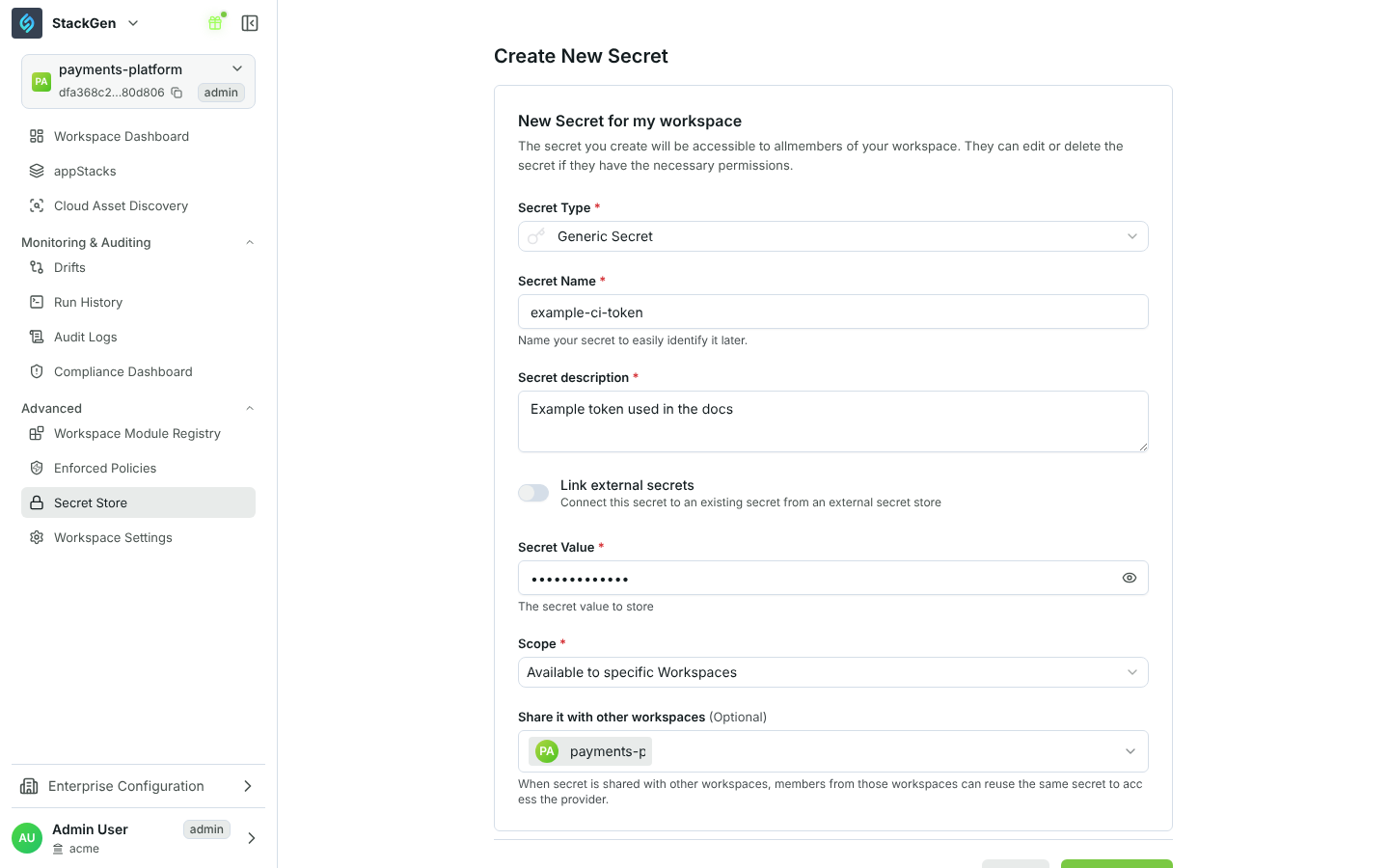
If StackGen rejects the value (for example an invalid GitHub token), you stay on the form and see an error so you can fix it.
To edit or delete a secret, open the Actions menu on its row. A lock icon means you cannot edit that secret from the current workspace.
Scope and sharing
A secret belongs to the workspace you create it in. Members of that workspace can use it.
| Option | Who can use the secret |
|---|---|
| Available to specific Workspaces (default) | The owning workspace, plus any workspaces you add in Share it with other workspaces. |
| Share with entire Enterprise | Every workspace in the enterprise. |
The Scope field appears only for Admin and DevOps users. Developer users can still share a secret with specific workspaces.
You can delete a secret only from the workspace that owns it. Deleting it removes it for every workspace it is shared with.
Connect an external store
Use an external store when secrets must stay in your own secrets manager. StackGen reads them at run time and does not store the values.
- Open the External Stores tab and select New External Store.
- Under Connection, enter a Connection Name and Description.
- Under Provider, select a Provider Type.
- Fill in the provider settings and select Connect External Store.
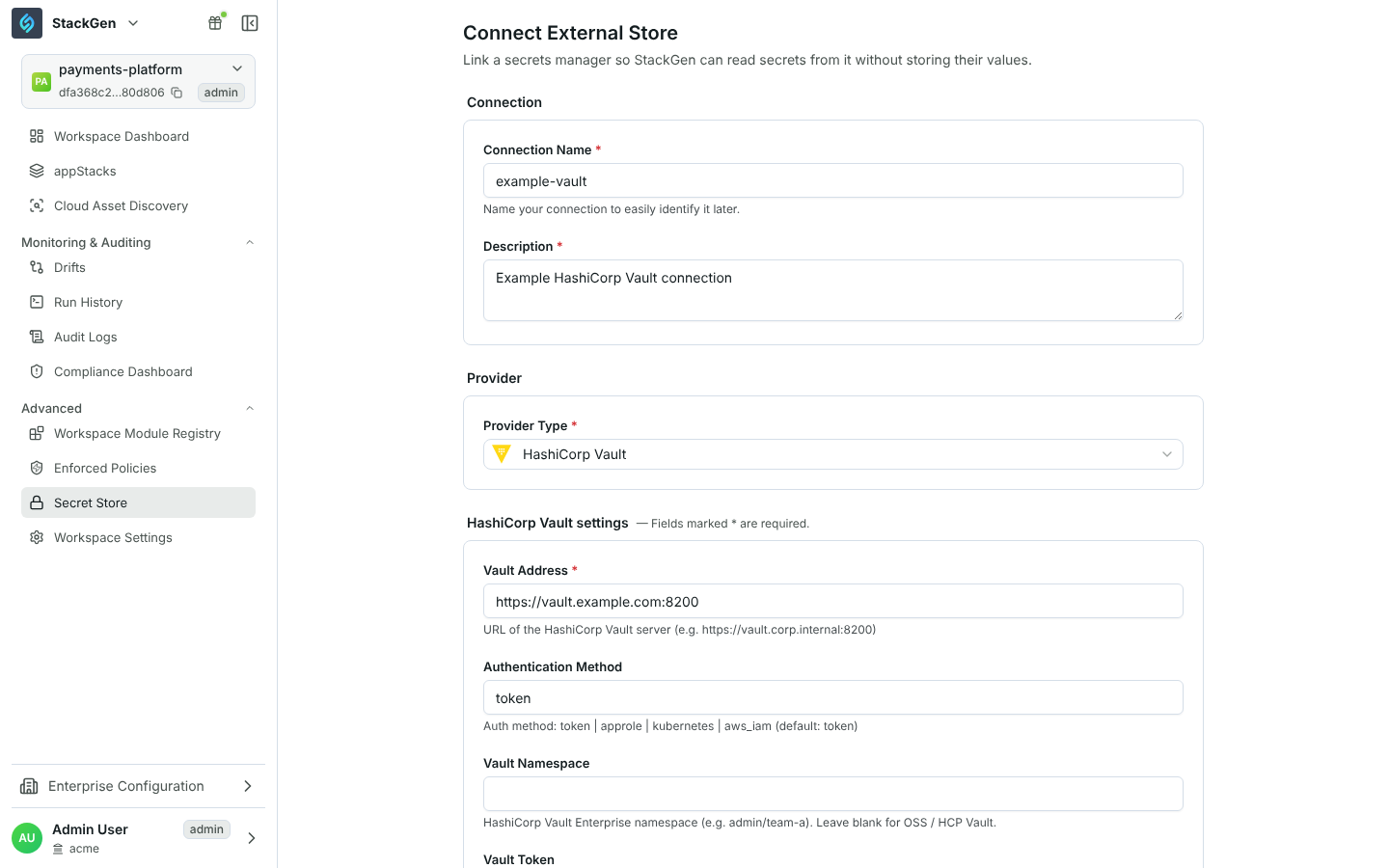
| Provider | Main settings |
|---|---|
| HashiCorp Vault | Vault Address (required), Authentication Method (token, approle, kubernetes or aws_iam) with the matching credentials, optional Vault Namespace, Engine Mount Path, KV Engine Version and Secret Path Prefix, and TLS options. |
| AWS Secrets Manager | Authentication Method (assume role or access keys), AWS Region (required), and optional Secret Name Prefix and Tag Filters to limit which secrets StackGen can see. |
AWS Secrets Manager appears in Provider Type only when your StackGen installation has its AWS access role configured. If you do not see it, contact support@stackgen.com.
Link an internal secret to an external store
- Create or edit an internal secret.
- Turn on Link external secrets.
- Select the External Secret Store, then map each External Secret to a field of the secret type (Map to Field). If the external value is a JSON object, enter the JSON Key to read.
The field shows Linked, and StackGen resolves the value from the external store when it is needed.
Personal Secret Store
You also have a personal Secret Store for tokens that belong to you, such as the SCM token used to publish and push modules. Open it from the profile menu at the bottom of the sidebar: select your name, then Secret Store. Personal secrets are not shared with any workspace.
Who can manage secrets
| Task | Admin | DevOps | Developer |
|---|---|---|---|
| View, create, edit and delete internal secrets | Yes | Yes | Yes |
| Share a secret with the entire enterprise | Yes | Yes | No |
| Connect, edit or delete an external store | Yes | Yes | No |
| Attach provider credentials to workspace environments | Yes | Yes | No |
Roles are described in Users and Roles.