Labels
Labels
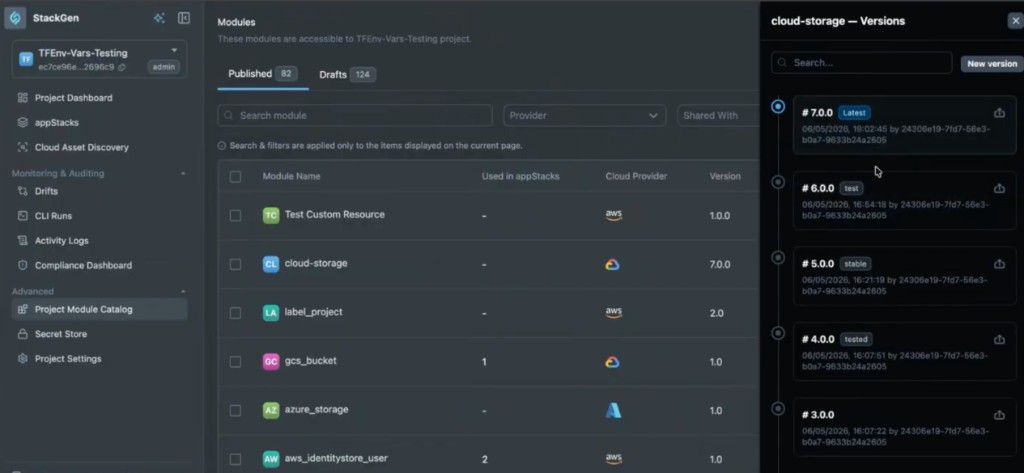
Labels are names you put on a module version in the Module Catalog, such as stable, tested, or Latest.
Before labels, you had to point each appStack resource at a fixed version number (for example 1.0.0). When a new version shipped, you updated those resources by hand. Now, you can point a resource at a label instead. When you move that label to a newer version in the catalog, every resource that uses the label follows it.
Your existing configured values stay in place when the label moves. New fields from the newer version show up with their defaults.
Use this guide if you manage modules in the catalog (DevOps / platform) or consume modules on the canvas (developers).
This guide covers:
- How dynamic labels differ from pinned versions
- How the system-managed Latest label works
- Label rules (one label to one version, many labels on one version, in-use guards)
- How to assign, move, and remove labels in the Module Catalog
- How to bind an appStack resource to a label
- How labels behave with Resource Packs and appStack snapshots
Dynamic Labels vs Pinned Versions
When you configure a module on an appStack, the Version control can track updates in two ways:
| Mode | What it means |
|---|---|
| Dynamic label | The resource follows a label name (for example stable). When that label is moved to a newer module version in the catalog, the resource updates to that version’s schema. Your existing configured values stay in place. |
| Pinned version | The resource stays on an exact version number (for example 3.0.0) until you change it manually. |
Why use labels
- Promote a tested release across many appStacks by moving stable once in the catalog.
- Keep day-to-day canvas work on a name your team understands, instead of updating every resource to
2.1.0by hand. - Pin critical stacks to a fixed version when you need a freeze.
System-managed Latest label
StackGen manages a reserved Latest label for you.
- Automatic tagging - Each time a new module version is created or imported into the catalog, StackGen applies Latest to that newest version.
- Cannot delete - You cannot remove the Latest label from the catalog.
- Reserved name - Custom labels cannot use the reserved name
latest. Choose another name (for example stable or tested).
Label Rules
| Rule | Behavior |
|---|---|
| One version per label | A given label name resolves to only one version of a module at a time. If you move stable from 1.0.0 to 2.0.0, it detaches from 1.0.0 automatically. |
| Many labels per version | One version can hold several labels at once (for example 2.0.0 tagged as both stable and tested). |
| In-use guard | You cannot remove a label from a version while any active appStack resource still references that label. Reassign or remove those resources first, then delete or unassign the label. |
Moving an existing label to a new version immediately redirects every appStack resource that tracks that label to the new version.
Manage labels in the Module Catalog
Assign or move a label
Click to view
- In the left navigation, open Project Module Catalog (or the catalog view where your module lives).
- Find the module and open its version control (click the version / label area) so the Versions side panel opens.
- On the version you want to tag, open the settings / label control.
- Under Custom labels, either:
- Type a new label name and select + Add, or
- Select the checkbox for an existing label.
- Select Save.
Assigning an existing label to another version moves that label. Resources bound to the label follow the new version.
Delete or unassign a label
Click to view
- Open the module’s Versions panel in the catalog.
- Open the label control for the version that holds the label.
- Deselect or remove the custom label.
- Select Save.
If an active appStack resource still uses the label, StackGen blocks the change and tells you the label is in use. Point those resources at a pinned version or a different label, then try again.
You cannot delete the system Latest label.
Use Labels on appStack Resources
Bind a resource to a label or version
Click to view
- Open your appStack canvas and select a module resource.
- In the resource details panel, open the Version drop-down.
- Choose a dynamic Label (for example Latest or stable) or a static Version (for example
1.0.0). - Select Save.
What happens when a label moves to a newer version
When a label moves to a version that adds new variables or inputs:
- New fields appear in the resource configuration with their default values.
- Values you already set are preserved so you do not lose configuration during the upgrade.
Review the resource after a label move if the new version introduced required fields or behavior changes.
Resource Packs and Snapshots
Resource Packs
If you create a Resource Pack that includes a resource bound to a dynamic label, the label association is kept. Importing that pack into another appStack keeps the dynamic label binding. It does not convert the resource to a pinned version number.
appStack snapshots
When you create an appStack snapshot, StackGen records the exact version number each dynamic label resolved to at snapshot time.
Restoring a snapshot pins the resource to that recorded version. It does not leave the resource on the dynamic label. That way, restore returns you to the exact version that was in use when the snapshot was taken, even if the label has moved forward in the catalog since then.
Read more in Snapshots.
Recommended Practices
- Use Latest when you want resources to follow the newest catalog import as soon as it lands.
- Use named labels such as stable or tested when promotion should be intentional (move the label only after review).
- Pin production-critical resources to a fixed version when you need a freeze, then switch back to a label when you are ready to track again.
- Before you remove a label, check which appStacks still reference it so you do not hit the in-use guard unexpectedly.