IaC in StackGen
The IaC (Infrastructure as Code) section in the StackGen Dashboard provides a read-only view of the generated infrastructure code after configuring resources in the Topology Canvas. This IaC representation includes all necessary dependencies and configurations required to deploy the infrastructure to the selected cloud provider.
You can view the IaC section after configuring resources in the Topology Canvas, which are generated in the form of terraform files.
- The IaC files cannot be modified directly within the StackGen UI.
- The generated IaC is structured to include all dependencies and configurations needed for deployment.
- You can export the IaC to a Git repository or download as .zip for further deployment.
Directory Structure of IaC
StackGen organizes the generated IaC files into a structured directory to ensure modularity and reusability.
There are three main directories in the IaC:
Root Directory
The root directory contains essential metadata and backend configuration files.
| File Name | Description |
|---|---|
| .gitignore | Specifies files to be ignored when exporting to Git. |
| .metadata | Stores metadata related to the generated IaC. |
| README.md | Provides an overview of the exported IaC. |
| backend.conf | Defines backend storage configurations. |
| backend.tf | Configures remote state management for Terraform. |
Terraform Directory (terraform/)
This directory contains the main Terraform configurations for managing cloud resources.
| Directory/File | Description |
|---|---|
| modules/ | Stores reusable Terraform modules categorized by resource type. |
| variables.tf | Defines input variables for parameterized deployments. |
| outputs.tf | Specifies output variables for retrieving resource details post-deployment. |
| main.tf | The primary Terraform configuration file that integrates various modules. |
| providers.tf | Defines cloud provider settings (AWS, Azure, GCP). |
| terraform.tfvars | Contains predefined values for Terraform variables. |
Modules Directory (terraform/modules/)
Modules allow for reusable and modular infrastructure definitions. StackGen automatically organizes modules based on the selected cloud provider.
IaC Management in StackGen
The generated IaC can be managed in the StackGen dashboard directly in the following ways:
View and Manage IaC in the IaC Tab
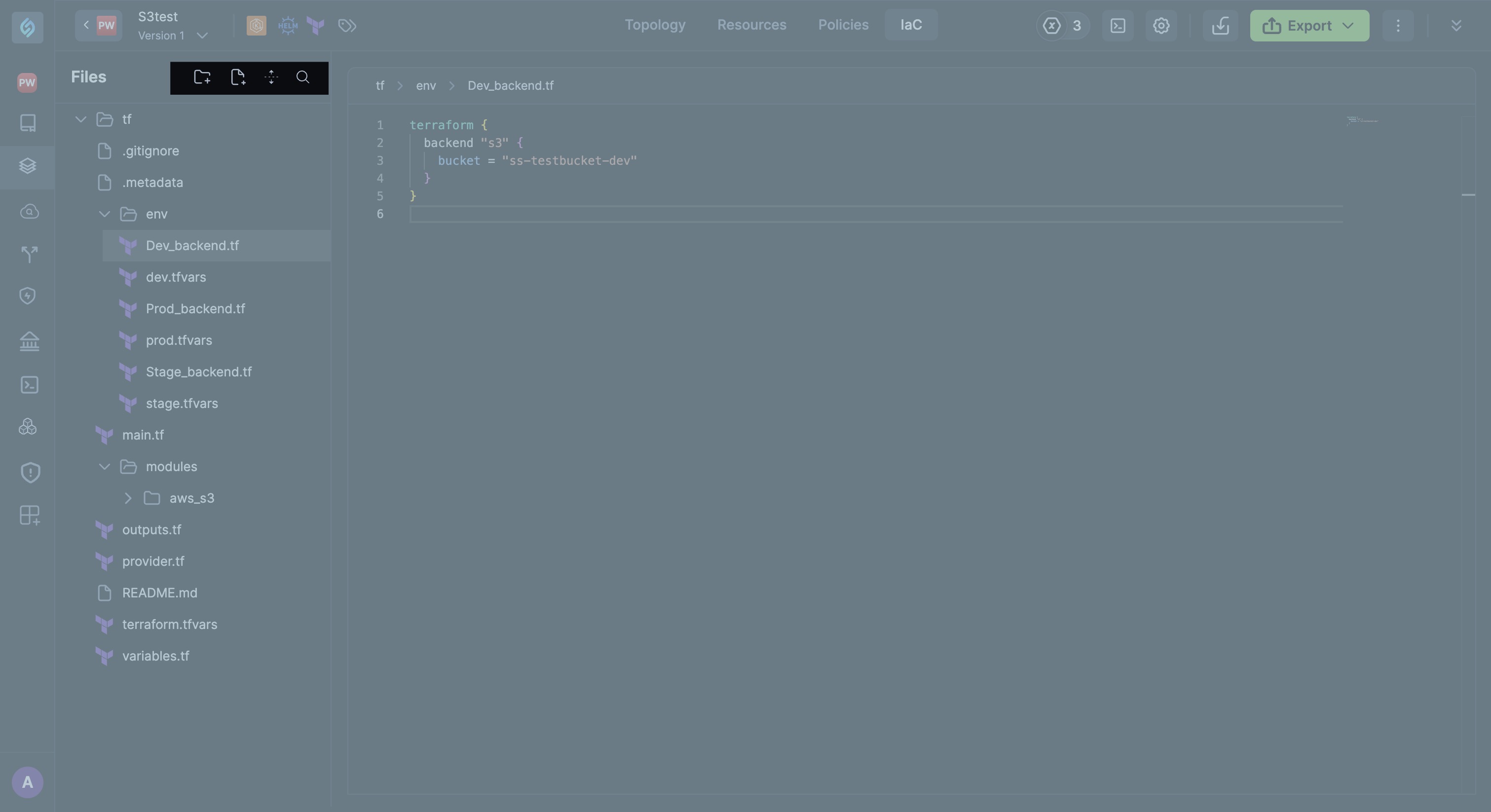
The IaC tab provides a comprehensive view of your entire Infrastructure as Code (IaC) repository, showing all files and folders related to your infrastructure configuration. The generated IaC can be viewed in the StackGen dashboard directly.
- The IaC files are auto-generated and cannot be directly modified in the UI.
- You can review the Terraform configurations to understand the structure before exporting.
Additionally, you can reach out to us at support@stackgen.com to enable the following beta features for your projects:
-
Adding Files and Folders: You can add new files and folders directly within the IaC tab to expand or customize your infrastructure setup. This helps you manage your IaC resources conveniently without switching tools.
-
Renaming Files and Folders: Files and folders can be renamed inline in the IaC tab, allowing you to keep your IaC structure organized and up to date as your project evolves.
-
Moving Files and Folders: For improved organization, you can move files and folders within the IaC tab to restructure your IaC repository easily.- Directory Structure of IaC
-
Deleting Files and Folders: You can delete files or folders directly from the IaC tab, helping you remove outdated or redundant code and keep your IaC clean.
-
Search: Search for the relevant file or folder within your IaC
Resolve Policy Violations
If there are compliance issues, policy violations will be displayed in a warning banner. You must resolve violations before exporting the IaC.
Refer to Policy Violations for more detailed information.
Export IaC
You can export your IaC in the following ways:
- Download IaC (.zip) – Export the Terraform files as a
.zipfile. - Download Topology (
.json) - Download your topology in.jsonformat. - Push to Git – Directly push the IaC to a connected Git repository.
Deploy to Cloud
Once exported, the IaC can be deployed using the cloud provider's tools:
- AWS: Terraform CLI or AWS CloudFormation.
- Azure: Terraform CLI or Azure Resource Manager (ARM) templates.
- GCP: Terraform CLI or Google Cloud Deployment Manager.
- Civo: Terraform CLI or Civo Kubernetes Provider.
Next Steps
- Learn more about Exporting IaC – Configure Git Repositories or Download Terraform Files.
- Understand Policy Violations – Ensure compliance before exporting.
- Explore Using Custom Modules – Extend infrastructure with reusable modules.