Knowledge Hub
Knowledge Hub
Knowledge Bases enable Aiden to understand your unique infrastructure, processes, and organizational practices. Think of it as onboarding Aiden to your team by sharing crucial context about how things work in your environment. You can define the Base Knowledge in StackGen Aiden via the Knowledge Hub.
Augmenting Integrations
Knowledge Bases significantly enhance Aiden's ability to work with your integrated tools by providing essential context about your setup. For example:
- We use the label
envin our Prometheus metrics to denote the environment (prod/staging/dev). - Our AWS resources follow the naming convention:
{team}-{env}-{service}. - All production databases have tags:
environment=prod,backup=daily.
This context helps Aiden formulate more precise queries and actions when working with your integrated systems.
In the near future, Aiden will automatically build Knowledge Bases by analyzing your integrated tools and systems. This automated discovery will work alongside your manually provided information to create a comprehensive understanding of your environment. For instance, Aiden will be able to:
- Discover common patterns in your cloud resource tags.
- Learn about your monitoring label schemas.
- Understand your deployment patterns.
- Map service dependencies.
Writing Effective Knowledge Bases
For detailed guidance, examples (including discovery-generated content), and best practices, see Writing Effective Knowledge Base Articles.
Write your Knowledge Bases as if you're explaining your setup to a new senior DevOps engineer. For example:
We use a centralized ArgoCD instance for all our deployments. Applications are segregated using ArgoCD projects, with each team having their own project. All production deployments require approval from two team leads.
Some key areas to document:
- Deployment workflows and practices.
- Infrastructure architecture and patterns.
- Security policies and compliance requirements.
- Development environments and configurations.
- Release processes and gates.
- Incident response procedures.
Knowledge Base Best Practices
- Keep it Natural: Write in plain language. You do not have to use any special formatting or structures.
- Be Specific: Include details that make your setup unique,
- Include Context: Add explanations for why certain choices were made.
- Document Exceptions: Note any special cases or variations in your processes.
Getting Started
Start with documenting your most frequently used processes and your tool-specific configurations. This helps Aiden immediately provide more accurate assistance, especially when working with your integrated systems.
Follow these steps to configure Base Knowledge via Knowledge Hub:
- From the StackGen Home page, navigate to Knowledge Hub > click Manage on the Base Knowledge card.
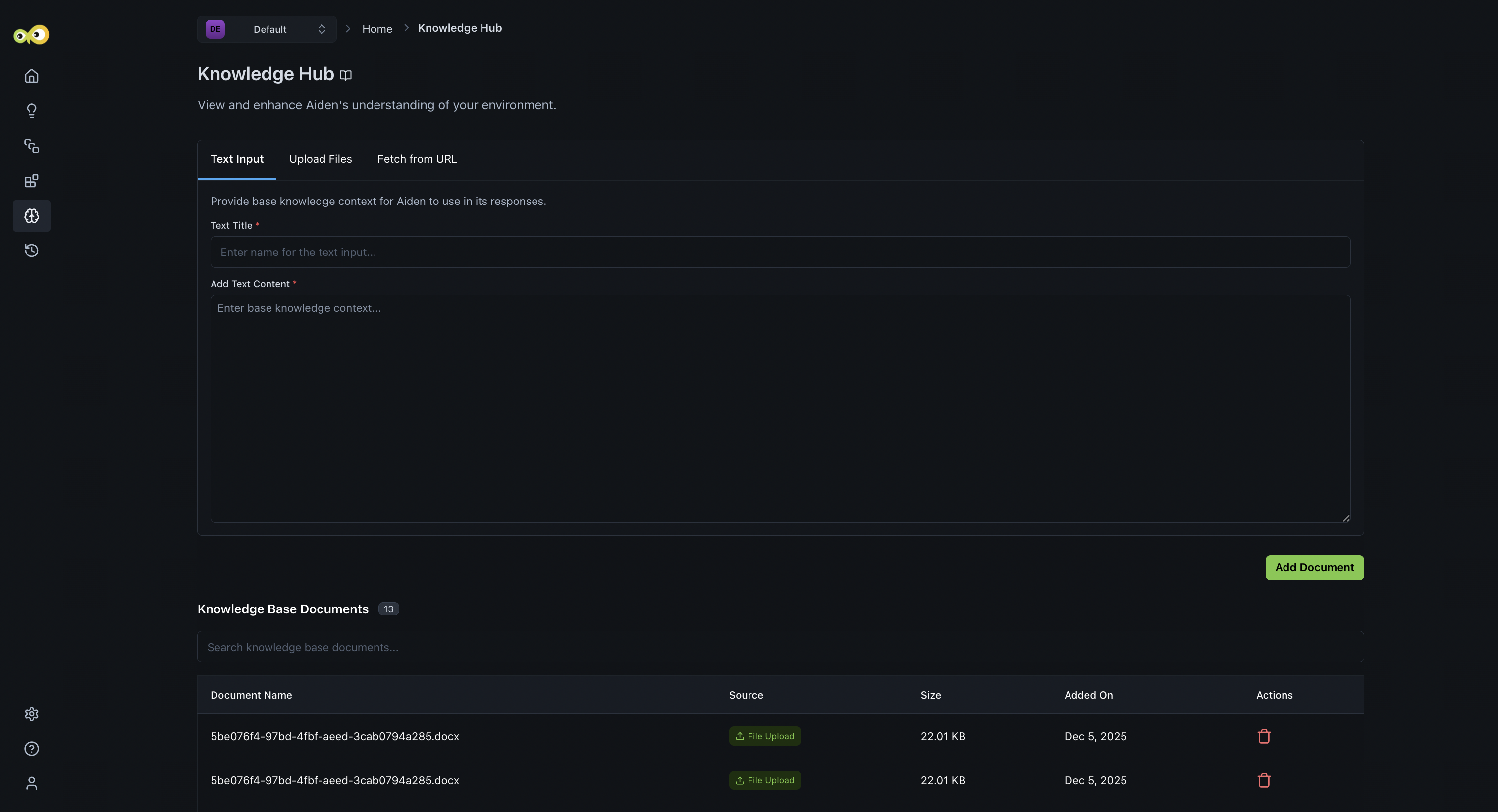
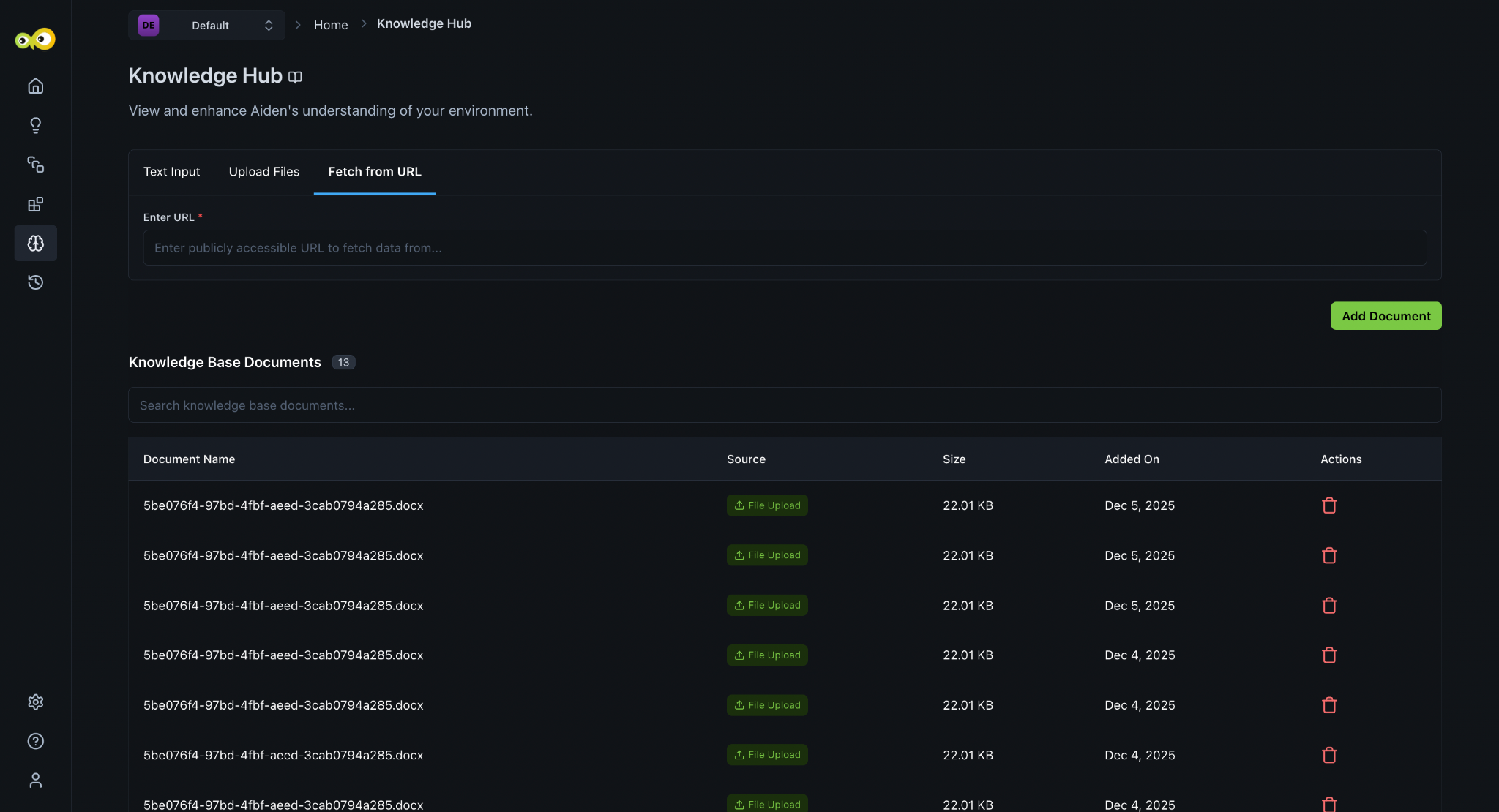
- Choose your preferred input method. You can configure the Knowledge Base using three input methods inside the Knowledge Hub:
-
Text Input: type or paste content directly. Ensure that your title and description is extremely targeted so that Aiden can refer to the defined context when it references the knowledge hub.
-
Upload Files: upload knowledge base docs. Current we support
.txt,.pdf,.docx, and.mdfile uploads with a maximum size of 10 MB.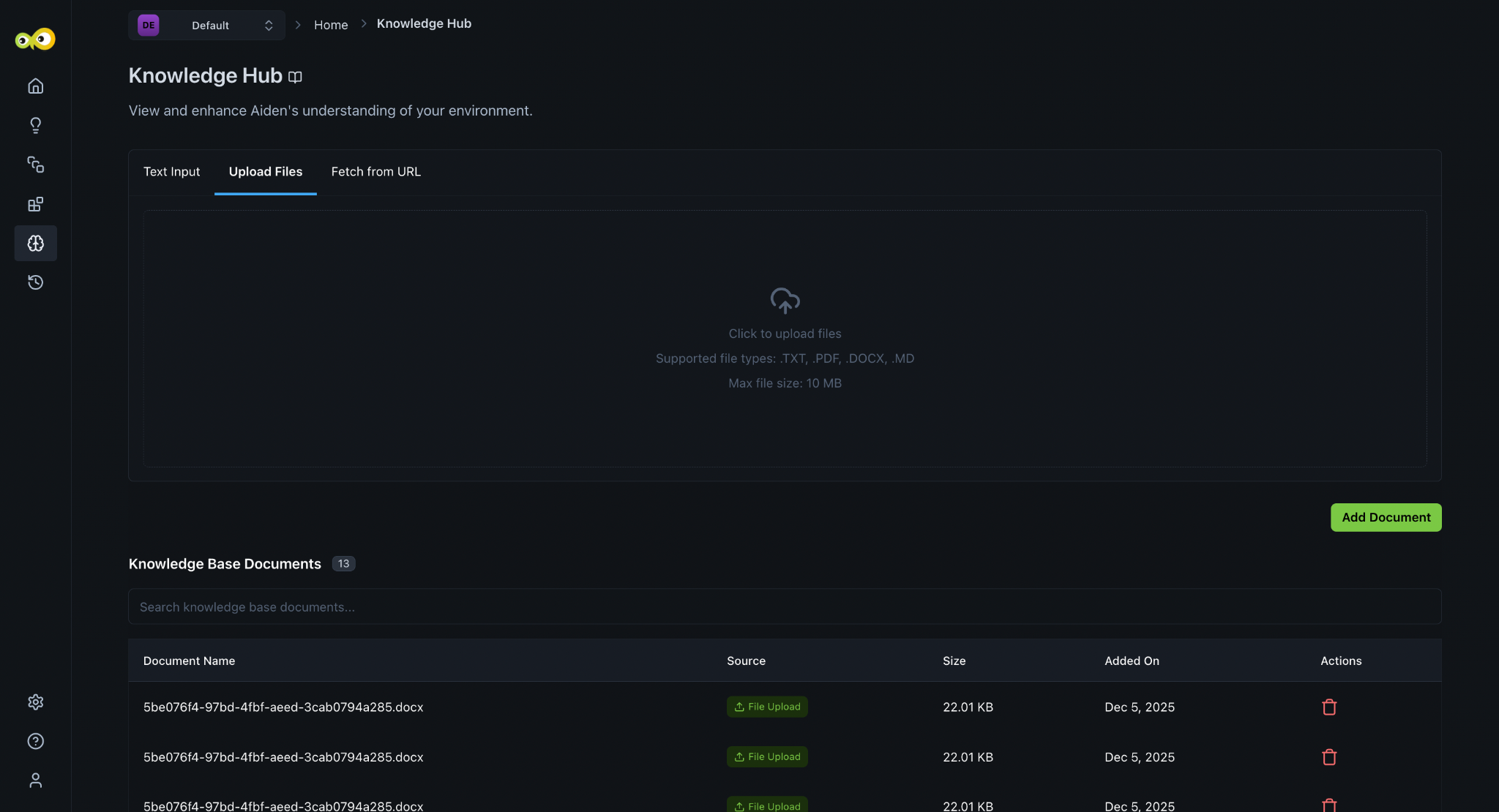
-
Fetch from URL: You can import publicly accessible knowledge base via a URL link.
-
- Click Save once done.
You can view Knowledge Base Documents below the Knowledge Base definition pane where you can:
- Search documents.
- View knowledge base source: Text Input, File Upload, or URL.
- View the size and added date.
- Delete documents.
- Edit Knowledge Base created via Text Input.
Important Notes About Managing Base Knowledge
Uploaded Documents
- Uploaded files (TXT, PDF, DOCX, MD) cannot be viewed or edited inside Knowledge Hub.
- To update the content of an uploaded document, you must edit the original file, then upload the updated version again.
Fetched URLs
- When knowledge is added via Fetch from URL, the content is pulled directly from the source URL.
- You cannot edit URL-based knowledge within Knowledge Hub.
- To update this knowledge, you must edit the content at the source URL, then re-fetch it in the Knowledge Hub.