AWS RDS Logs Ingester
Overview
This Helm chart deploys the RDS Logs Ingester, a tool designed to fetch logs from Amazon RDS instances and optionally forward them to a Loki instance for log management. The deployment is configurable, allowing users to specify RDS instances, Loki API credentials, and resource limits.
Key Features
- Fetch logs from specified RDS instances.
- Optional integration with Loki for log forwarding.
- Support for custom labels on top of ingesting the RDS instance tags
- Configurable via Helm values for easy customization.
Setting up Authentication
Two types of authentication can be set up for accessing AWS RDS. 1. Using service account based auth 2. Creating a secret using AWS credentials
Any one of the above authentication can be set up. Service account based authentication is used by default in the chart.
Setting up Service Account based auth
Before configuring the service account in the chart values, an IAM role ARN with the appropriate permissions/policies attached needs to be created in the AWS IAM.
Prerequisites
1. Check if your AWS EKS cluster already has an associated OpenID Connect provider URL. To do this navigate to the Overview section of you aws EKS cluster in the AWS console and check for OpenID Connect provider URL. If one is not associated with the cluster, use the following AWS doc to do so -
Authenticating Users via OIDC Provider
2. Navigate to Access Management > Identity Providers in AWS IAM. Check for an entry corresponding to you OIDC Provider URL. If not present, add an Identity Provider for the correspoding OIDC Provider URL using the below AWS doc -
Creating OIDC Provider
1. Check if your AWS EKS cluster already has an associated OpenID Connect provider URL. To do this navigate to the Overview section of you aws EKS cluster in the AWS console and check for OpenID Connect provider URL. If one is not associated with the cluster, use the following AWS doc to do so -
Authenticating Users via OIDC Provider
2. Navigate to Access Management > Identity Providers in AWS IAM. Check for an entry corresponding to you OIDC Provider URL. If not present, add an Identity Provider for the correspoding OIDC Provider URL using the below AWS doc -
Creating OIDC Provider
Step 1 - Creating a new IAM Role
Navigate to Access Management > Roles in AWS IAM. Create a new role of type Web Identity using the Identity Provider corresponding to your OIDC Provider URL. Set the Audience as sts.amazonaws.com Skip the Add Permissions step as we will be adding necessary inline permission post role creation. Give an appropriate name for the role and then create the role.
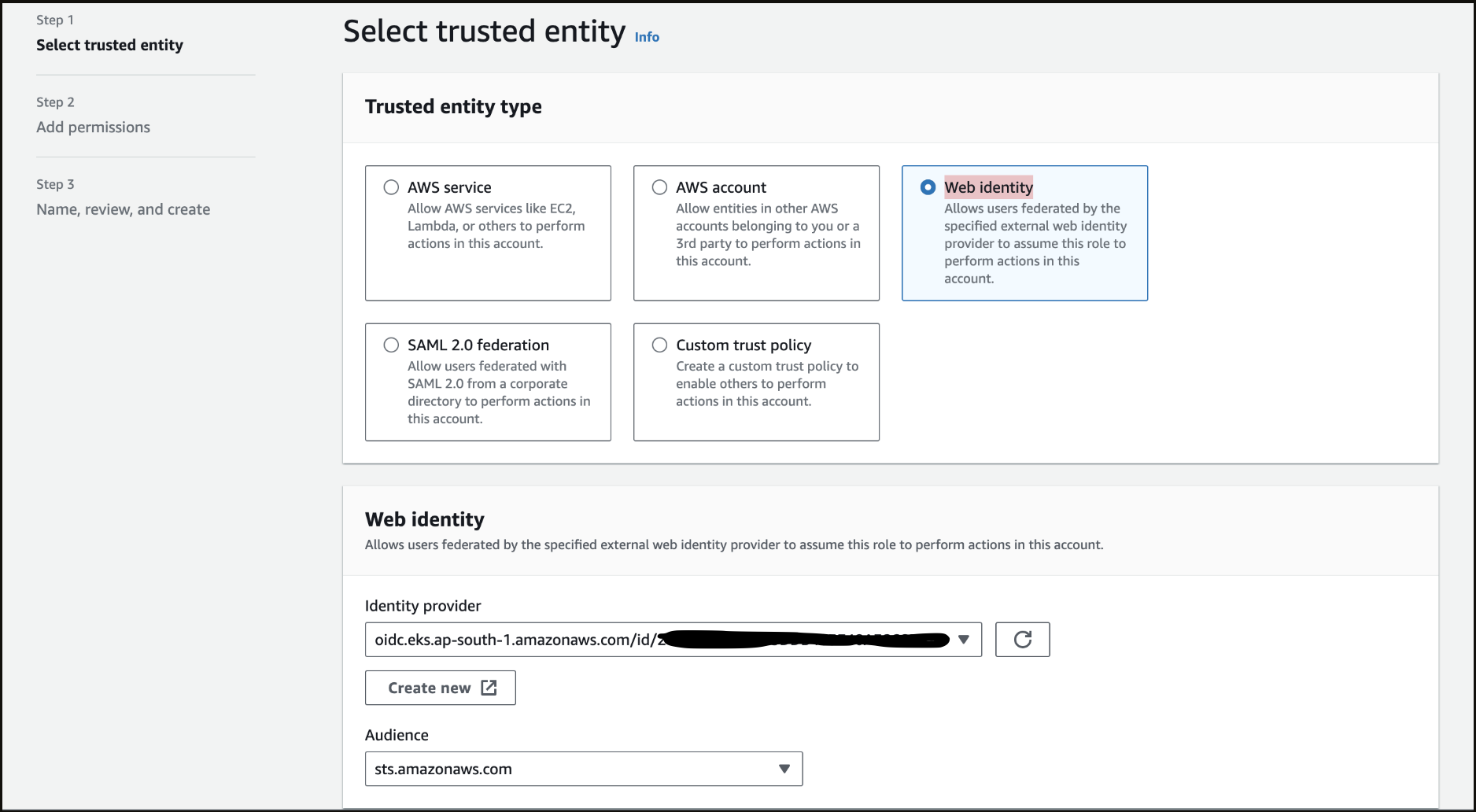
Step 2 - Attaching Custom Policy to the Role
Navigate to the Permissions section of the newly create Role. Click on Add Permissions > Create Inline Policy and use the below JSON template to add necessary policies to the role. Give an appropriate name and create the policy.
  {
    "Version": "2012-10-17",
    "Statement": [
      {
        "Effect": "Allow",
        "Action": [
          "rds:DownloadDBLogFilePortion",
          "rds:DescribeDBLogFiles",
          "rds:DescribeDBInstances"
        ],
        "Resource": "arn:aws:rds:*:<12_digit_aws_account_id>:db:*"
      }
    ]
  }
Step 3 - Verify Trust Relationships
Navigate to the Trust relationships section inside your role. Verify and update the trust relationships using the below json
    {
      "Version": "2012-10-17",
      "Statement": [
          {
              "Effect": "Allow",
              "Principal": {
                  "Federated": "arn:aws:iam::<AWS_ACCOUNT_ID>:oidc-provider/<OPENID_CONNECT_URL>"
              },
              "Action": "sts:AssumeRoleWithWebIdentity",
              "Condition": {
                  "StringLike": {
                      "<OPENID_CONNECT_URL>:aud": "sts.amazonaws.com",
                      "<OPENID_CONNECT_URL>:sub": "system:serviceaccount:*:rds-ingester-sa"
                  }
              }
          }
      ]
    }
Do not include the https: prefix when using the OIDC URL from the EKS console
Setting up Auth via Secret using AWS credentials
Use the following command to create a generic secret to store the AWS Credentials:
kubectl create secret generic aws-credentials-rds-ingester --from-literal=AWS_ACCESS_KEY_ID=<redacted> --from-literal=AWS_SECRET_ACCESS_KEY=<redacted> -n <namespace>
If using an AWS credentials Secret for authentication, it should be enabled in the values file that will be applied while installing the chart. The steps for it are mentioned in following step.
Configuring values.yaml and Installing the chart
Copy the template in a rds-ingester-values.yaml named file and configure the values appropriately.
- Enable/disable the
awsCredentialsandserviceAccountunderauthbased on the type of authentication you are using. Auth via service account is set to true by default. If you are using aws creditials secret as auth, then set theawsCreditialstotrueandserviceAccounttofalse - You can define multiple RDS instances under dbInstances with specific identifiers, regions, and log file filters. Customize the labels for each database to categorize your logs effectively.
- The chart is configured to push logs to Loki. Credentials for Loki should be specified under the
loki.credentialsfield. - Configure the IAM Role ARN value of your role under the
aws.roleArnfield.
configMap:
  basic:
    name: rds-config
  auth:
    awsCredentials:
      enabled: false
    serviceAccount:
      enabled: true
  dbInstances:
  - identifier: <rds_database_1_identifier>
    labels:
      <key1>: <value1>
      <key2>: <value2>
    logFileFilter: <provide_a_log_file_filter>
    region: <rds_database_region>
  - identifier: <rds_database_2_identifier>
    labels:
      <key1>: <value1>
      <key2>: <value2>
    logFileFilter: <provide_a_log_file_filter>
    region: <rds_database_2_region>
  output:
    loki:
      credentials:
        username: <loki_username>
        password: <loki_password>
        secretName: loki-remote-write-credentials
      host: <loki_host>
      writeToLokiApi: true
    writeToStdout: true
image:
  pull:
    secret: devopsnow-private-docker-reg-crd-rds-ingester
serviceAccount:
  aws:
    roleArn: arn:aws:iam::<AWS_ACCOUNT_ID>:role/<IAM_ROLE_NAME>
  name: rds-ingester-sa
  tokenName: rds-ingester-token
Do not use hyphen (-) in your label keys.
Use the follow helm commands to deploy the chart.
// adding Opsverse's helm repository
helm repo add opsverse-helm-charts https://registry.devopsnow.io/chartrepo/public

// installing the rds-ingester
helm upgrade --install rds-logs-ingester opsverse-helm-charts/rds-logs-ingester -n <namespace> -f rds-ingester-values.yaml
Once the helm chart is deployed using the rds-ingester-values.yaml values file, the AWS RDS logs should be pulled and pushed to the Loki host provided and should be visible in your ObserveNow Grafana in the Logs Datasource.