User Management and Entra Sync Improvements
This release (v2026.8.9) makes it easier for admins to manage who can access StackGen. Here's what you can now do:
- Pause a user's access without deleting their account.
- Keep Microsoft Entra ID groups in sync automatically, with no sign-out needed.
- Rely on Enterprise Admin access everywhere, regardless of project roles.
- Fix secret errors faster, because a failed save now keeps you on the Secret Store.
Here's everything in this release:
| Area | Update | |
|---|---|---|
| What's New | User management | Disable Users |
| What's Enhanced | Entra ID | Entra Sync Without Re-Login |
| RBAC | Enterprise Admin Precedence | |
| What's Fixed | Secret Store | Secret Creation Errors |
What's New
Disable Users
Click to view
Need to remove someone's access quickly, but might want to give it back later? Admins can now disable a user, and enable them again whenever you're ready. Their account stays in StackGen the whole time.
Once disabled, the user can't sign in to StackGen, even if their account is still active in your identity provider (Google, GitHub, email OTP, and similar).
- Disable when the change might be temporary, such as someone on leave or an access review in progress. You can turn their access back on in one click.
- Delete when the person no longer needs a StackGen account.
To disable or enable a user:
- Click Enterprise Configuration and select User Management.
- Find the user in the members list.
- Click Disable to block their access, or Enable to restore it.
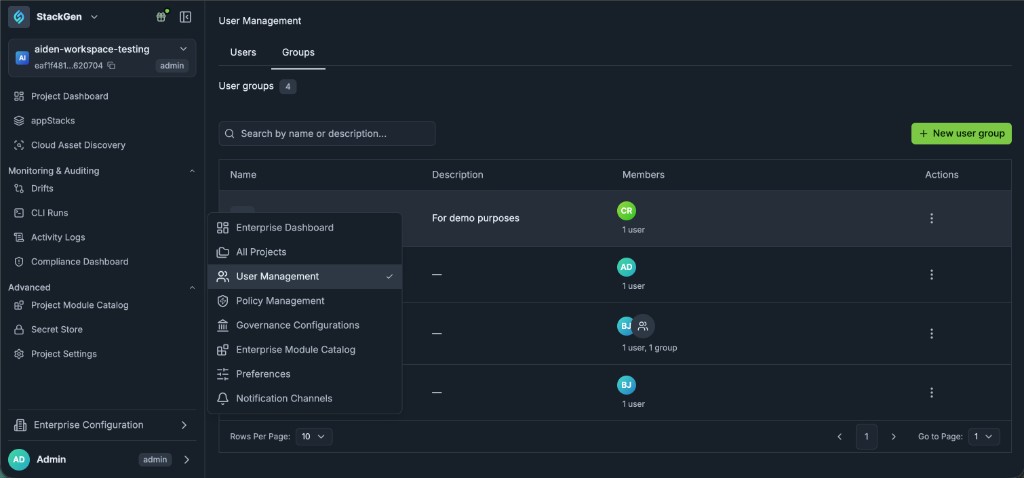
For the full steps, see Disable or enable a user.
What's Enhanced
Entra Sync Without Re-Login
Click to view
Entra ID group sync is not available out of the box. Contact support@stackgen.com and we'll enable it for your tenant.
Once it's on, StackGen keeps membership in sync for any groups linked to an Entra group. See Implications of Externally Linked Groups for the details.
Changes you make to groups in Microsoft Entra ID now show up in StackGen automatically. Your users no longer have to sign out and back in first.
What changed: Users often had to sign in again before StackGen showed updated Entra group membership. Now the update happens in the background on the next sync.
How it works:
- Added to an Entra group? The user is added to the linked StackGen group on the next sync.
- Removed from an Entra group? The user is removed from the linked StackGen group on the next sync.
To see the latest membership, refresh the Groups page.
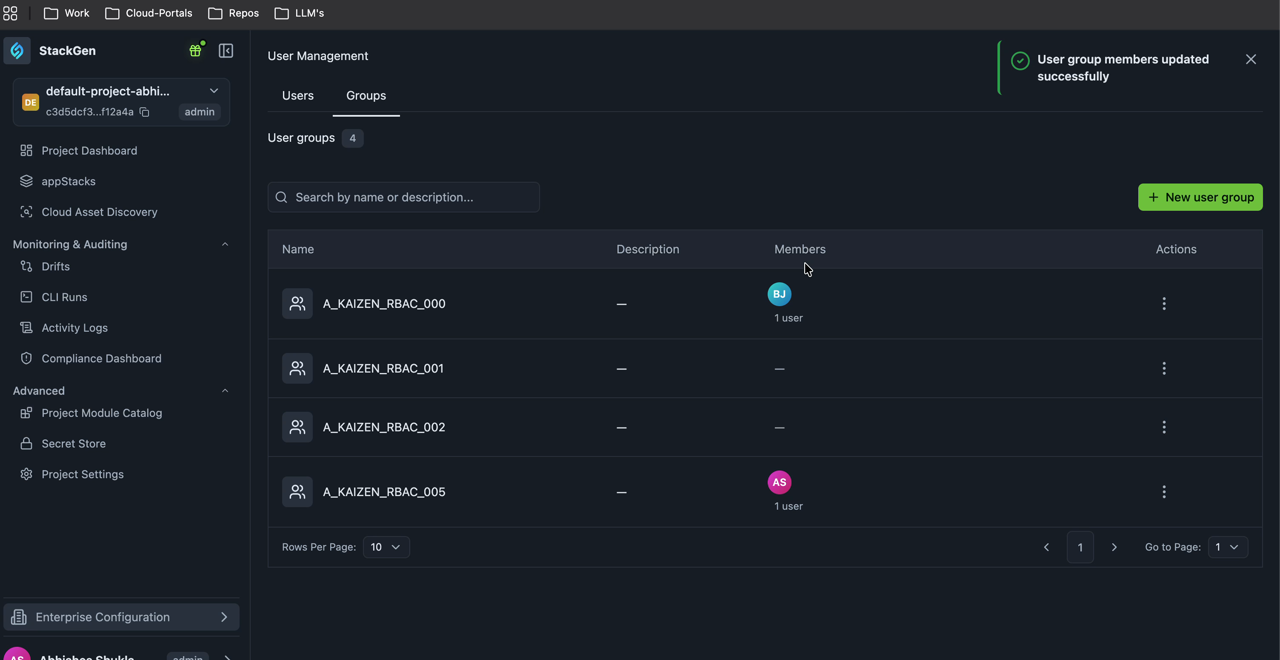
If you add someone to a synced group manually in StackGen, but they aren't in the linked Entra group, the next sync removes them. This keeps StackGen matching Entra. To give someone access through a synced group, add them in Entra instead.
Automatic updates apply to users who have signed in to StackGen at least once.
For setup and sync behavior, see Entra ID group sync and Implications of Externally Linked Groups.
Enterprise Admin Precedence
Click to view
If you're an Enterprise Admin, you stay an admin on every project. A lower project role will no longer take away your Admin privileges. Previously, if you were an Enterprise Admin who also sat in a project as Developer (or joined a group with that role), you could lose admin rights on that project.
Going forward, Enterprise Admin access will be retained regardless of Project roles such as Admin, DevOps, or Developer, whether you assign them directly or through a user group, StackGen will not reduce your Enterprise Admin access.
Other User Roles: If you are not an Enterprise Admin and you need to have a specific project role, your Admin can add you as a direct project member with that role. A direct assignment still overrides whatever role you inherit from a user group.
For the full access rules, see How StackGen Decides What Access You Get and Enterprise Admin access.
What's Fixed
Secret Creation Errors
Click to view
Previously, if you couldn't create a secret in the Secret Store (for example, an invalid GitHub secret), StackGen redirected you back to the dashboard.
With this fix, you stay on the Secret Store page and see a clear error message, so that you can correct the value and try again right away.
For creating secrets, see Secret Store.