Navigating UI
This guide explains how the StackGen UI is organized and what users typically see after they sign in. It covers tenant-level and project-level views, role-based landing pages, and the main navigation areas used for day-to-day work.
What you will learn:
- How StackGen separates tenant, project, and appStack work
- Which landing page different roles typically see
- Where to go for projects, repositories, appStacks, policies, and settings
- How dashboards help with setup and administration
- How to choose a UI theme aligned with Aiden 2.0
- How to switch between tenants when multi-tenant access is enabled
- How to switch projects and what happens when you leave an enterprise route
- How to move between StackGen and Aiden with the product switcher
Overview
The StackGen UI is organized around three main layers:
| Area | Purpose | Typical users |
|---|---|---|
| Tenant | Manage tenant-wide setup, members, governance, and onboarding progress | Admin, DevOps |
| Project | Manage project-specific setup, members, environments, and appStacks | Project Admin, DevOps |
| appStack | Design, review, and manage infrastructure | Admin, DevOps, Developer |
Tenant switching
Click to view
Where multi-tenant access is enabled for your environment, one login under the same DNS namespace can belong to more than one tenant.
Previously, switching tenants was harder when you belonged to more than one. Now, if you are a member of multiple tenants, a tenant selector is available from the User Context menu in the sidebar footer so you can change tenant without hunting for a separate page.
- Org admin membership and regular user membership show different icons in the switcher so you can tell which role you have in the current tenant.
- Not every environment has this enabled yet. Shared demo hosts may still be single-tenant until the rollout reaches them.
- To bring collaborators into a tenant (including invites across email domains), see Members.
See v2026.8.3.
Project switcher
Click to view
Use the project switcher in the sidebar to change which project you are working in.
What happens when you switch
- If you are on an enterprise route and switch to a project, StackGen takes you into that project's first page (for example the Project Dashboard or appStacks), instead of leaving you on the enterprise page with a different project selected in the background.
- The selected project context is kept when you use the product switcher to move between StackGen and Aiden, so you land in the same project on both sides when a valid project context exists.
- If no valid project context exists, or you switched from a personal workspace path, the product may fall back to a default route.
Current constraints
- The Personal Workspace path with an existing appStack still needs follow-up work. Prefer a shared Project for day-to-day collaboration.
- On some enterprise routes, the sidebar may not show the selected project ID and role yet. Confirm the project in the project switcher after you refresh.
See v2026.7.7.
Product switcher (StackGen and Aiden)
Click to view
When your environment includes both products, use the product switcher in the UI to move between StackGen and Aiden.
- From StackGen, open Aiden.
- From Aiden, open StackGen.
Use this when you work in both infrastructure and Aiden workflows and need to move between them without hunting for separate URLs.
See v2026.7.3 (StackGen to Aiden) and v2026.7.7 (Aiden to StackGen).
Landing pages by role
The first page you see depends on your role and current context.
| Role | Typical landing view | Primary focus |
|---|---|---|
| Admin | Tenant Dashboard or Project Dashboard | Tenant setup, governance, project administration |
| DevOps | Tenant Dashboard or Project Dashboard | Setup, operations, project health, appStack workflows |
| Project Admin | Project Dashboard | Project setup, members, environments, appStacks |
| Developer | Project-scoped pages such as appStacks or Topology | Build and update infrastructure within the assigned project |
Tenant Dashboard
Click to view
The Tenant Dashboard (also called the Admin Dashboard) gives Admin and DevOps users a tenant-level view of:
- Projects
- Members
- Governance
- Onboarded modules
It also includes a setup guide with links to tasks such as creating projects, inviting members, and onboarding modules.
Project and Admin (Tenant) dashboards are available to all customers.
See v2026.7.11.
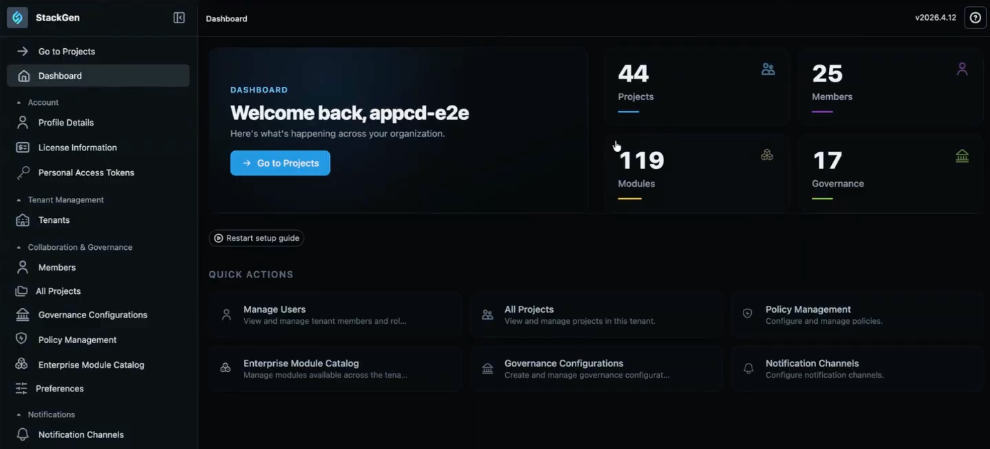
In some tenants, the dashboard entry point still appears under Settings. Navigation may change in a future release.
Project Dashboard
Click to view
The Project Dashboard is the project-level landing page for Project Admins and DevOps users. It shows:
- appStacks
- Members
- Modules
- Environments
It also includes a setup guide for project follow-up work such as SCM, environment configuration, and create an appStack.
Project and Admin (Tenant) dashboards are available to all customers. For the full project dashboard guide, see Project Dashboard.
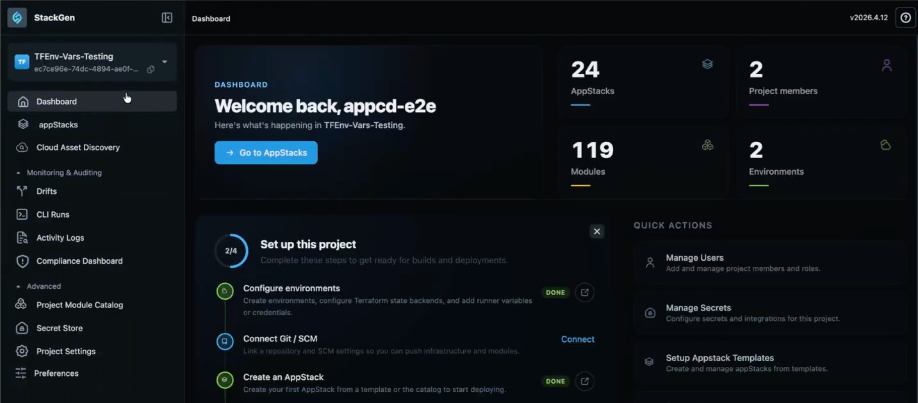
If you skip optional setup during project creation, return to it from the setup guide on this dashboard.
Core navigation areas
The left sidebar groups day-to-day work at the top (for example Projects, Repositories, and appStacks). Personal and enterprise administration moved into two menus at the bottom of the sidebar in the v2026.4.15 release.
User Menu
Open User Menu at the bottom of the sidebar for profile and personal tooling:
- Profile details
- Personal Access Tokens (PAT)
- Configure MCP
- View Documentation
You can also choose a UI theme for your StackGen account. See Theme support.
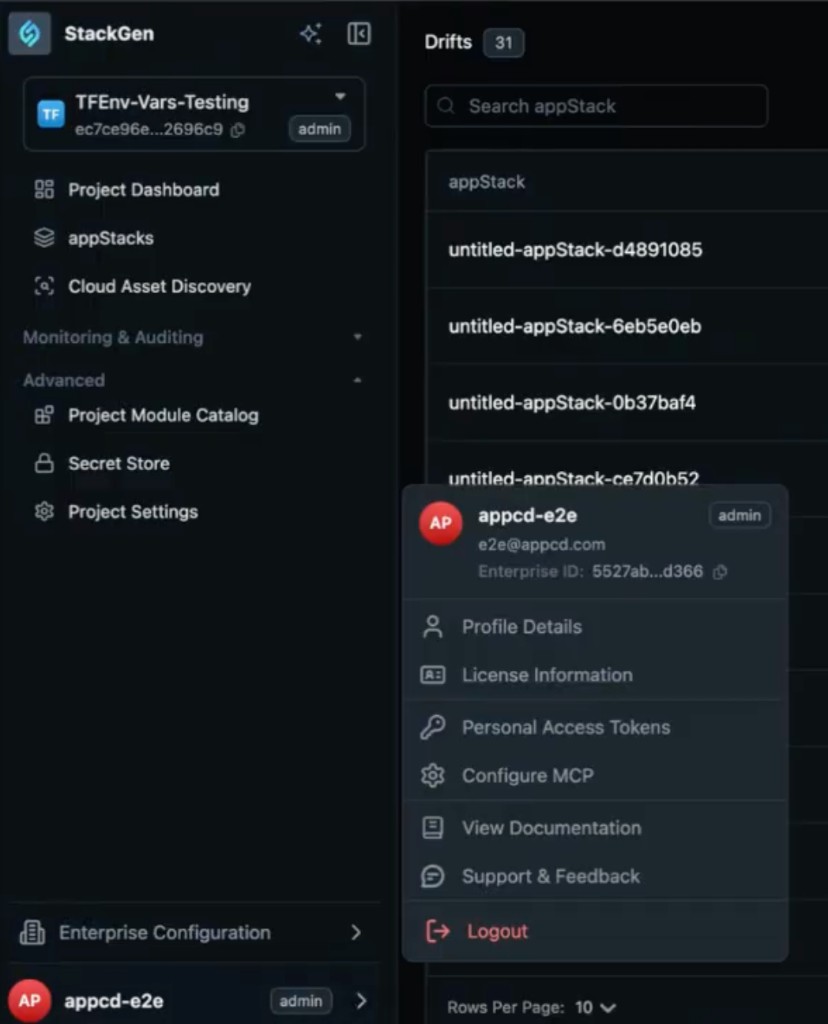
Theme support
StackGen includes UI themes that align the platform look and feel with Aiden 2.0. Themes apply across panes and pages in the application, not only a single screen.
Click to view
What you can do
- Choose from multiple theme options in the StackGen UI.
- Keep a consistent visual experience across StackGen and Aiden 2.0.
How to change your theme
- Sign in to StackGen and open the UI.
- In the left sidebar, click your profile.
- Open the theme options.
- Select the theme you prefer. The change applies across the application.
Enterprise Configuration
Open Enterprise Configuration for tenant-wide administration:
- All Projects
- Members
- Policy Management
- Governance Configurations
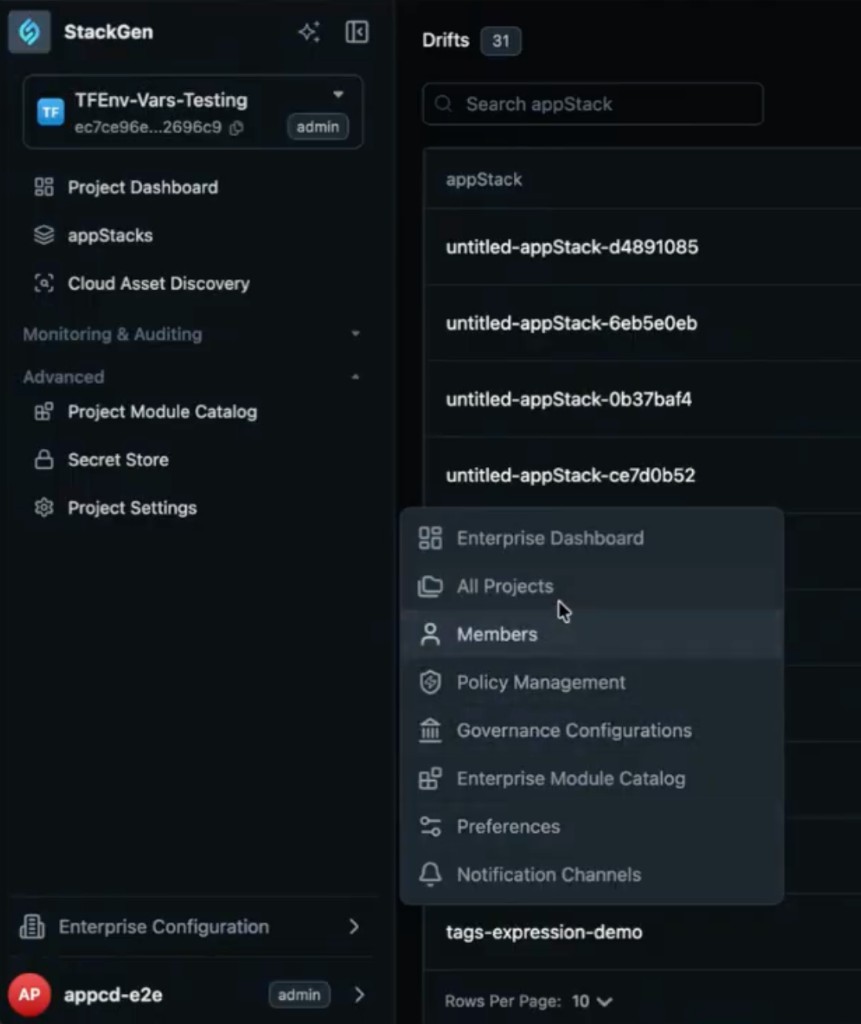
Use the main navigation to move between the most common StackGen workflows.
| Area | What you do there | Related guide |
|---|---|---|
| Projects | Switch project scope and manage project-level setup | StackGen Settings |
| Repositories | Connect source repositories used by your project | Git configurations |
| appStacks | Open, create, and manage infrastructure designs | Create appStacks |
| Policies | Review and manage governance controls | Custom Policies |
| Settings | Manage members, projects, secrets, and account-level options | StackGen Settings |
| What's New | Review recent product updates and release highlights from within the StackGen UI | May 2026 release notes |
Benefits
- Role-based landing pages help users start in the right workspace for their responsibilities.
- Tenant and project dashboards bring key metrics, setup tasks, and follow-up actions into one place.
- Clear separation between tenant, project, and appStack views helps reduce context switching and avoids changes in the wrong scope.
Best Practices
- Confirm whether you are working at the tenant, project, or appStack level before making changes.
- Use the Tenant Dashboard for tenant-wide administration such as onboarding progress, governance visibility, and member management.
- Use the Project Dashboard for project setup, project health checks, and completing optional onboarding steps after project creation.
- Work inside a Project when you need shared governance, credentials, and collaboration across teams.