Backstage Self-Service
Backstage Self-Service
The Backstage Self-service feature is available on request. Please reach out to support@stackgen.com to avail this service.
Overview
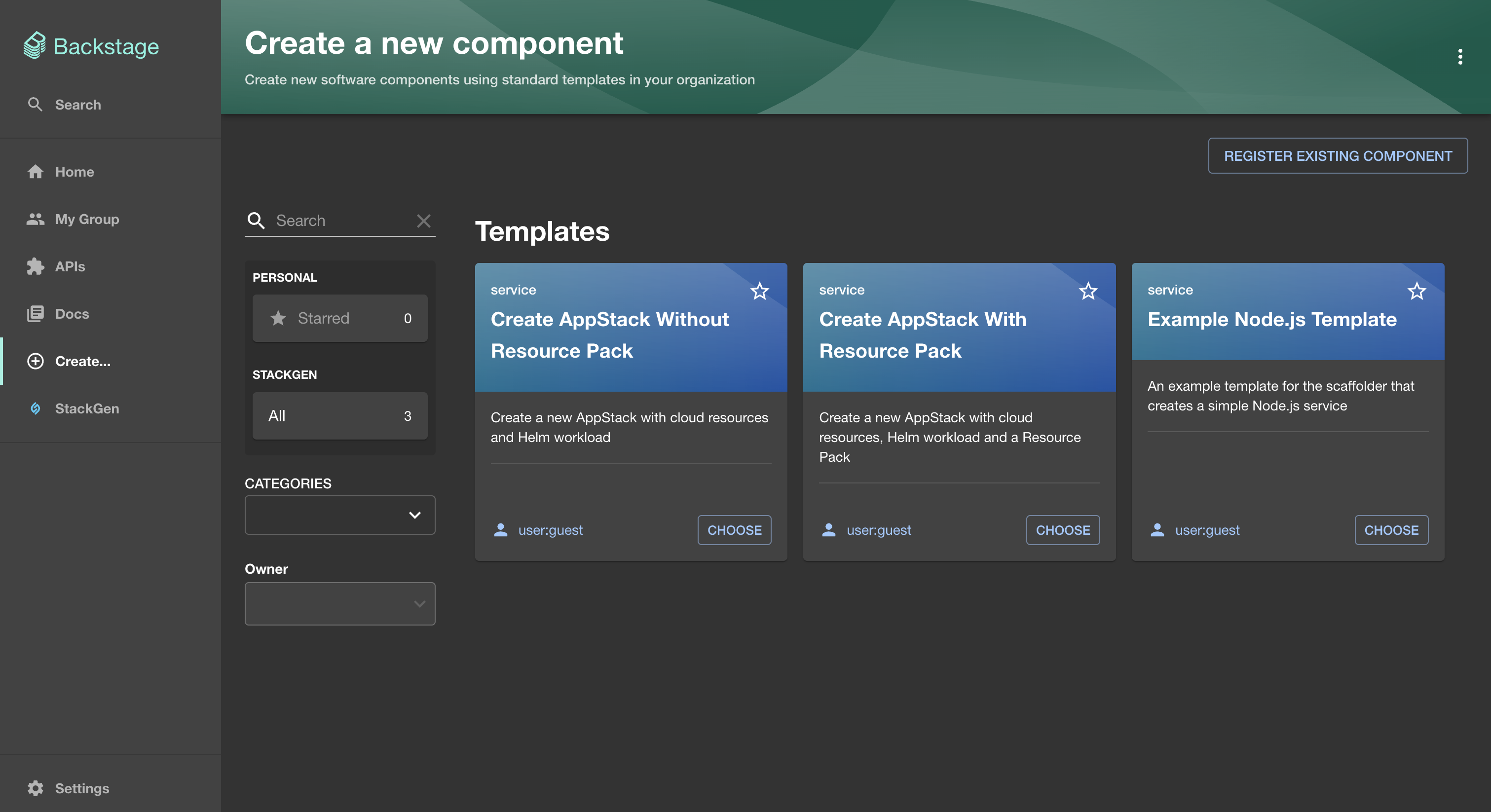
Backstage offers a Developer Self-service Experience, where your developers can scaffold backend services, frontend apps, CI/CD pipelines, and more, without involving your DevOps teams.
You can do this through software templates that capture repeatable infrastructure and service patterns.
What Does StackGen Enable?
StackGen provides APIs that let projects go beyond just scaffolding code, enabling them to automate infrastructure provisioning alongside code creation.
With StackGen, your templates can:
- Scaffold application code
- Create appStack in Stackgen
- Export and then generate IaC
- Provision infrastructure
Integration Steps: How It Works
- Create or reuse an existing Template: Define the structure, parameters, and steps needed to scaffold your service or resource.
- Configure the required actions: Use built-in or custom actions to perform specific tasks like provisioning resources, pushing code, or registering components.
Let's look at how this is done in detail.
Steps to Create a Backstage Self-Service Template
Prerequisites
Click to view
-
You will need to add the StackGen config in
app-config.yamlif you haven’t done it already:stackGen:baseUrl: "${BACKSTAGE_ADAPTER_URL}"apiToken: "${STACKGEN_PAT}"allowedTeams: "20f0e211-15ce-4d2c-1e12-0555bffee7bd,20f0e211-15ce-4d2c-2e22-0555bffee7bd" -
Add the custom action
stackGen:createAppstackto your backstage backend
Create or Reuse an Existing Template
Click to view
A typical Backstage template.yaml file defines the user interface and the execution workflow of a Backstage Software Template. It typically includes:
steps: It is the input for your actions and consists of the sequence of actions to be executed.output: The results or links shown to the user after the template runs.
Let’s look at each of these configurations in detail:
-
stepsin yourtemplate.yamlwill look like this:steps:- id: stackGenname: Create appStackaction: stackGen:createAppstackinput:appstack:name: "MyappStack"# Optional: teamId can be omitted if not neededteamId: "team-123"cloudProvider: "aws"resources:- resourceType: "aws_s3" # must be valid stackGen resourceType# Only one of 'configuration' or 'resourcePackId' should be providedconfiguration:bucket_name: "mybucket" # configuration keys for a stackGen resource must be valid otherwise values will not be set. -
outputin yourtemplate.yamlwill look like this:output:links:- title: 'View Created appStack in StackGen'url: '${{ steps.stackGen.output.appStackURL }}'
You can contact support@stackgen.com to help you configure these supported properties.
Advanced template.yaml Configurations
Click to view
You can additionally configure steps for:
-
Resource Packs
- resourceType: "resourcePack"resourcePackId: "20f0e212-15ce-4d2c-1e12-0555bffee7bd" # resourcePackId should be valid.# No configuration here because resourcePackId is used -
Resource Groups like Helm
- resourceType: "helm_workload" # for a resourceType which is a group, children can be specified.children:- resourceType: "helm_workload"configuration:name: test-workloadimage: test-image- resourceType: helm_serviceconfiguration:name: test-serviceContact support@stackgen.com to help you configure these supported properties. Check out the Backstage documentation to learn how to write template.yaml.
Configure the action in Your Backstage Backend
Click to view
This is where the stackGen:createAppstack action (shown below) comes into play.
Here’s how the action works:
- Validates the user input using Zod schemas.
- Constructs a payload for StackGen’s
/v1/appstacksAPI. - Makes a
POSTrequest to StackGen to create the appStack. - Returns the generated appStack URL.
import { createAppStackAction, downloadIaCAction } from '@stackgenhq/backstage-plugin-stackgen-backend';

...

export const scaffolderCustomExtension = createBackendModule({
  pluginId: 'scaffolder',
  moduleId: 'custom-extensions',
  register(env) {
    env.registerInit({
      deps: {
        scaffolder: scaffolderActionsExtensionPoint,
        config: coreServices.rootConfig,
        logger: coreServices.logger,
      },
      async init({ scaffolder, config, logger }) {
        scaffolder.addActions(
          createAppStackAction(config, logger),
          downloadIaCAction(config, logger)
          // ...other actions
        );
      },
    });
  },
});

...

backend.add(scaffolderCustomExtension);
If you have already configured actions, simply insert the function as shown below:
scaffolder.addActions(createAppstackAction(config, logger));
Check out the Backstage documentation to learn how to register custom actions.
Sample template.yaml for creating an appStack
Click to view
apiVersion: scaffolder.backstage.io/v1beta3
kind: Template
metadata:
  name: create-appstack-with-resource-pack
  title: Create appStack With Resource Pack
  description: Create a new appStack with cloud resources, Helm workload and a Resource Pack
spec:
  owner: user:guest
  type: service
  parameters:
    - title: appStack Info
      required:
        - name
      properties:
        name:
          type: string
          title: appStack Name
        teamId:
          type: string
          title: Team ID
          default: ""

    - title: Cloud Resources
      properties:
        s3:
          type: object
          title: S3 Bucket Configuration
          properties:
            s3BucketName:
              type: string
              title: S3 Bucket Name

        rds:
          type: object
          title: RDS Configuration
          properties:
            rdsEngine:
              type: string
              title: RDS Engine
              default: postgres

    - title: Helm Workload
      properties:
        workloadName:
          type: string
          title: Deployment Name
        image:
          type: string
          title: Image Name
        imageTag:
          type: string
          title: Image Tag
          default: latest
        replicas:
          type: number
          title: Replicas
          default: 3
        serviceName:
          type: string
          title: Service Name
        serviceLabel:
          type: string
          title: Service Label
          default: exampleApp

    - title: Resource Pack
      required:
        - resourcePackId
      properties:
        resourcePackId:
          type: string
          title: Resource Pack ID
          description: ID of the resource pack to include in resources

  steps:
    - id: stackgen
      name: Create appStack
      action: stackGen:createAppstack
      input:
        appstack:
          name: ${{ parameters.name }}
          cloudProvider: "aws"
          teamId: ${{ parameters.teamId }}
          resources:
            - resourceType: aws_s3
              configuration:
                bucket_name: ${{ parameters.s3.s3BucketName }}
            - resourceType: aws_rds
              configuration:
                rds_engine: ${{ parameters.rds.rdsEngine }}
                rds_master_password: "${var.rds_password}"
            - resourceType: helm_workload
              children:
                - resourceType: helm_workload
                  configuration:
                    name: ${{ parameters.workloadName }}
                    image: ${{ parameters.image }}
                    image_tag: ${{ parameters.imageTag }}
                    replicas: ${{ parameters.replicas }}
                    labels:
                      service: ${{ parameters.serviceLabel }}
                - resourceType: helm_service
                  configuration:
                    name: ${{ parameters.serviceName }}
            - resourceType: resourcePack
              resourcePackId: ${{ parameters.resourcePackId }}

  output:
    links:
      - title: 'View Created appStack in StackGen'
        url: ${{ steps.stackgen.output.appstackURL }}
API References Used
GET /v1/team/listTeams: Retrieves available teams for resource ownership. Check out the API reference documentation at StackGen Integrations Gateway API.