Policy Management
Policy Management
Policy Management is the enterprise page where you browse StackGen's built-in policies and create your own. Policies apply to a workspace only after you add them to a governance configuration and assign it. See Policies for how policies are evaluated.
To open it, select Enterprise Configuration at the bottom of the sidebar, then select Policy Management. Enterprise Configuration is shown only to users with the Admin role.
The page has three tabs: Built-in Policies, Module Restriction Policies and Security Policies.
Built-in Policies
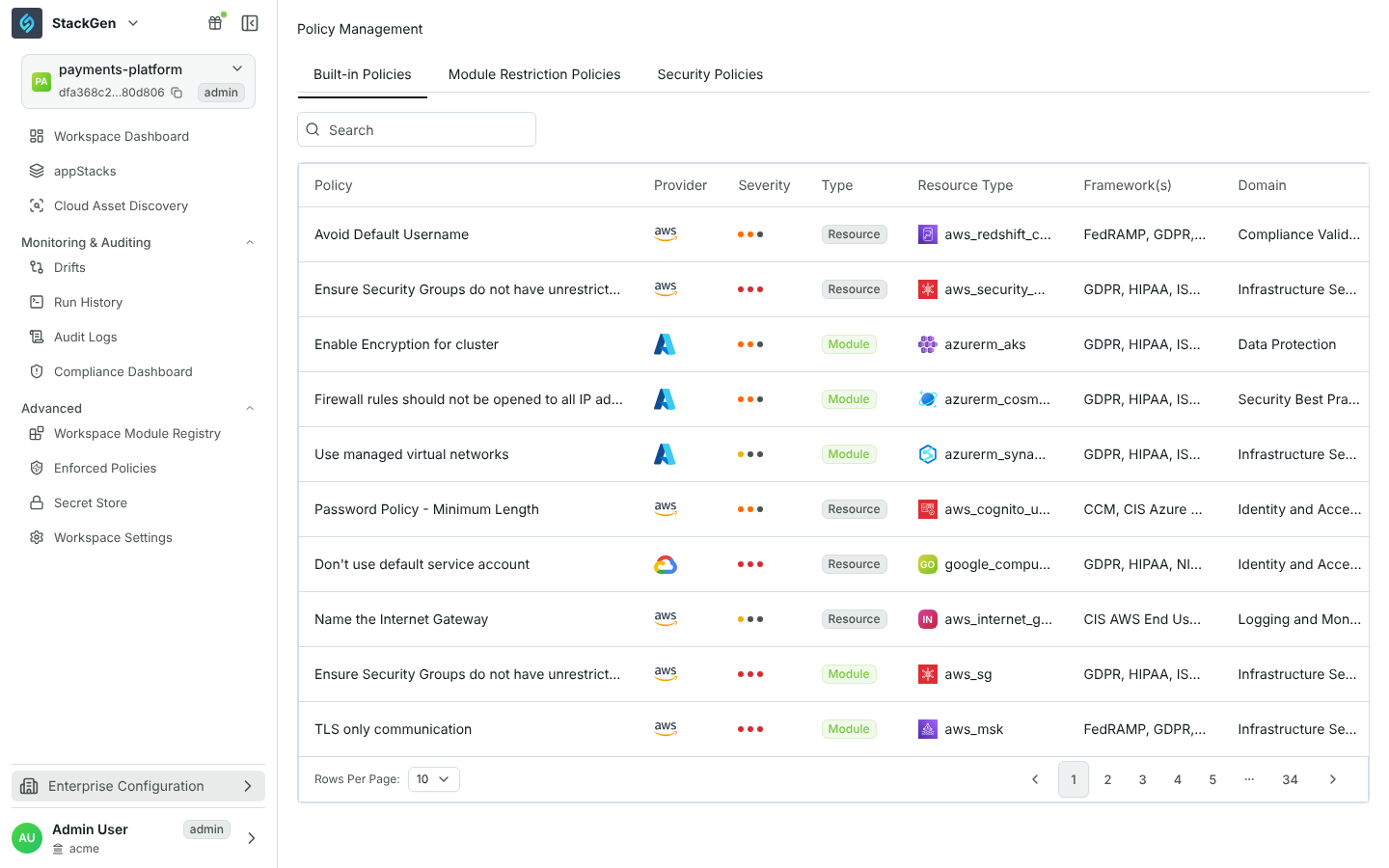
This read-only tab lists the policies that ship with StackGen. Search matches policy name, provider, resource type, domain and framework. Type is Module for policies that check module inputs on the canvas, and Resource for policies that check Terraform resources in a plan.
Built-in coverage
As of this release, StackGen ships about 337 built-in policies. Counts are approximate and change between releases.
| Cloud | Policies | Module | Resource | Resource types covered |
|---|---|---|---|---|
| AWS | 201 | 87 | 114 | 43 |
| Azure | 103 | 85 | 18 | 35 |
| GCP | 28 | 9 | 19 | 10 |
| Helm (Kubernetes) | 5 | 5 | 0 | 3 |
Most policies map to HIPAA, NIST 800-53, GDPR and NIST CSF; many also map to NIST 800-171, ISO 27001, SOC 2 and PCI DSS. There are no built-in policies for OCI or Civo.
Module Restriction Policies
A Module Restriction Policy is an allow list: a workspace governed by it can use only the listed modules.
To create one:
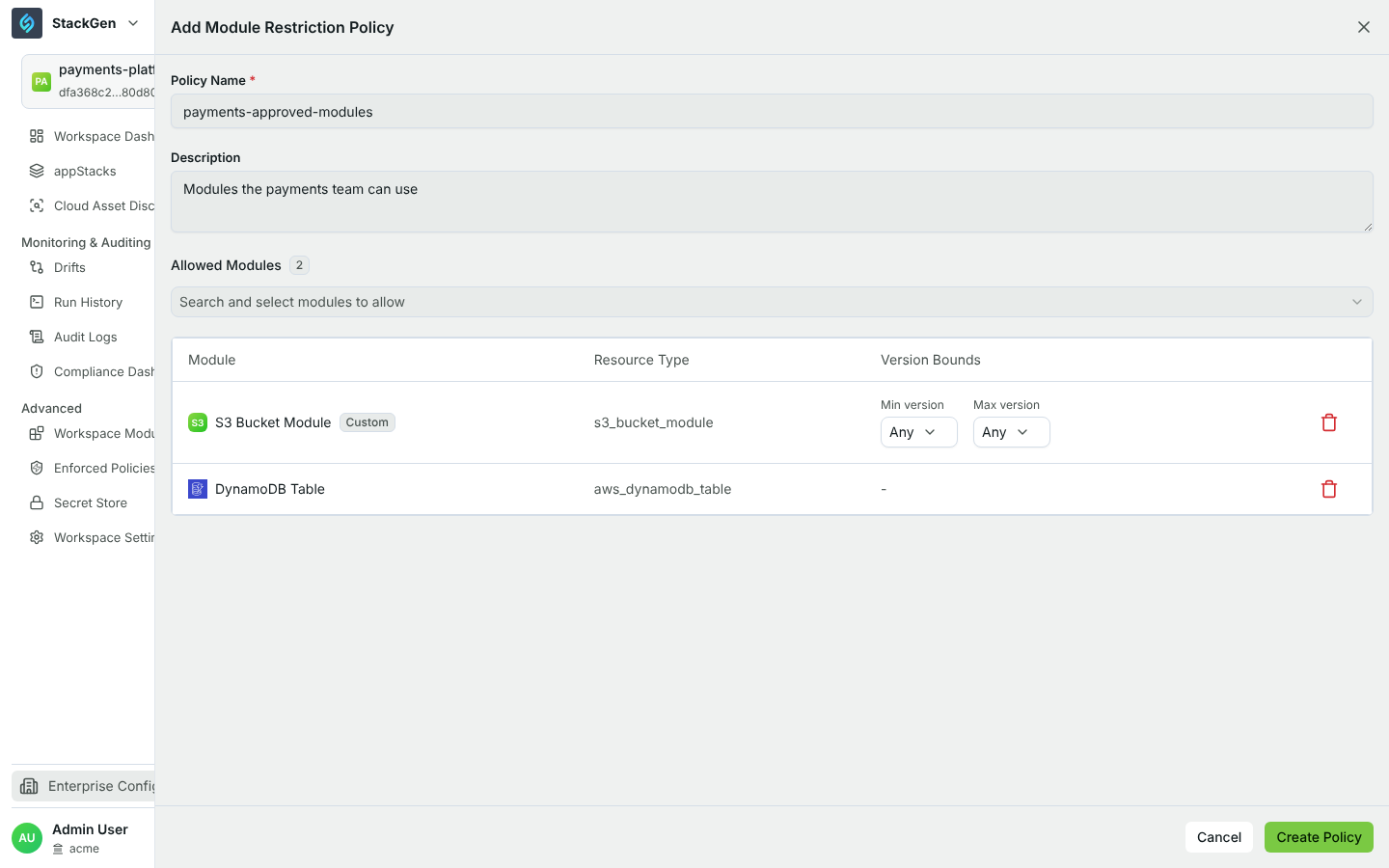
- Select Add New Policy.
- Enter a Policy Name and an optional Description.
- Under Allowed Modules, search for and select each module to allow.
- For custom modules, optionally set Min version and Max version under Version Bounds. Any means no bound. Version bounds are available only for custom modules.
- Select Create Policy.
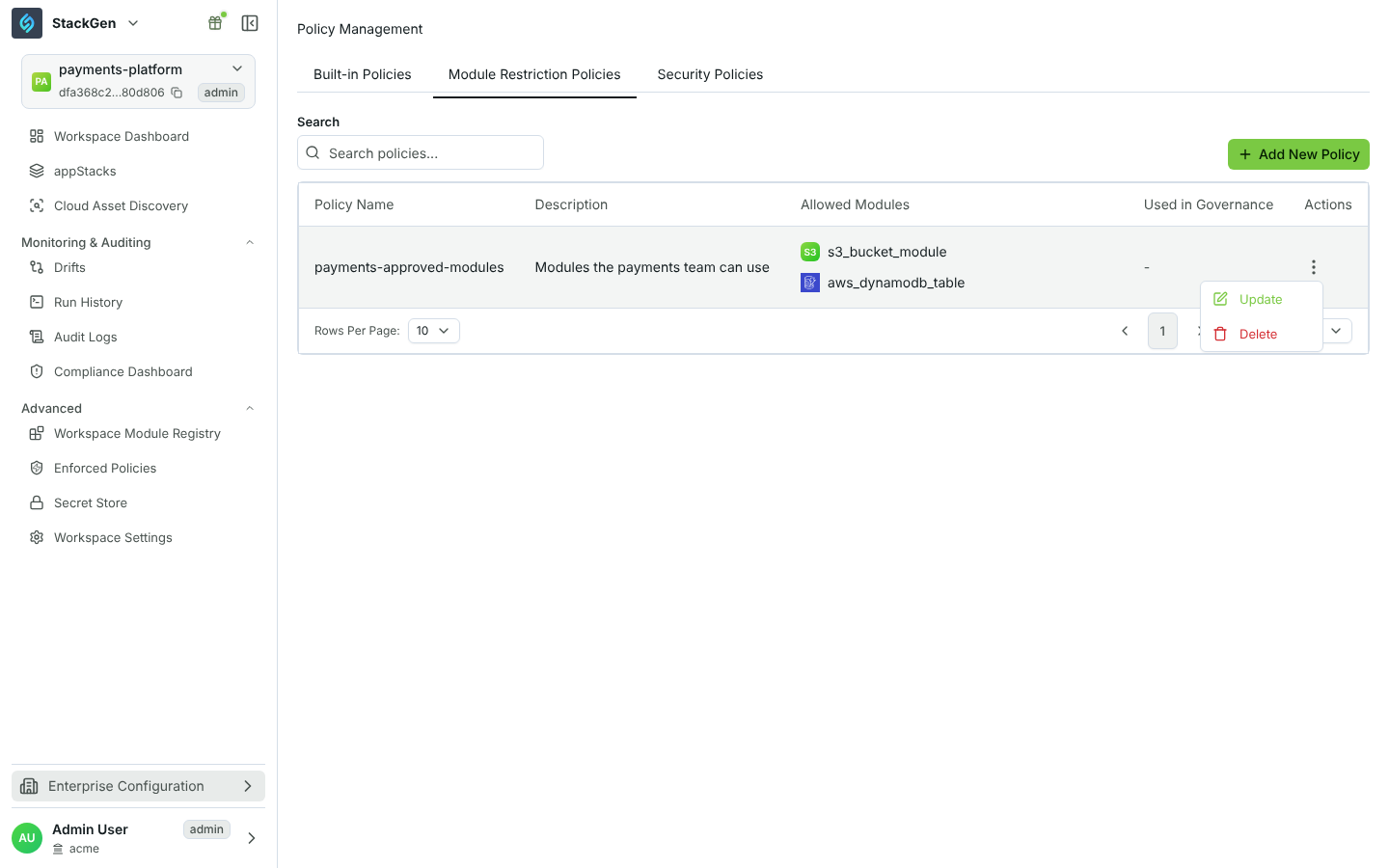
To change a policy, open the actions menu on its row and select Update. To remove it, select Delete. Delete is disabled while a governance configuration uses the policy.
Security Policies
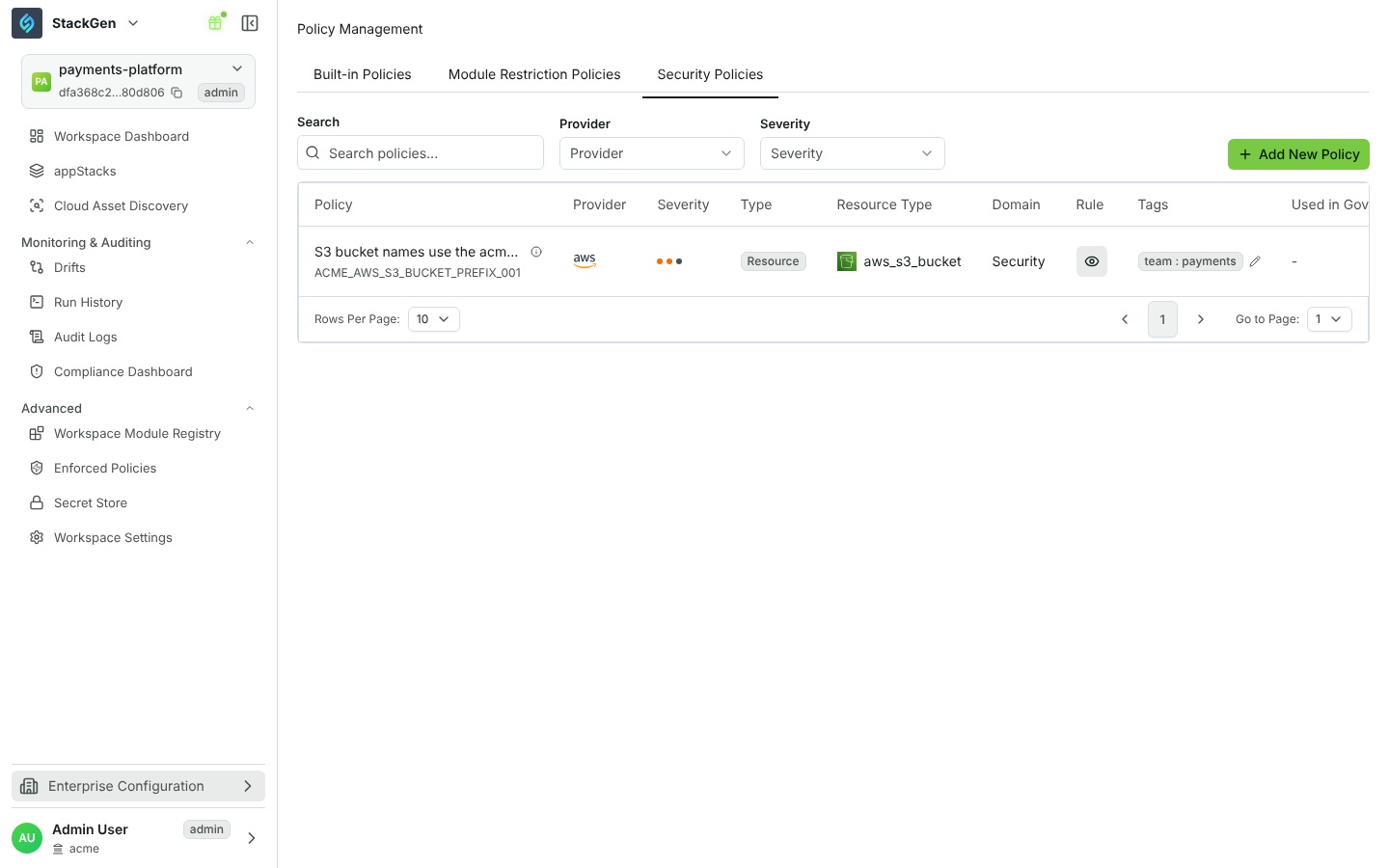
Security Policies are your organization's own OPA/Rego rules. Filter the list with Search, Provider and Severity.
Create a Security Policy
Select Add New Policy. The Create security policy page opens with two steps: Generate and Evaluate.
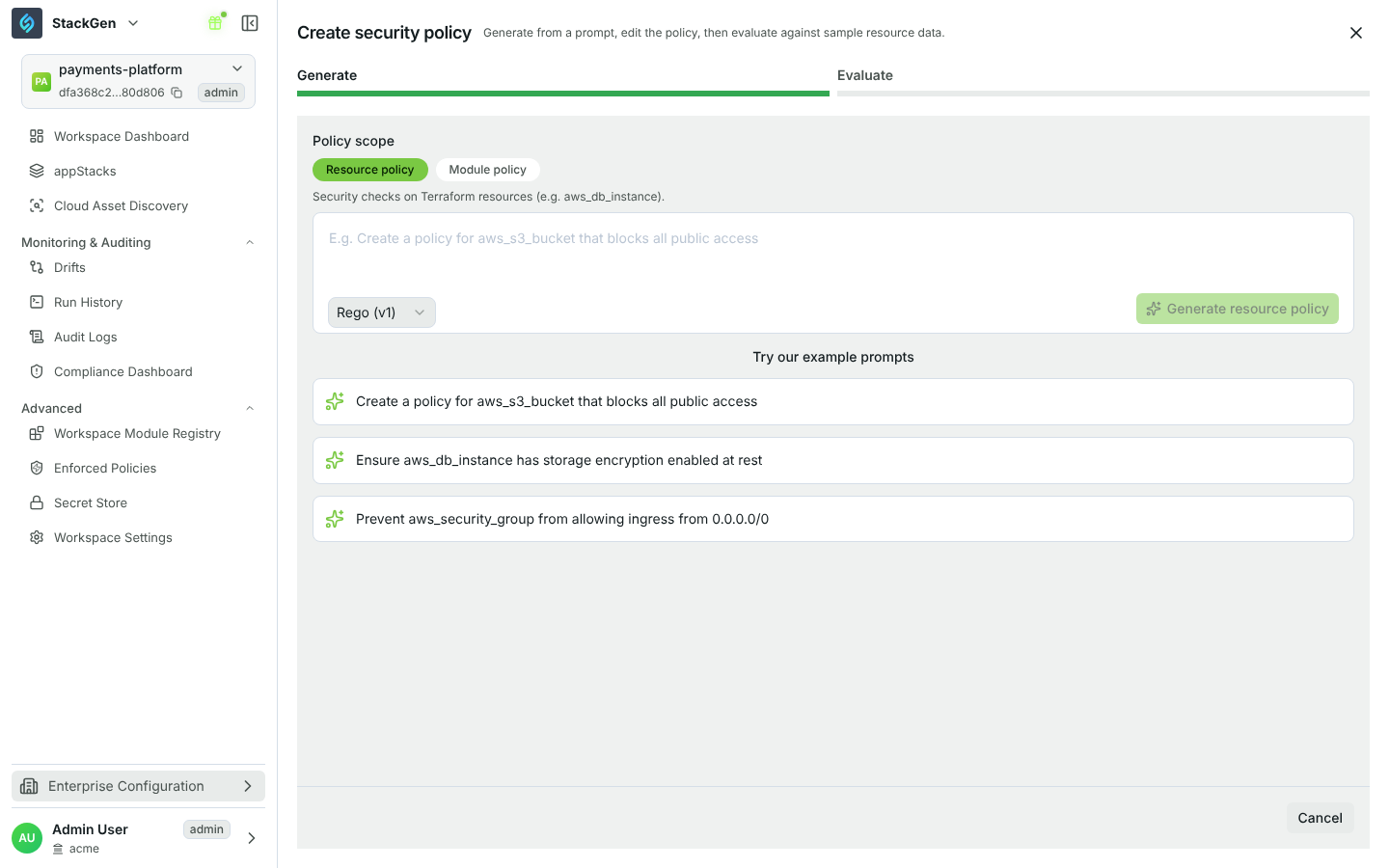
Generate
- Under Policy scope, choose one:
- Resource policy: security checks on Terraform resources, for example
aws_db_instance. - Module policy: input validation on StackGen modules, for example
aws_rds.
- Resource policy: security checks on Terraform resources, for example
- Describe the rule in plain language. Name the resource or module type in the prompt, for example "Create a policy for aws_s3_bucket that blocks all public access". You can also select one of the example prompts.
- Keep the format Rego (v1) and select Generate resource policy (or Generate module policy).
- Review the result. Set the Policy name and Rule Id. Edit the Rego on the OPA Rules tab, or the full policy (severity, provider, framework and more) on the Policy JSON tab. Both tabs stay in sync.
- Select Evaluate with sample data.
Generation fails if StackGen does not recognize the type in the prompt. Resource policies support Terraform resources from the AWS (aws_), Azure (azurerm_), Google (google_), Kubernetes, Helm, OCI and Civo providers. Module policies need a StackGen module or a registered custom module.
Evaluate
- StackGen fills Resource configuration with sample data. For a resource policy it generates HCL and JSON from the Terraform registry documentation. For a module policy it shows the module's Resource template and its inputs.
- Edit the sample so it should pass or fail, then select Evaluate Policy. StackGen shows whether the sample is compliant and highlights the attributes that violate the policy.
- Select Create Policy.
The Rule Id must be unique. StackGen rejects a policy whose rule ID already exists.
AI generation needs an OpenAI API key configured for your StackGen installation. On private SaaS and on-prem installations, your administrator sets it up. If it is missing, generation fails with an error.
To upload policies you wrote yourself as a JSON policy pack, use the CLI: stackgen upload security-rules. For a worked example of module and resource policies, see Custom Policies.
Manage Security Policies
- View the rule: select the eye icon in the Rule column to see the Rego.
- Edit tags: select the edit icon in the Tags column. Tags are key-value pairs that governance configurations can use to select policies.
- Evaluate: open the actions menu and select Evaluate to test the policy against new sample data.
- Delete: open the actions menu and select Delete. Delete is disabled while a governance configuration uses the policy.
The UI does not edit a Security Policy's rule after it is created, and policies have no version history. To change a rule, create a new policy with a new Rule Id, use it in your governance configuration, then delete the old one.
Enforced Policies in a workspace
Enforced Policies shows what the current workspace actually enforces. To open it, select a workspace, then select Advanced > Enforced Policies in the sidebar. Every member of the workspace sees it.
Enforced Policies is part of the updated UI (Workspace names), which is rolling out. See Feature Availability.
It has the same three tabs, read-only, listing only the policies in the governance configuration version assigned to the workspace. If that configuration picks policies or modules with a selector expression, the tabs also list what the selector matches.
If no governance configuration is assigned, the page shows No governance configuration is applied to this workspace.
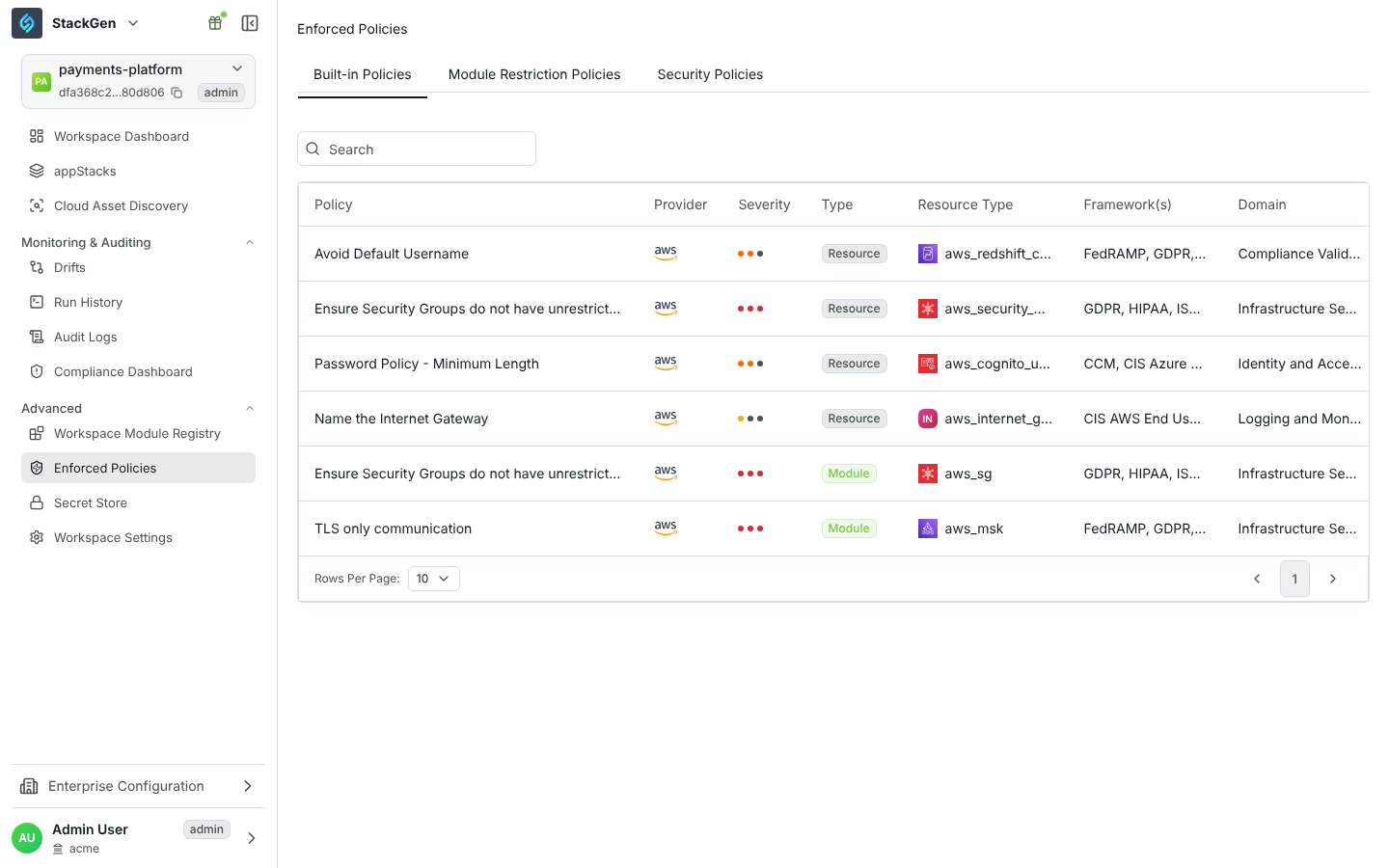
How this relates to governance configurations
Policy Management is where policies are defined. A governance configuration groups built-in, Module Restriction and Security Policies into a versioned configuration and assigns it to workspaces. The Used in Governance column shows which configurations, and which version, use each policy.