Governance Configuration
Governance Configuration
With the July 2025 release, Teams has been renamed to Projects across the StackGen platform. This change reflects our broader vision of enabling cross-functional collaboration around infrastructure, code, and compliance workflows under clearly scoped project workspaces. All existing functionality remains the same and only the terminology has been updated to better align with how you organize and manage appStacks, modules, and cloud environments in real-world settings. You’ll now see Projects wherever Teams was previously referenced in the UI, CLI, and documentation.
The StackGen Governance Configuration is a centralized console designed to facilitate governance, compliance, and policy enforcement within the StackGen ecosystem. It enables you to efficiently manage policies, mitigate risks, and adhere to regulatory standards while maintaining security and operational integrity.
Key Features
- Centralized Governance Console: Provides a unified interface to manage governance configurations and ensures seamless policy enforcement across StackGen environments.
- Policy Management and Enforcement: Allows Admins and DevOps to define and enforce governance policies, supporting both StackGen default policies and custom policies. Policies can be applied at the project level for consistent enforcement.
- Cloud Selection and Configuration: Enables Admins and DevOps to select their preferred cloud provider, ensuring governance policies align with cloud provider-specific compliance requirements.
- Project-Based Governance Assignments: Allows assignment of projects to a specific governance configuration, ensuring projects operate within predefined compliance guidelines.
- Governance Configuration Lifecycle Management: Admins and DevOps can create governance configurations. Configurations can only be deleted if no appStacks or projects are assigned.
- Role-Based Access Control (RBAC): DevOps and Admin roles have the authority to manage governance configurations, enforcing access restrictions to prevent unauthorized changes.
- Regulatory Compliance & Security: Ensures compliance with industry regulations by enforcing governance policies and provides audit trails for governance configurations and policy updates.
Create a Governance Configuration
Follow these steps for creating a governance configuration:
-
Click + New Configuration.
-
You will be redirected to the new governance configuration creation dialog.
-
Select the cloud provider on which you want to enforce these policies. You can select multiple clouds here and click Proceed.
-
Select Built-In StackGen policies and the Custom Policies that you’ve added. You can pick policies individually, or use expressions to select matching policies at scale.
-
You can define the Terraform and Provider versions for enforcing governance.
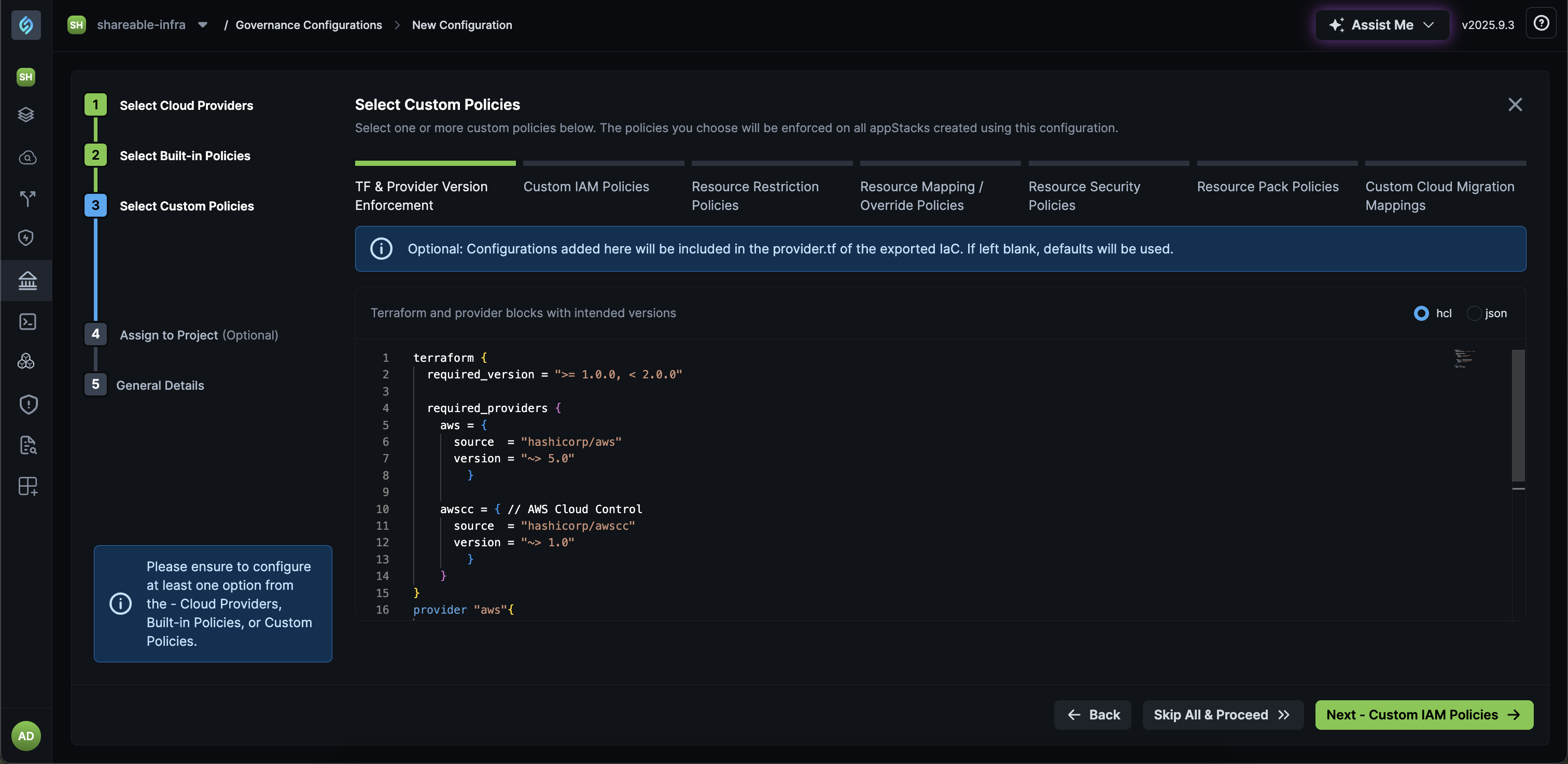
Learn How to Create and Assign Governance for Terraform and Provider Versions
-
Assign the configuration to your projects, provide a name, and click Create Configuration.
To learn how to create a Project, refer to the Setup section.
Select Policies with Expressions
When you create or update a governance configuration and select policies, you can use expressions to filter and include policies instead of selecting each policy by hand.
Expressions help when you have a large policy catalog. They work across:
- Built-in StackGen policies
- Module restriction policies
- Security policies
Invalid expressions fail with an error toast (for example invalid keys, invalid operators, or values that are not quoted when quotes are required).
Example filters
Built-in policies (examples)
policy.provider == "aws" && policy.severity == "HIGH"
You can also filter with fields such as policy.resourceType, policy.category, and membership checks such as "GDPR" in policy.benchmarks.
Module restriction (allowlist from matching modules)
glob(module.name, "*bucket") && module.tags["allow"] == "true"
module.name == "aws_s3"
When you add more modules that pass the expression (for example after you set allow = true on the module), they can enter the allowlist wherever that governance is enforced.
Security policies
policy.tags["allow"] == "true" && policy.resourceName == "aws_s3_bucket"
Attach tags on custom modules from module management so module.tags[...] expressions can match. See Custom module tags.
Why expressions help with evolving modules
If your organization uses naming or tagging conventions for modules (for example a shared prefix, or tags such as allow = true), write an expression that matches those conventions. When new modules that match the expression are imported, governance can include them without forcing you to create a new governance version only to reselect policies. The same pattern applies when you scope security policies by expression: projects that use that governance pick up matching policy enforcement as matching modules appear.
Use expressions for stable conventions. Review the matched set when you change naming or tagging standards.
See v2026.8.4.
Assign Governance Configuration to Projects
To assign a governance configuration to a project, follow these steps:
- From the Governance Configuration page, navigate to the governance policy that you want to assign to the project.
- Hover over the Enforced on Projects column next to the policy and click on the pencil ✎ icon.
- Search and select your project from the Assign configuration to the project dialog and click Assign.
- Repeat this step if you want to assign your governance configuration to multiple projects.
Remove Governance Configuration Assignment
To un-assign a governance configuration for a project, follow these steps:
- From the Governance Configuration page, navigate to the governance policy that you want to un-assign to a project.
- Hover over the Enforced on Projects column next to the policy and click the pencil ✎ icon.
- Click the delete icon 🗑️ next to the project.
Remove All Governance Configuration Assignments
To un-assign a governance configuration for all projects, follow these steps:
-
From the Governance Configuration page, navigate to the governance policy that you want to un-assign.
-
Click the ellipsis ⋮ icon under the Actions column of your configuration.
-
Click the Delete all assignments 🗑️ icon.
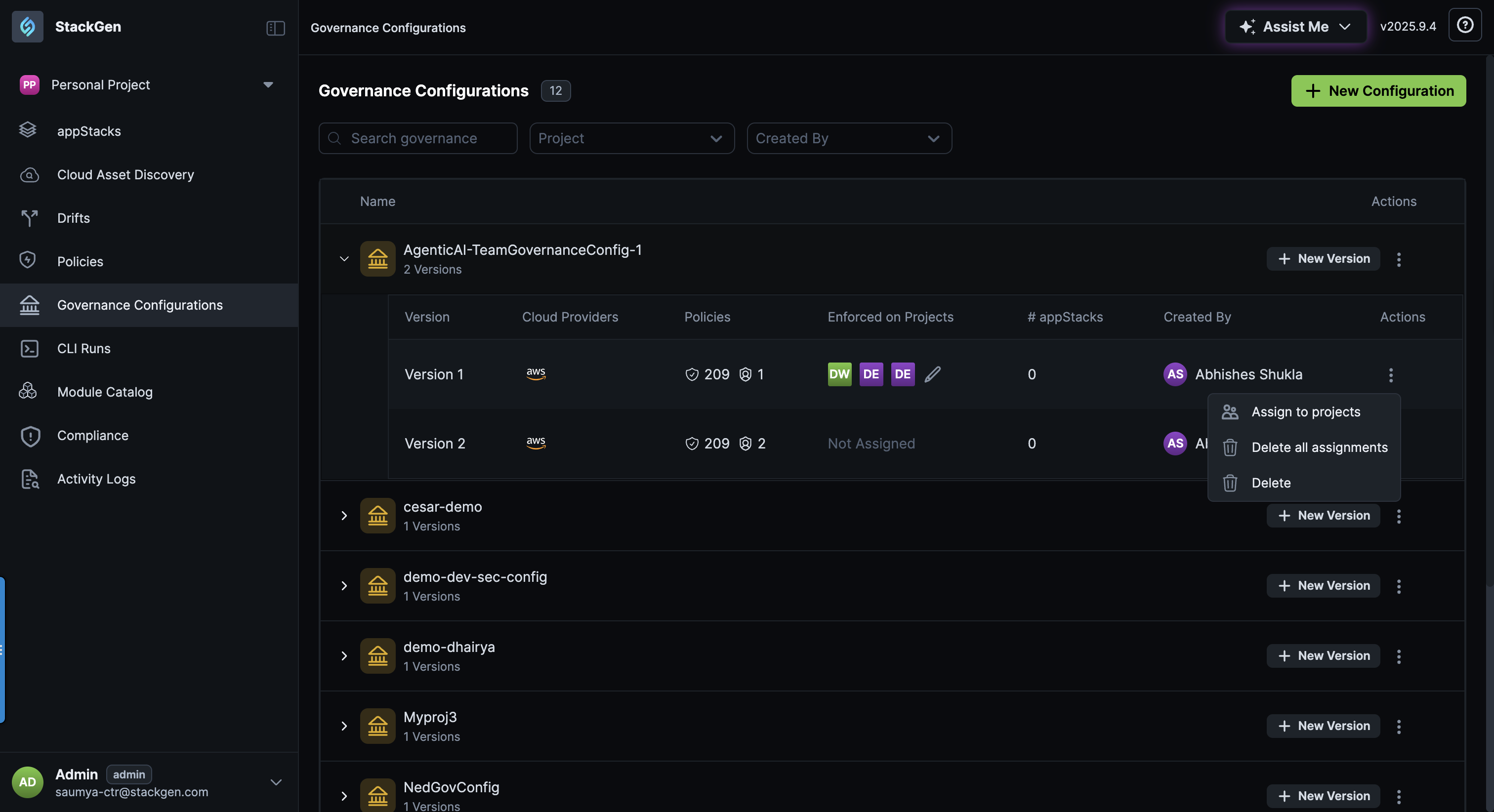
Create Governance Configuration Versions
As a DevOps and an Administrator user in StackGen, you can create new versions of your existing governance configurations. Thus, making it easier for you to test, iterate, and apply changes without redefining your governance configurations from scratch.
The Governance Configuration Version feature lets you:
- Create new governance versions from existing governance configurations
- Test changes incrementally without losing previous setups
- Maintain continuity across governance applications
Follow these steps for creating a governance configuration:
-
Click + New Version button next to your existing Governance Configuration.
-
You will be redirected to the new governance configuration creation dialog.
-
Select the cloud provider on which you want to enforce these policies. You can select multiple clouds here and click Proceed.
-
Select Built-In StackGen policies and the Custom Policies that you’ve added.
-
You can define the Terraform and Provider versions for enforcing governance.
Learn How to Create and Assign Governance for Terraform and Provider Versions
-
Assign the configuration to your projects, provide a name, and click Create Configuration.
To create a governance configuration for:
- Enterprise: Choose the Personal Workspace from the Projects dropdown and then proceed with the steps above.
- Projects: Select the project from the Projects dropdown and then proceed with the steps above.
Delete a Governance Configurations
- Governance configurations cannot be deleted if they are assigned to existing appStacks.
- If a Governance configuration is not assigned to any appStacks, you can simply unassign Projects and then delete it.
- You must first remove governance assignments from all associated appStacks before deletion.
- To do this, you will need first delete all assigments then delete the governance configuration.
- In case of Governance Configuration Versions:
- You cannot delete the base governance configuration on which the remaining versions are built.
- To delete a Governance Configuration Version:
- Click the ellipsis ⋮ icon under the Actions column of your configuration.
- Click Delete.
- From the Delete - Version x dialog, click Delete.
- If deletion of the base configuration is required, contact StackGen Support for assistance.