Manage Dashboards
Manage Dashboards is the central list for every customer dashboard you have brought into StackGen ObserveNow Shared Dashboards. From here you can see what exists, inspect metadata (including Source and Dashboard ID), open the viewer to scope and share, start an invite for a specific recipient, or delete a dashboard and revoke all access to it.
For the full journey: creating a dashboard from Grafana, applying filters, and sharing with recipients, check out Shared Dashboards.
Navigating to the Manage Dashboards Page
From the Dashboard Management home, open Manage Dashboards to reach this list. You will see all customer dashboards you have created, review their metadata, and use the row actions from one place.
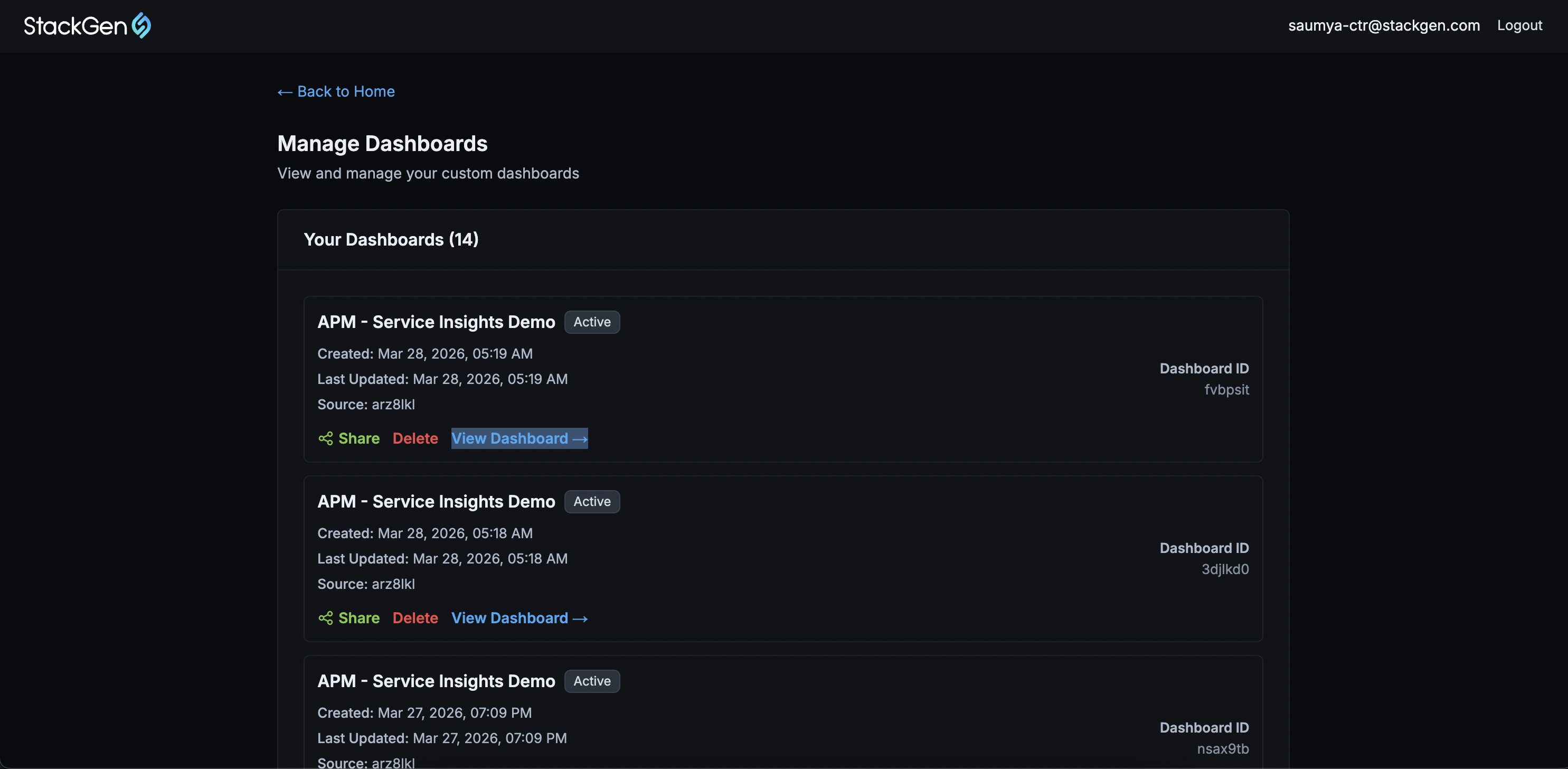
What’s on the page
Each dashboard card shows:
| Title | Description |
|---|---|
| Title | The name of the customer dashboard in Shared Dashboards. |
| Active | The dashboard status. |
| Created or Last updated | When the dashboard was added and last changed. |
| Source | Identifier linking the dashboard back to its origin (for example, Grafana and ObserveNow source). |
| Dashboard ID | Internal ID on the card. It is useful for support or troubleshooting. |
Actions on Each Card
- Share: Start the invite flow for this dashboard. You can add recipient emails and send access (same behavior as sharing from the viewer when you’re already inside a dashboard).
- Revoke and track access: You can revoke and track access to recipients by clicking Share.
- Revoke access for a specific user at any time. This immediately removes their access while keeping the dashboard available to others.
- Track invitees using access statuses:
- Pending: the invite hasn’t been opened yet
- Active: the link has been used
- Expired: the link wasn’t accessed within the 30-day validity period
- Delete: Remove the customer dashboard from Shared Dashboards and revoke access for everyone who was invited. This is a destructive action. Use it, only when you intend to remove the dashboard entirely.
- View Dashboard →: Open the dashboard in the viewer so you can set variables, click Apply, and Share; the path described in Scope and Share the Dashboard.