Microsoft Teams
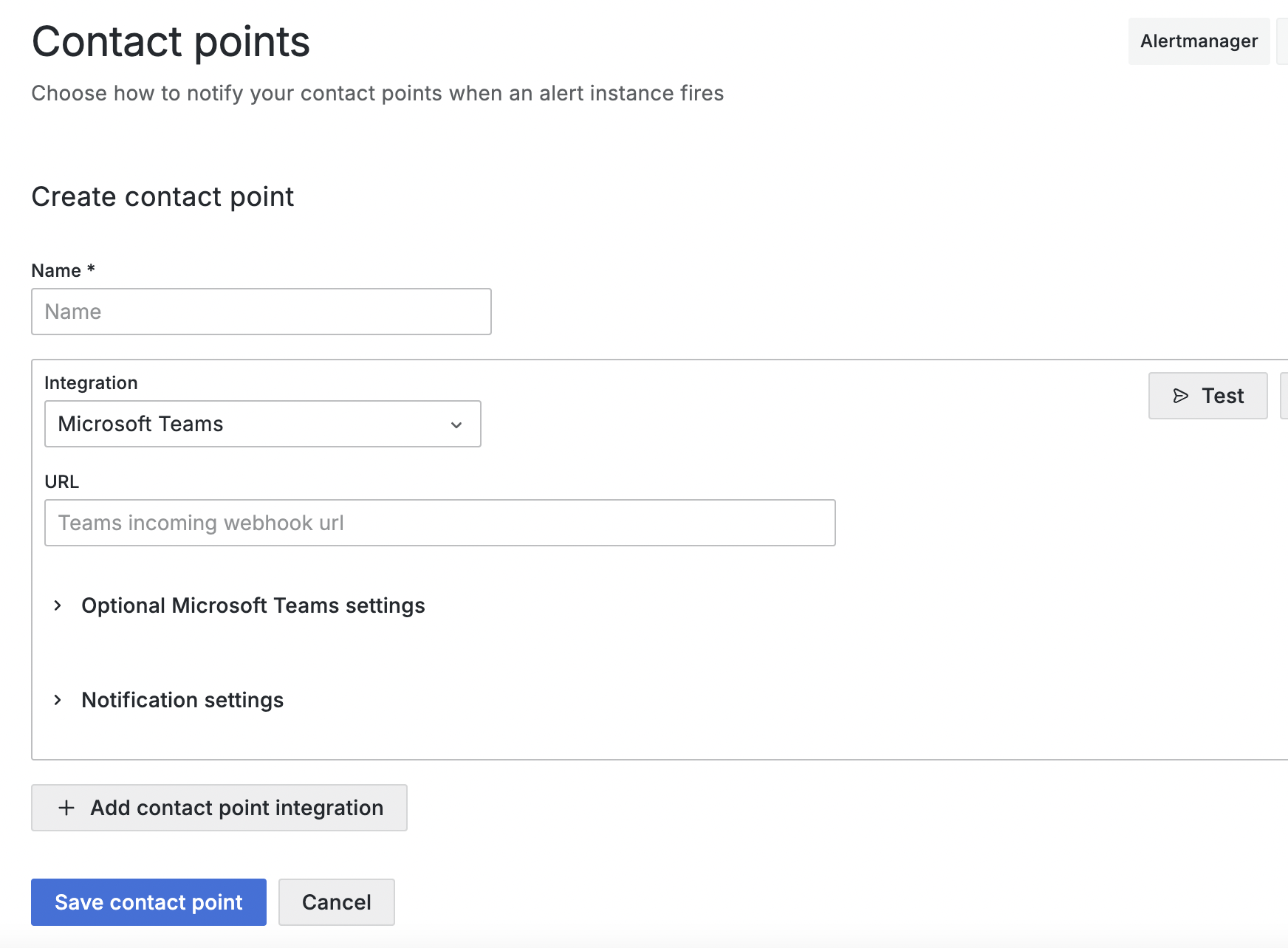
Here are the detailed steps to configure a contact point to send alerts to Microsoft Teams in Grafana 10:
- Navigate to the
Contact Pointssection:- In the Grafana sidebar, click on
Alerting - Select
Contact pointsfrom the submenu
- In the Grafana sidebar, click on
- Create a new contact point:
- Click the
Add contact pointbutton - Enter a name for the contact point (e.g.,
Teams Alerts)
- Click the
- Select
Microsoft Teamsas the integration:- In the
Integrationdropdown, chooseMicrosoft Teams
- In the
- Configure the Teams webhook:
- In the
Webhook URLfield, paste the webhook URL for your Microsoft Teams channel - To obtain this URL:
- Open Microsoft Teams
- Navigate to the desired channel
- Click the "..." menu next to the channel name
- Select "Connectors" e. Find "Incoming Webhook" and click "Configure"
- Provide a name for the webhook and click "Create"
- Copy the generated webhook URL
- In the
- Customize the message settings (optional):
- Use the
Messagefield to customize the alert message format - You can use Go templating syntax to include dynamic content
- Use the
- Set optional parameters:
- Configure any additional settings such as
TitleorThumbnail URLif desired
- Configure any additional settings such as
- Test the contact point:
- Click the
Testbutton to send a test message to the Teams channel - Verify that the message appears in the specified Teams channel
- Click the
- Save the contact point:
- Click
Save contact pointto finalize the configuration
- Click
After completing these steps, the Microsoft Teams contact point will be available for use in notification policies and can receive alerts from Grafana.