Custom Policies
Custom Policies
Custom Policies let you define governance rules for your organization's infrastructure requirements. You can create and manage Custom Policies in the following ways:
- Use the StackGen CLI with JSON.
- Use the StackGen UI with JSON or Rego v1.
Custom Policies extend StackGen's built-in governance capabilities. Use them to apply organization-specific requirements for access, resource usage, configuration, and security.
Governance Configurations
A Governance Configuration groups policies and assigns them to one or more projects.
When you assign a Governance Configuration to a project, StackGen applies its policies to appStacks created by members of that project. This helps teams use the same governance rules across related infrastructure work.
For example, a Governance Configuration for an application project might include:
- Read-only access roles for data storage resources.
- Full-access roles for application hosting resources.
- Security Policies that require encryption or required tags.
For setup steps, see Governance Configurations.
Apply Custom Policies across environments
Custom Policies can help you apply consistent governance across supported cloud providers and infrastructure resources.
You can use Custom Policies to:
- Apply governance rules across cloud providers, including AWS, Azure, GCP, Civo Cloud, and OCI (security policies for OCI are supported).
- Define rules for resources supported by StackGen.
- Apply the same requirements across multiple projects or environments.
The available policy behavior depends on the policy type and the resources or modules it targets.
Benefits of Custom Policies
Custom Policies can help your organization:
- Adapt governance to your requirements. Define rules that reflect your organization's standards and workflows.
- Apply consistent controls. Use the same policies across projects and appStacks.
- Improve security and compliance. Require controls such as encryption, monitoring, tags, and approved access patterns.
Custom Policy types
StackGen supports five Custom Policy types.
| Policy type | What it does | Example |
|---|---|---|
| Custom IAM Roles | Defines IAM roles for resources. | Create read-only or audit roles for data storage resources. |
| Resource Mapping | Maps resources in an appStack to predefined resource relationships or services. | Link database references to a preferred database service. |
| Resource Restriction | Controls which resources a project can use. | Allow one project to use storage and compute resources while limiting access to analytics resources. |
| Security and Compliance Settings | Enforces security and compliance requirements by using module-level or resource-level OPA/Rego Security Policies. | Require encryption, tags, or public-access controls. |
| Role-Based Control | Controls access based on projects or user roles. | Allow developers to manage non-production resources while limiting production management to operations teams. |
How StackGen Validates Custom Policies
StackGen supports two types of custom policies:
- Security Policies validate configuration or generated infrastructure code by using OPA/Rego.
- Module Restriction Policies control which modules a project can use. They do not use OPA/Rego.
Security Policies can run at either the module level or the resource level. The level determines which data StackGen evaluates and when users see policy feedback.
See v2026.7.3 for resource-level policies and plan-time evaluation, v2026.7.11 for OCI security policies, and v2026.7.9 for generation prompt visibility on Evaluation.
On the Topology canvas, users add nodes such as S3 and RDS. Each node represents a StackGen module. For example, an RDS node might use the aws_rds module.
Users interact with a resource on the canvas. Security Policies evaluate either the module's input values or the Terraform provider resources generated from those inputs.
| Module-level Security Policy | Resource-level Security Policy | |
|---|---|---|
| Evaluates | Module inputs from the Configure Resource panel, represented as JSON | Terraform or OpenTofu provider resources in the compiled plan output, such as aws_s3_bucket |
| Shows feedback | When a user edits and saves the Configure Resource panel (canvas) | After a successful plan, when a policy scan runs. Results appear on the Policy Scan tab as pass or failure warnings. Editing on the canvas alone does not show resource-level warnings. |
| Best for | Fast validation of approved catalog modules configured on the canvas | Rules that must apply regardless of the module, import path, or authoring method |
| Target scope | One catalog module per policy | One Terraform provider resource type per policy |
| Enforcement path | Assigned through Governance Configurations | Assigned through Governance Configurations, then evaluated only via post-plan policy scan |
One Policy per Resource Type or Module
Security Policies are written against a single target: either one catalog module or one Terraform provider resource type. StackGen does not support attaching multiple resource types (or multiple modules) to the same Security Policy.
Click to view
Why it works this way
StackGen is designed so each policy owns one resource type or one module. That keeps policy ownership and behavior predictable, makes debugging and maintenance easier, and reduces the chance of unintended side effects across unrelated resources.
What this means in practice
- Create a module-level Security Policy for one catalog module (for example, the StackGen S3 module).
- Create a resource-level Security Policy for one provider resource type (for example,
aws_s3_bucket). - If the same rule must apply to several AWS resource types, create a separate policy for each resource type. You cannot select a group of resource types under one policy today.
Example: Mandatory tags across many AWS resources
Organizations often want the same tags (for example, CostCenter, Environment, and ApplicationName) on many AWS resources.
Expected customer outcome: One custom Security Policy that selects multiple AWS resource types and enforces those tags everywhere.
Current behavior: You create one Security Policy per resource type (or per module, if you use module-level policies). For example, a CostCenter tag rule for aws_s3_bucket is a separate policy from the same rule for aws_instance.
To apply the same tagging rule across many resource types faster, use the AI-assisted Security Policy flow to generate equivalent policies for each target, instead of rewriting Rego from scratch for every resource type.
Assign each policy through Governance Configurations so projects receive the full set of rules.
Module Restriction Policies
Module Restriction Policies control which modules a project can use. You can also set an optional minimum version or maximum version for an allowed module.
These policies are separate from Security Policies and do not use OPA/Rego.
Create Module Restriction Policies in Enterprise Configuration > Policy Management > Module Restriction Policies.
Module-level Security Policies
A module-level Security Policy evaluates Rego against the JSON inputs for a catalog module.
When a user configures a module, StackGen converts the values from the Configure Resource panel into JSON. StackGen then evaluates the policy against that JSON.
Example: Require S3 public access blocking
Suppose your organization requires the StackGen S3 module to keep Block public access enabled.
If a user sets Block public access to false and saves the configuration, StackGen can:
- Show a policy violation on the canvas before a plan runs.
- Prevent the user from saving an invalid module configuration.
Module-level policies apply when both of the following are true:
- The module is available in the Module Catalog. This can include StackGen-provided modules, imported modules, and modules promoted from an appStack.
- The policy is assigned through Governance Configurations.
Module-level policies do not apply in these situations:
- The module exists only inside a single appStack, such as an inline module created during IaC import. StackGen does not register that module in the catalog, so the policy cannot target it.
- The policy AI cannot match the specified module name to a catalog module.
- The infrastructure bypasses the target module, such as by using a different module, importing Terraform, or defining a provider resource directly.
View the Security Policy evaluator
To test a module-level policy:
- Go to Enterprise Configuration > Policy Management > Security Policies.
- Create or open a Security Policy.
- Select Evaluate with sample data.
The evaluator includes three panels:
- OPA rules: The Rego policy.
- Module inputs: Sample JSON for a catalog module, such as
rds_engineandrds_storage_encrypted. - Evaluation result: The policy result, such as pass or violation.
For example, set rds_storage_encrypted to false in the Module inputs panel, then select Evaluate Policy. StackGen shows a violation. Change the value to true and evaluate again to see a passing result.
The AI assistant might generate Rego that refers to a cloud resource type. For a module-level policy, StackGen still evaluates the policy against catalog-module inputs, not Terraform HCL from the canvas.
Resource-level Security Policies
A resource-level Security Policy evaluates Terraform or OpenTofu provider resources in the compiled plan, not the live values you type on the Topology canvas.
For example, a policy can target aws_s3_bucket or aws_db_instance and evaluate attributes such as tags, encryption settings, naming prefixes, or public-access settings.
Resource-level policies are assigned through Governance Configurations, the same way as other custom policies. After a Governance Configuration is mapped to a project, those resource-level policies apply to appStacks in that project.
When resource-level policies run
Resource-level policies do not validate in real time while you edit the canvas.
| Stage | What happens |
|---|---|
| Edit and save on Topology | No resource-level policy warning appears. Module-level policies can still warn on save. Resource-level policies stay silent. |
| Plan finishes successfully | StackGen has plan state (compiled Terraform or OpenTofu output) to evaluate against. |
| Policy scan after plan | Resource-level policies run against that plan state. Failures show as warnings on the Policy Scan tab (for example With Failures). Passes show as Passed. |
You can start the scan in either of these ways:
- Turn on Run policy scan after plan in Plan & Deploy, then run Plan. When the plan completes, StackGen runs the scan automatically.
- After a plan finishes, open the Policy Scan tab and use Re-run scan.
Resource-level policies inspect the plan result, not the pre-plan canvas state. If an attribute is still a variable until plan resolves it, the scan uses the planned value for that environment.
Example: Require an S3 bucket name prefix
Suppose your organization requires every S3 bucket name to start with stackgen-.
- Create a custom resource-level Security Policy that targets
aws_s3_bucketand requires the name prefix. - Add the policy to a Governance Configuration.
- Assign that Governance Configuration to the project.
Compliant path
- Create an appStack in the project and add an S3 module.
- Set the bucket name to a compliant value (for example
stackgen-testing1z1). - Open Actions > Plan & Deploy, turn on Run policy scan after plan, and run Plan.
- When the plan finishes, the Policy Scan tab shows a pass (for example Passed (1)).
Violating path
- Edit the S3 module on the canvas and change the bucket name to a non-compliant value (for example
testing1z1). - Save. No resource-level warning appears on the canvas at this stage.
- Run Plan again with policy scan enabled (or re-run scan after plan).
- When the plan finishes, the Policy Scan tab shows a failure (for example With Failures (1)). Expand the scan details to see the violation for the naming rule.
A resource-level policy that targets aws_s3_bucket can:
- Apply whenever that provider resource appears in the planned IaC.
- Apply even when a user does not configure the StackGen S3 module on the canvas (for example after import or another module path that still emits
aws_s3_bucket). - Surface results only through post-plan policy scan, not as live canvas validation.
Use resource-level policies for organization-wide requirements that must apply across modules and import paths, such as tagging, encryption, naming, and public-access controls.
Use module-level policies when you need immediate validation of input values for approved catalog modules on the canvas.
Each Security Policy still targets one resource type or one module. To enforce the same tags on many AWS resource types, create one policy per type. See One policy per resource type or module.
View resource-level limitations
Some policies depend on relationships between resources. For example, a policy might need to evaluate both a security group and its subnet.
If StackGen does not evaluate the related resources together, the policy can produce violations that require manual review.
If known false positives block workflows, administrators can adjust export behavior by using StackGen Preference Keys.
Create Custom Policies
StackGen provides multiple ways to create custom policies, making governance accessible to teams with different technical expertise levels. You can create policies via the CLI for maximum flexibility, or through the UI for Resource Restriction Policies and AI-assisted Resource Security Policies.
Create Policies via CLI
Click to view
Custom policies can be created using the StackGen CLI and are defined in JSON or Rego format. This method provides maximum flexibility for complex governance rules and supports all policy types.
- Custom policies are
JSONorRegobased, allowing high flexibility. - They enable both simple configurations and complex governance rules.
To learn how to create and manage custom policies via CLI, refer to the CLI Guide.
Create Policies via UI
You can create policies through the StackGen UI in two ways:
Resource Restriction Policies (UI-Based)
Click to view
Admins can create Resource Restriction Policies directly via the StackGen UI, eliminating the need to write code for basic governance rules. This makes it easy to define which cloud resources are permitted in your organization.
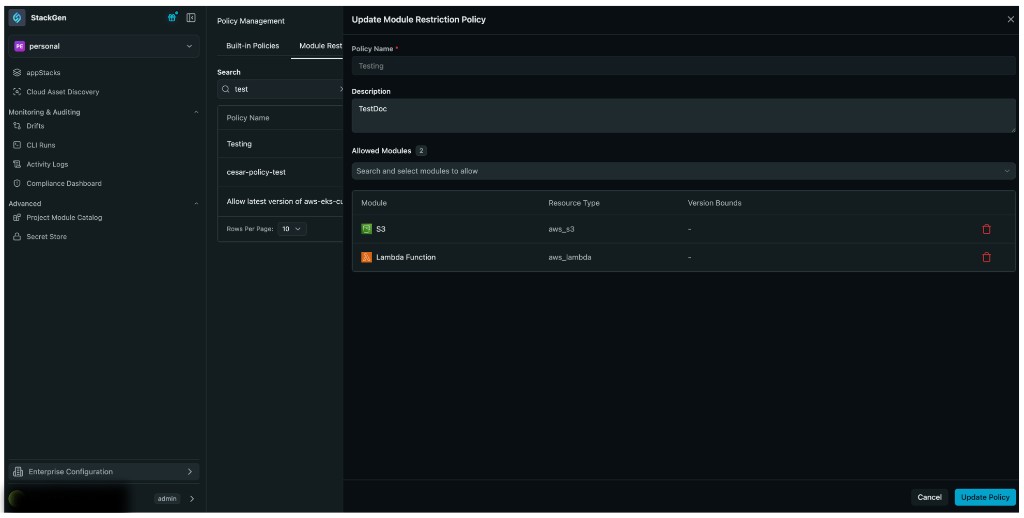
Key Features:
- No Code Required: Create and manage resource restrictions through an intuitive UI, making governance accessible to non-technical team members.
- Restrict Cloud Resources: Define which cloud resources are permitted in your organization, ensuring your teams only use approved infrastructure components.
- Support Multiple Resource Types: Works with standalone, grouped, and custom resources, giving you the flexibility to control any resource type in your environment.
- Enforce at Scale: Apply organizational guardrails consistently across all projects and appStacks, making it ideal for Landing Zone and platform governance teams.
To create a Resource Restriction Policy via UI:
For module restriction policies, you can also set Min version and Max version for an allowed module.
- Click + Add New Policy.
- Enter the Policy Name and Description.
- From the Allowed Modules dropdown, select the resources that you want to allow.
- Optional: set Min version and Max version for a module when you want to allow only a specific version band.
- Click Create Policy to save.
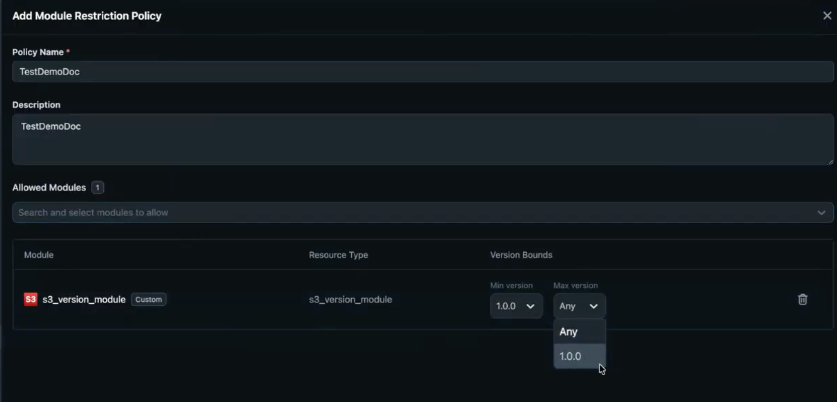
To update a Resource Restriction Policy via UI:
-
Edit the policy you want to update.
-
Add or remove allowed resource types from the Allowed Modules dropdown.
-
Adjust Min version or Max version if you want to tighten or widen the approved version range for a module.
-
Click Save to apply your changes.
To delete a Resource Restriction Policy:
-
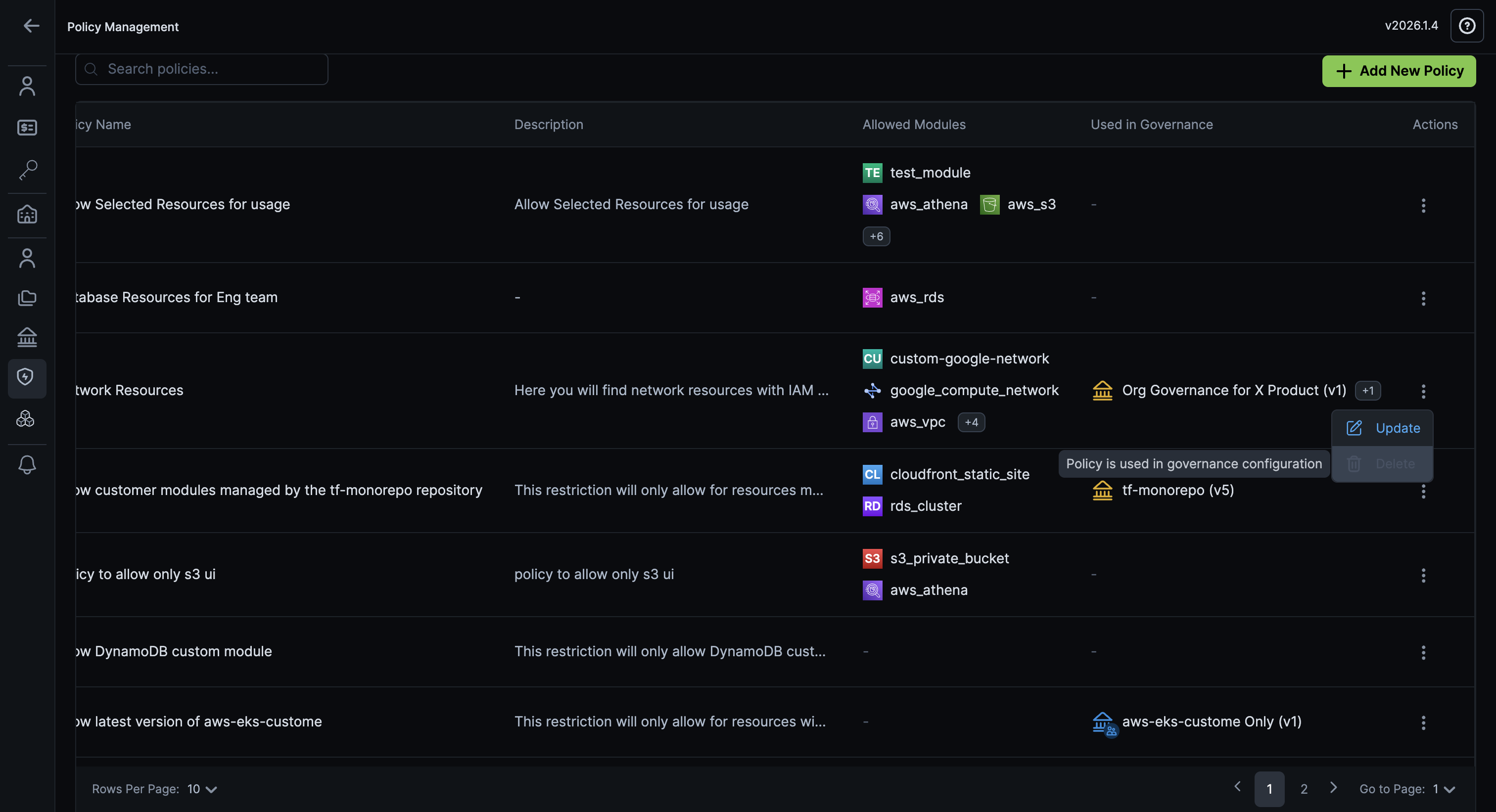
Click the ellipsis ⋮ icon for the Module Restriction Policy you want to delete.
-
Click Delete.
noteModule restriction policies that are currently in use cannot be deleted. You'll receive a clear warning if you attempt to delete a policy that's attached to a project or governance rule.
Security Policies (AI-Assisted)
Click to view
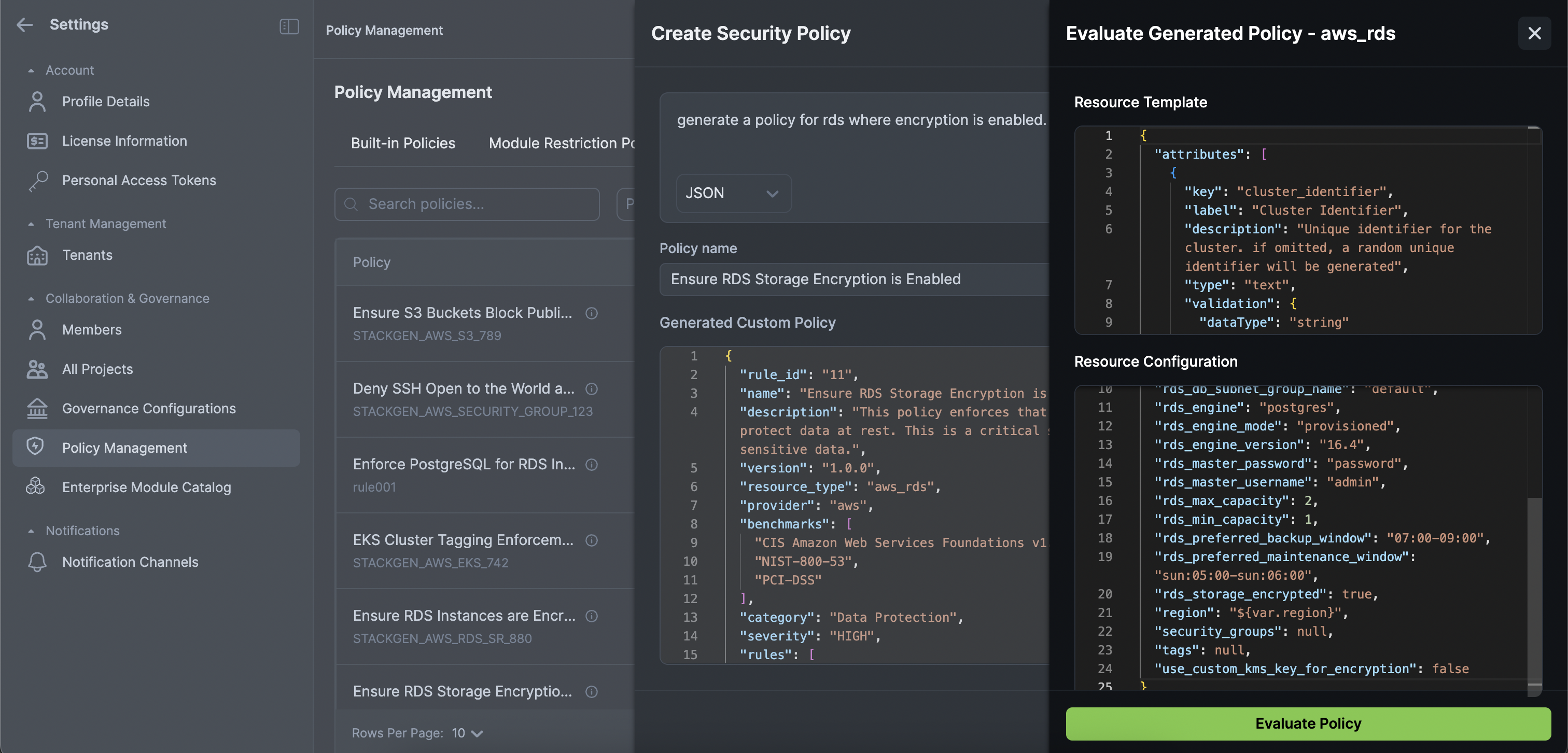
The Security Policies screen is used to create module-level OPA/Rego rules with AI help. StackGen evaluates module inputs for catalog modules. Violations can appear in the Configure Resource panel before you run plan.
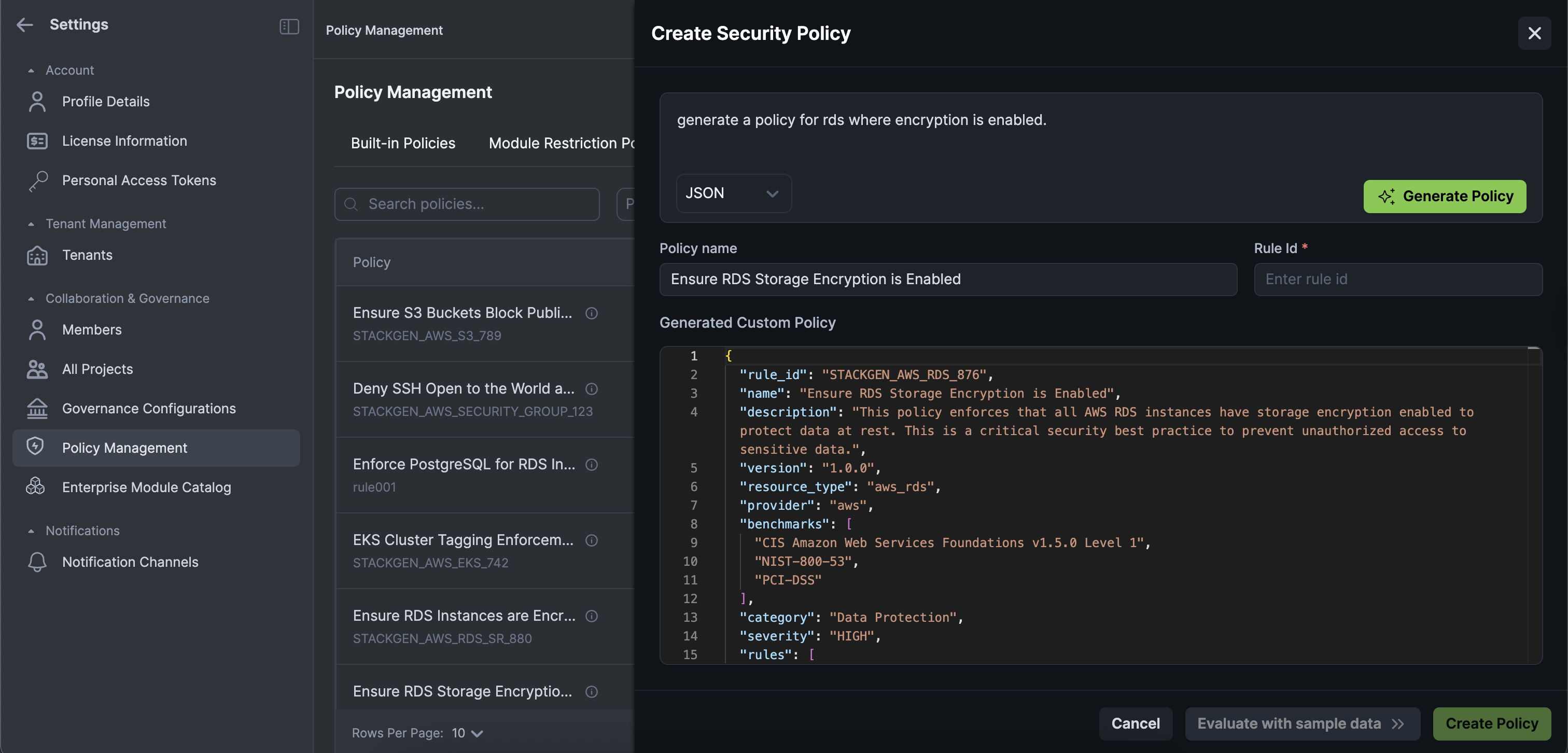
Key Features:
- Natural Language to JSON: Define policies using natural language, and StackGen automatically generates the JSON policy for you. Simply describe what you want to enforce, and the AI handles the technical translation.
- Paste Rego Support: If you prefer working with Rego policies, paste your existing Rego code and StackGen automatically generates a StackGen-compatible policy.
- Inline Validation: Test your policies with sample configurations before activation, ensuring they work as expected.
- Real-Time Feedback: Get immediate policy pass or fail feedback as you build your policies, helping you refine rules before they go live.
To create a Security Policy using the AI Assistant:
-
In Generate Policy, enter what you want to enforce (for example, ensure all S3 buckets have encryption enabled). Click Generate.
- Choose
jsonorRego (v1)from the output dropdown.
- Choose
-
Enter the Rule ID.
-
Click Evaluate with sample data >>:
- OPA rules (left): The Rego policy.
- Module inputs (center): Edit JSON to test pass and fail cases.
- Click Evaluate Policy to see the result.
- On the Evaluation tab, you can see the generation prompt that produced the policy. Use the path back to the Generation tab when you need to edit the prompt and continue iterating.
-
Refine the policy if needed.
-
Click Create Policy to save.
To delete a Security Policy:
-
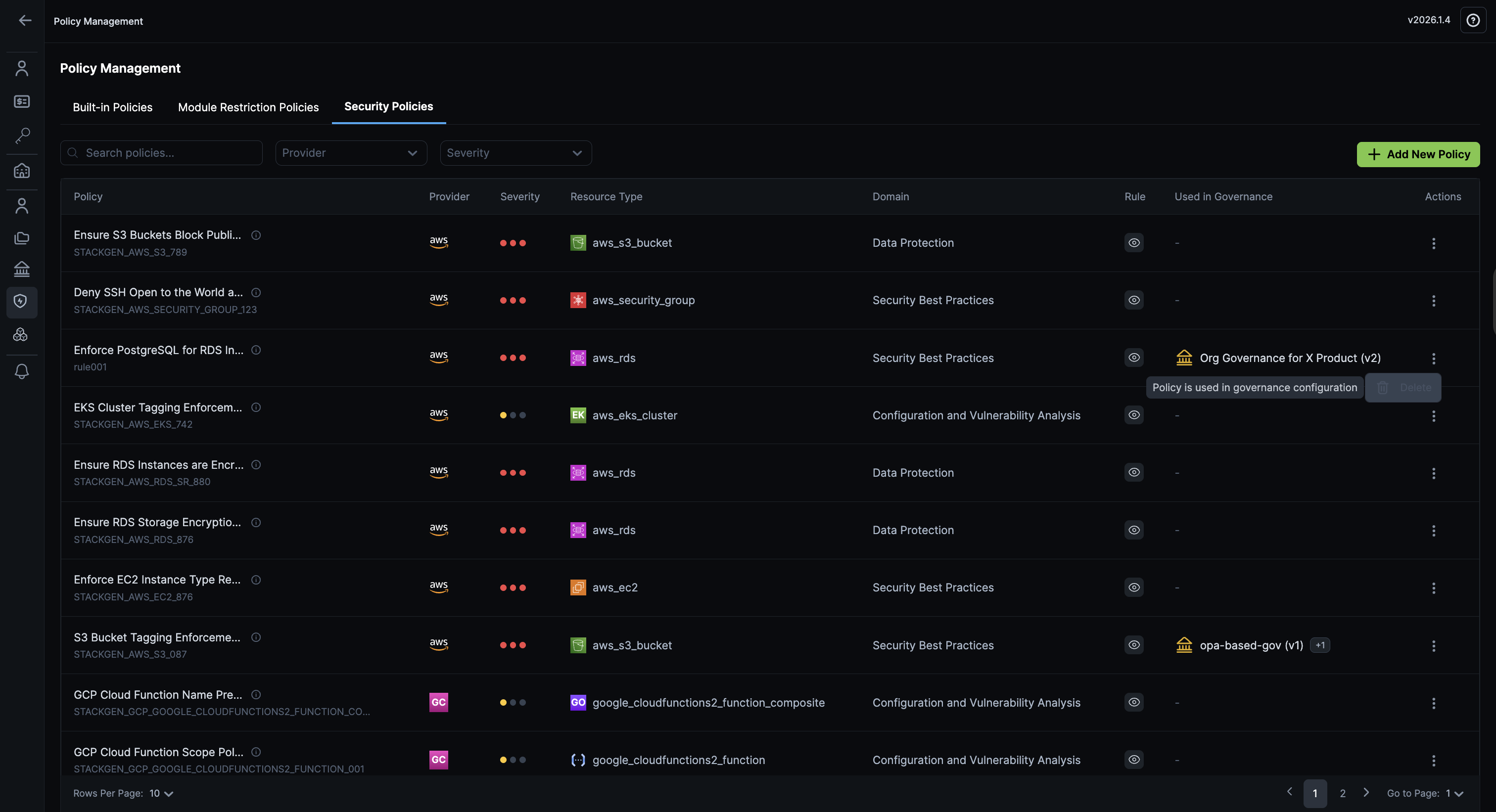
Click the ellipsis ⋮ icon next to the Security Policy you want to delete.
-
Click Delete.
noteSecurity policies that are currently in use cannot be deleted. You'll receive a clear warning if you attempt to delete a policy that's attached to a project or governance rule.
Apply Custom Policies to appStacks
Assign custom policies on the Governance Configurations page. When a policy is attached to a project, StackGen applies it to appStacks that project members create.
For module-level vs resource-level Security Policies, see How StackGen validates custom policies above.